How to Make TikTok Video Ads with AI from Your Product Footage
Quick summary
A TikTok ad needs one clear promise, visible product proof, and a next action in a short vertical cut. Start with the footage and claim you can support, then use ChatCut to shape the edit, generate missing B roll or music, and compare one meaningful variant at a time before publishing.
A TikTok ad can look busy and still fail to answer the viewer’s first question: what is this, and why should I care now? The starting point is a claim you can show. If the product is in your footage, let the opening prove it. If a detail is missing, generate a shot that explains that detail rather than adding decoration.
In ChatCut, create a vertical project and give the composer the audience, product promise, available files, and forbidden claims. For example: “Make a 12 second ad for an afternoon coffee break. Use coffee-machine.mp4 and coffee-beans.mp4, show the pour before the cup, and do not invent a price.” ChatCut returns an editable timeline you can inspect before you add generated B roll, music, or variants.
Start with one audience, promise, and action
Your available materials determine the useful starting point. A product page can supply a brief. A recorded demonstration can supply proof. A product photo can guide a generated scene. Each solves a different part of the ad.
| Ad you need | Start with | Build toward |
|---|---|---|
| Show how a product works | A demonstration and close views of the real product | An opening that shows the action, a short explanation, and a CTA |
| Explain an offer through a presenter | An approved script, a person or AI avatar, and product images | A spoken explanation with product cutaways and captions |
| Create a visual product film | Clear product photos and a reference for the scene | A few generated shots, edited together with readable brand text |
| Refresh an existing ad | The original footage, project, and performance question | A new hook, a different product benefit, or a shorter cut |
Choose how you will buy the placement separately. Spark Ads use your organic post or another creator’s authorized post, with engagement attributed to that post. A standard ad can use a video uploaded for the campaign. A creator style presentation or a video made from a URL describes the creative approach; it does not determine the ad placement or guarantee better performance.
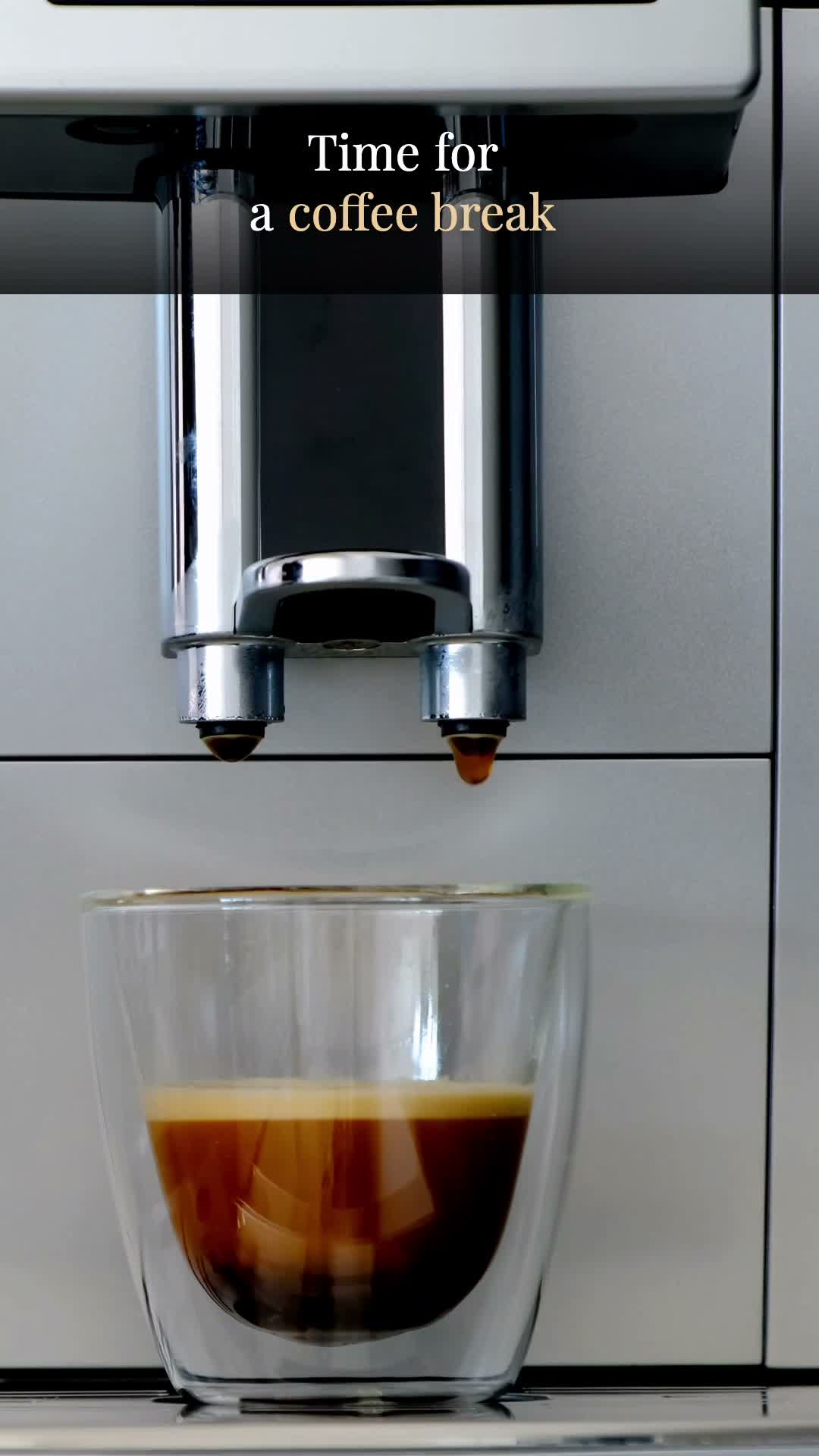
For the exercise below, we made a 12 second café creative from two stock clips. Its job is to invite a menu visit. The footage, copy, and duration are practice choices, with no campaign results attached. For a real café, use its own drinks, name, menu, and destination.
Tell the editor what the footage proves
Open a project and add your footage or product images to My Assets. In the AI composer, use the attachment button or reference an existing asset with Selection Mode. Tell ChatCut which files show the product, which describe the offer, and which are only visual references.
Write down five things before asking for the ad:
- The product and the person you want to reach.
- The situation that makes the product useful.
- The benefit you can demonstrate or substantiate.
- The actual offer and the action you want someone to take.
- The footage, images, logo, and voice you have permission to use.
If you start from a product URL, include the approved offer and product facts in the message too. Check the extracted name, price, and availability before turning them into ad copy. A website may contain several products, an expired promotion, or details that do not apply to your target market.
ChatCut’s Product Ad Video Script Skill provides a workflow for developing angles, writing the script, and matching scenes to the message. Open Skills below the composer, search for the Skill, and choose it. In the marketplace, select Use this Skill. Confirm that it appears in the draft, then add your brief and media. The Skills guide explains this attachment flow.
Here is the coffee brief we submitted. Replace the audience, materials, and desired action with your own:
Plan a vertical TikTok ad for a café aimed at people taking an afternoon break. The goal is a menu visit. Available footage: coffee-machine.mp4 and coffee-beans.mp4. Do not invent a price, discount, or product claim. In a compact table, suggest three creative angles with an opening line and first shot. For the coffee break angle, plan three four second shots with editable screen text and an “Explore the menu” CTA. This is a planning request only. Do not change timelines or generate assets.
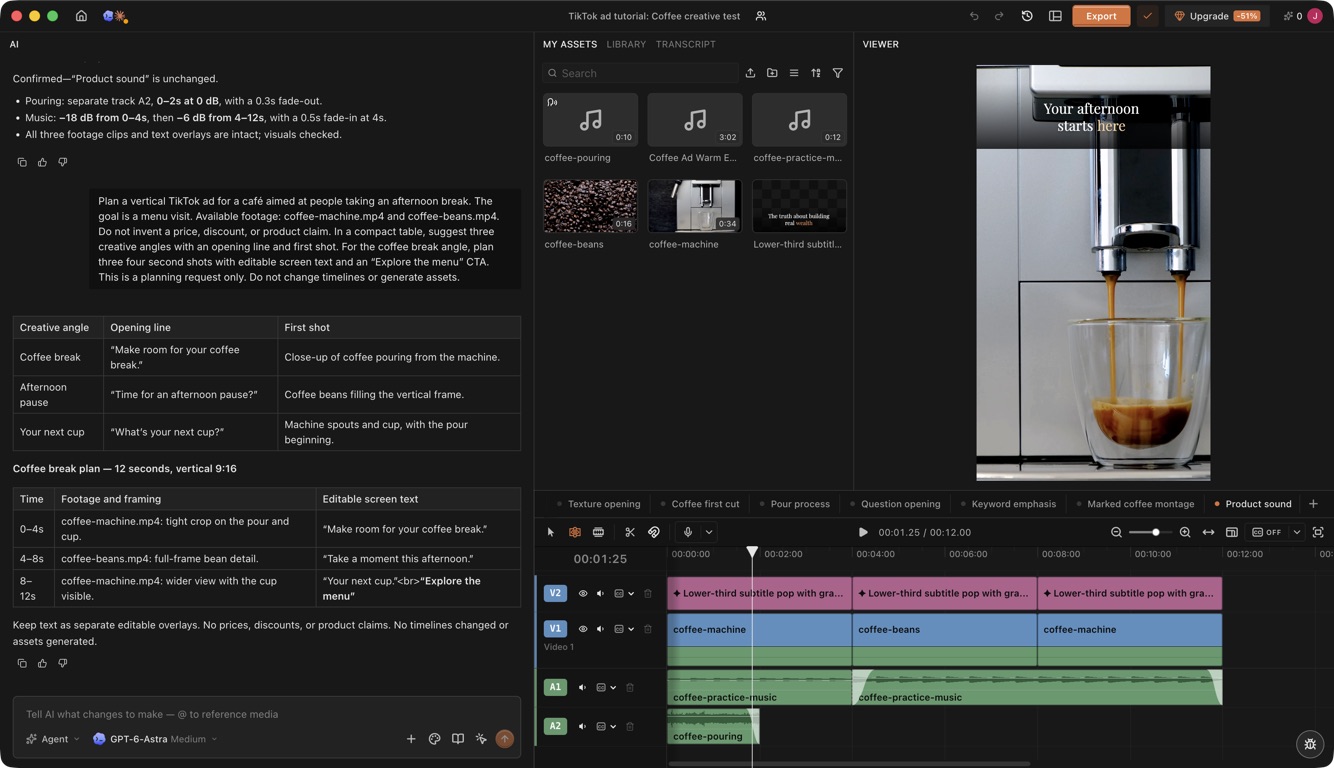
You should have a scene plan you can check against the materials. If the plan says “show the waterproof result” and you have no substantiated demonstration, remove that claim or supply the evidence. An attractive generated scene cannot establish product performance.
Let the first seconds answer the viewer’s question
Decide what the viewer sees before writing a long introduction. For a kitchen tool, show the task it solves. For an app, show the useful screen. For a coffee shop, the pour itself can be the opening.
TikTok’s 2023 Creative Codes guide reports that 90% of ad recall impact is captured within the first six seconds. That is a platform reported finding about recall, not a conversion forecast for your ad. It supports a practical choice: give the opening your clearest product action and message. TikTok’s performance creative guidance, updated in June 2025, also recommends introducing the proposition within the first three seconds and prioritizing the hook within six.
Refine the plan into the words and shots you want to use. Our assembled practice cut uses this sequence:
| Time | Picture | Editable screen text | Purpose |
|---|---|---|---|
| 0 to 4 seconds | Espresso pouring into a glass | Your afternoon starts here | Establish the product and occasion |
| 4 to 8 seconds | A close view of coffee beans | Make room for your coffee break | Continue the coffee theme |
| 8 to 12 seconds | The cup at the machine | Your next cup. Explore the menu | Give the viewer one next step |
Twelve seconds is enough for this small exercise. A product that needs explanation may need longer. Read every line aloud while watching the planned shot. If the message outruns the picture, simplify the wording or extend the scene.
Use real product evidence before filling gaps
Set the timeline to 9:16. Ask ChatCut to assemble the selected shots in the planned order, or place them on the timeline yourself. Keep footage on one track, text above it, and music on a separate audio track so you can change each independently.
This is the request used to build the coffee timeline:
Build a new 12 second vertical timeline named “Coffee first cut” from the coffee footage. Use the pour first, then the beans, then the cup. Give each section four seconds. Add “Your afternoon starts here”, “Make room for your coffee break”, and “Your next cup. Explore the menu” as separate editable text layers in that order. Keep the cup and both spouts visible in the portrait frame. Mute the original clip audio and use coffee-practice-music as the supplied music bed. Preserve the existing timelines.
Keep the footage, graphics, and music on separate tracks. In the project below, each four second scene has its own editable text layer, so changing a headline can leave the footage and music in place.
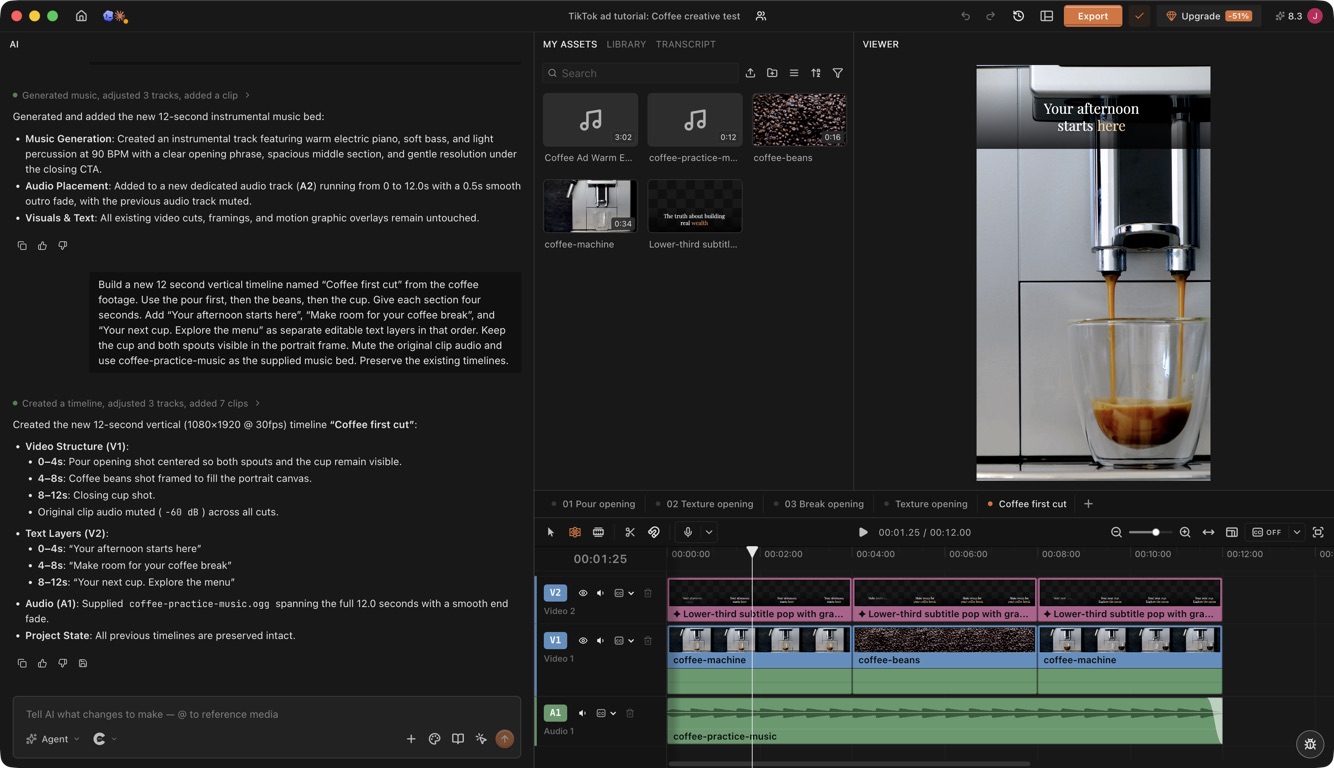
For spoken creator footage, start by selecting the useful explanation from the Transcript. Remove repeated takes and keep the meaning intact. Then place product footage over the matching words. Read the retained sentence with the cutaway playing: the image should demonstrate what the person is saying. The Transcript editing controls explain how selecting and deleting words changes the cut.
Match product cutaways to the spoken claim
A real ChatCut tutorial shows this input and result clearly. The creator requests: “I just uploaded b roll footage of the typewriter, study these, and put them in the correct places.” ChatCut maps the uploaded shots to the spoken explanation, including the keyboard and screen, then places them above the main recording.
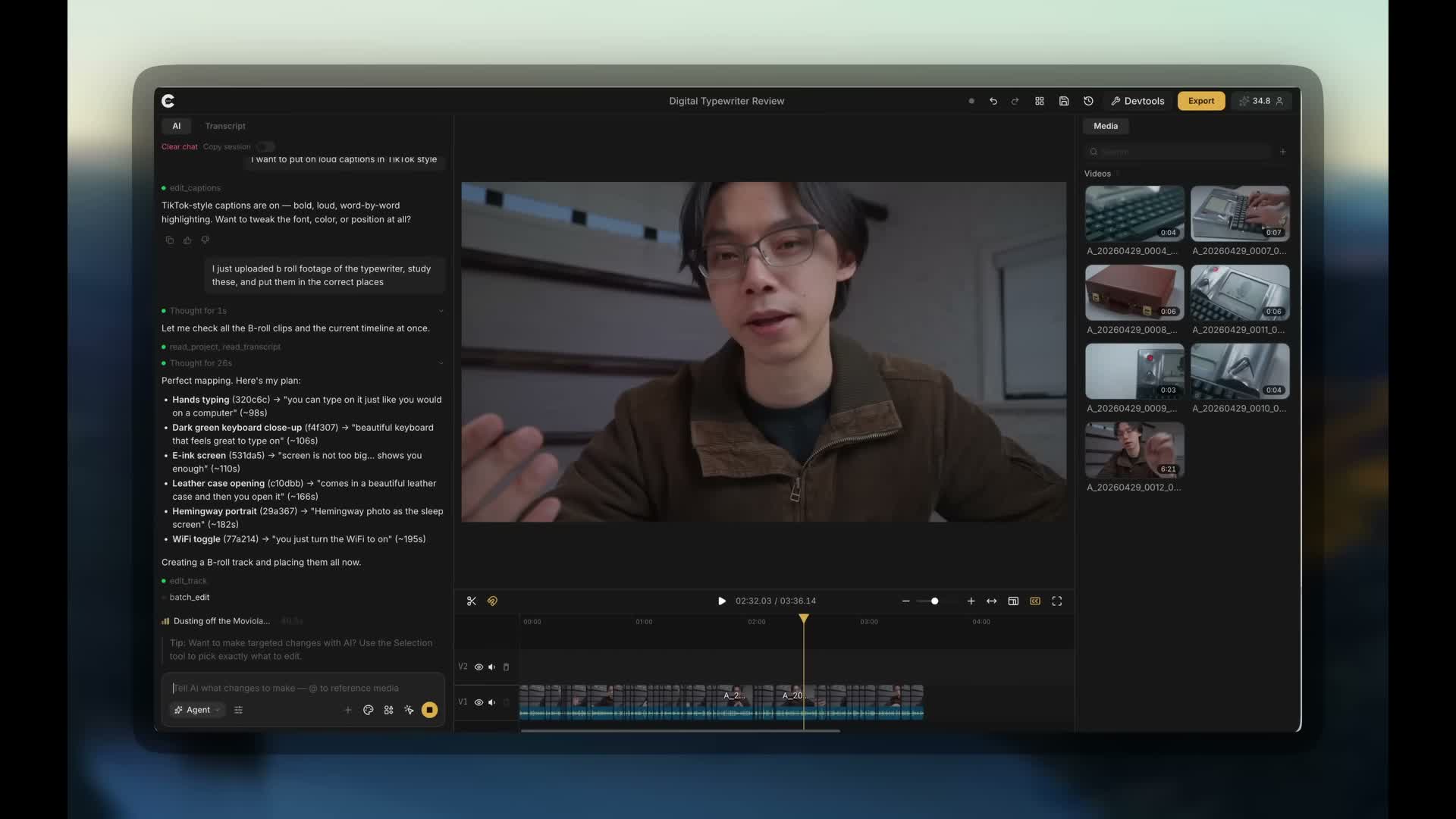
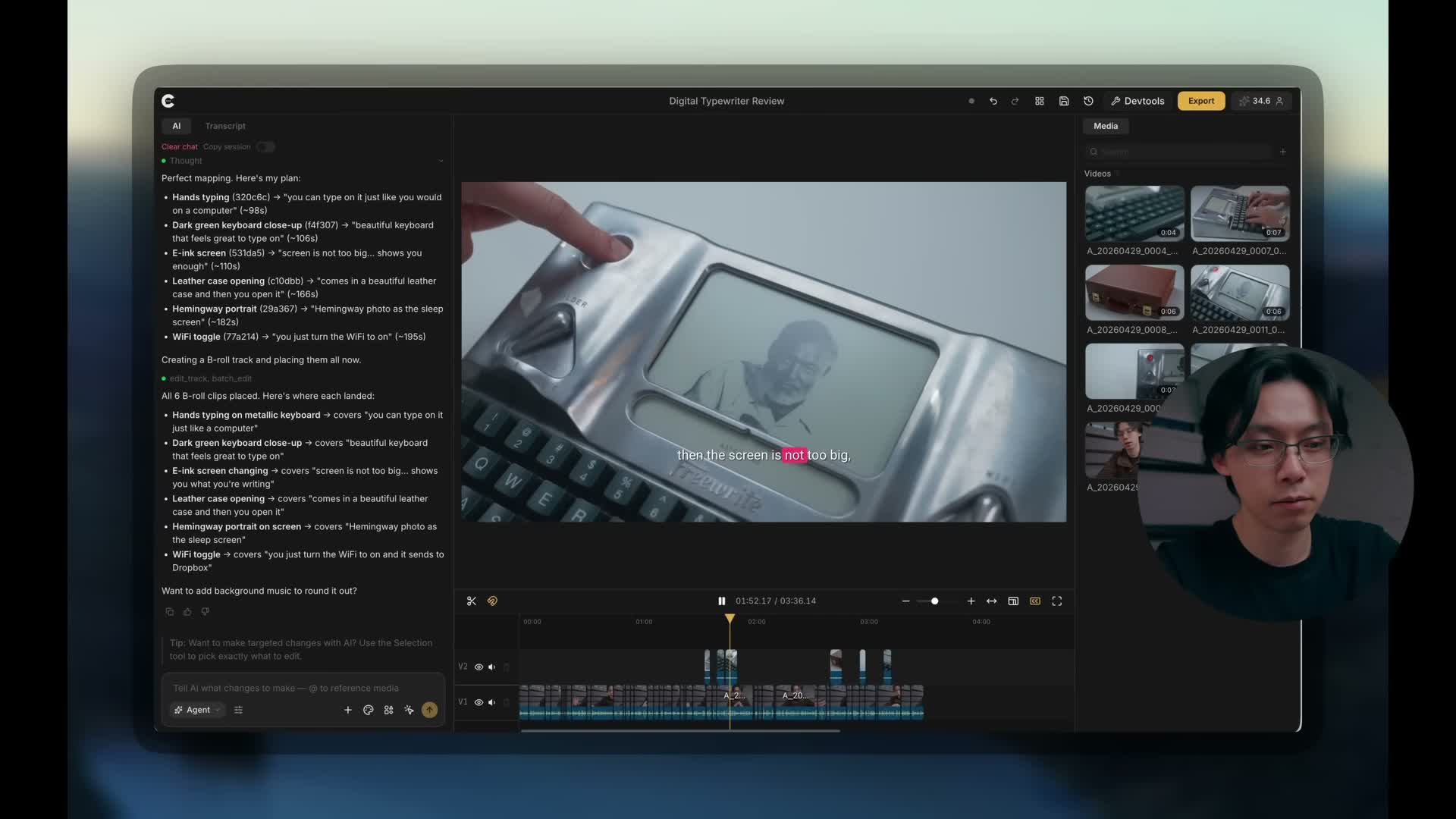
For an ad, name the visible action and the spoken sentence that it demonstrates. A bag capacity claim needs the actual packing shot at that sentence, so you can judge whether the placement is right. For the complete conversational workflow, follow how to edit a video with ChatGPT and ChatCut.
Add a missing explanation, not a decorative shot
B roll is supporting footage placed over or between your main explanation. For an ad, it might show the product in a setting, provide a close view, or give a spoken idea a visual setting. ChatCut can generate a missing shot from text, product images, frame references, or a supported source video, then let you edit that shot alongside the footage you filmed.
Start with the sentence or timeline gap the shot needs to cover. An atmospheric view of headphones on a desk can illustrate a work setting. A claim about battery life still needs substantiation. Choose a real demonstration for product evidence and a generated scene for a visual you cannot readily film.
In ChatCut’s Agent composer, select the relevant sentence or timeline point with Selection Mode, attach the product image, and explain what it controls. You can stay in Agent mode and describe the complete task, or use Video Gen for manual setup:
- Switch the composer to Video Gen and select the model below it.
- Open Video settings, then Input. Choose the supported reference or frame operation and add the corresponding media.
- Set 9:16, the available resolution, and a duration long enough to supply the section you need.
- Describe the product, action, setting, camera movement, and details that must stay consistent.
- Check the credit estimate, generate, and inspect the completed asset in My Assets.
- Drag it onto V2 above the relevant spoken line, trim it to that line, and review the transition into the next shot.
The video generation guide lists the current model choices and inputs. For example, Seedance 2.5 supports mixed references, source video editing, and extension; Kling 3.0 supports image based tasks with character or object references. Choose by the input and operation you need. Video generation currently requires Pro and consumes credits. Recheck the slots after switching models.
The generation reference guide distinguishes product identity, composition, movement, and general style references. State the role of each attachment so a lighting reference does not become an unintended product redesign.
The same selection and generation workflow is visible in the published product review tutorial. The creator selects a spoken range and sends:
Around here, generate a video of Hemingway typing on an old typewriter.
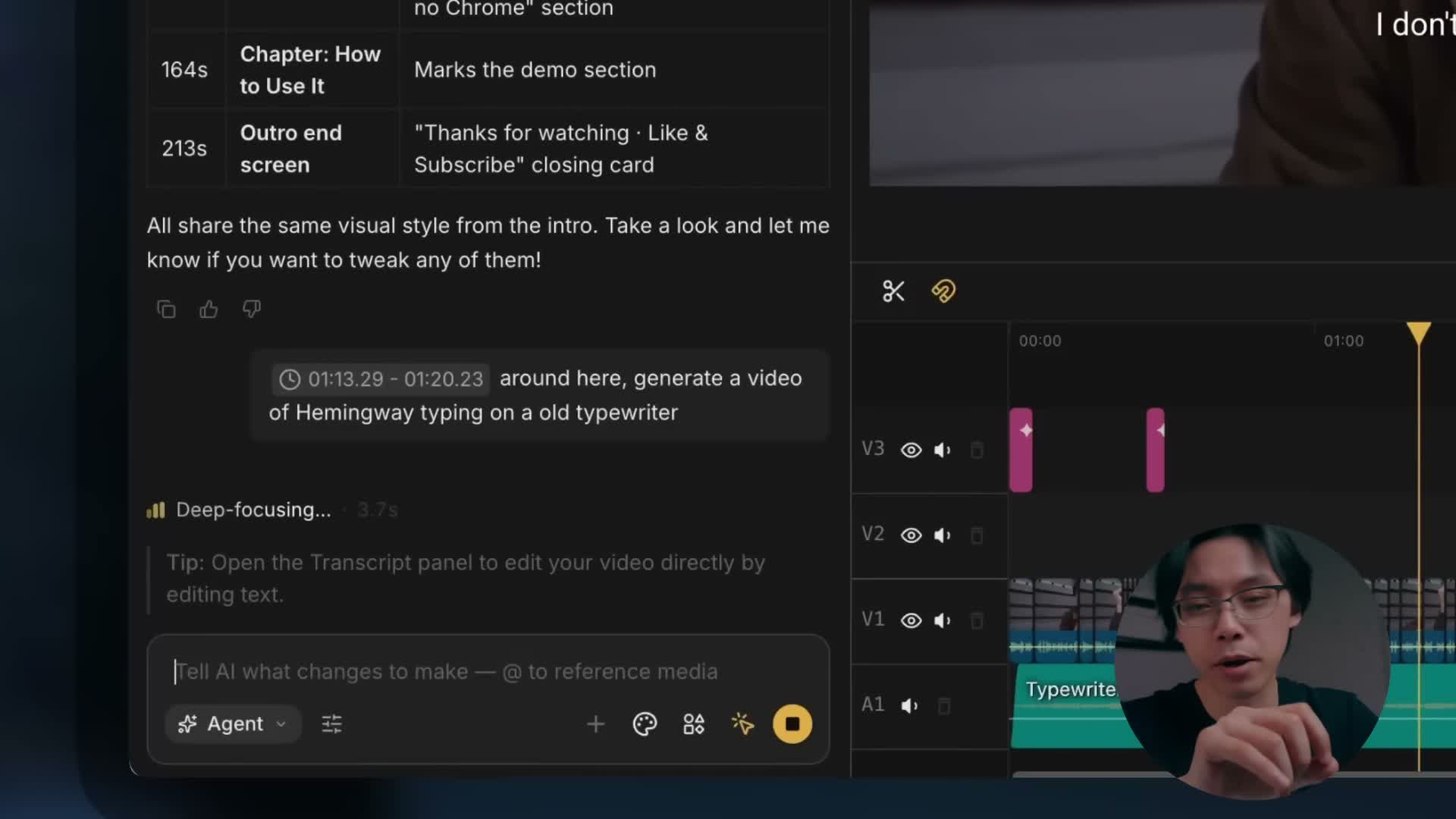
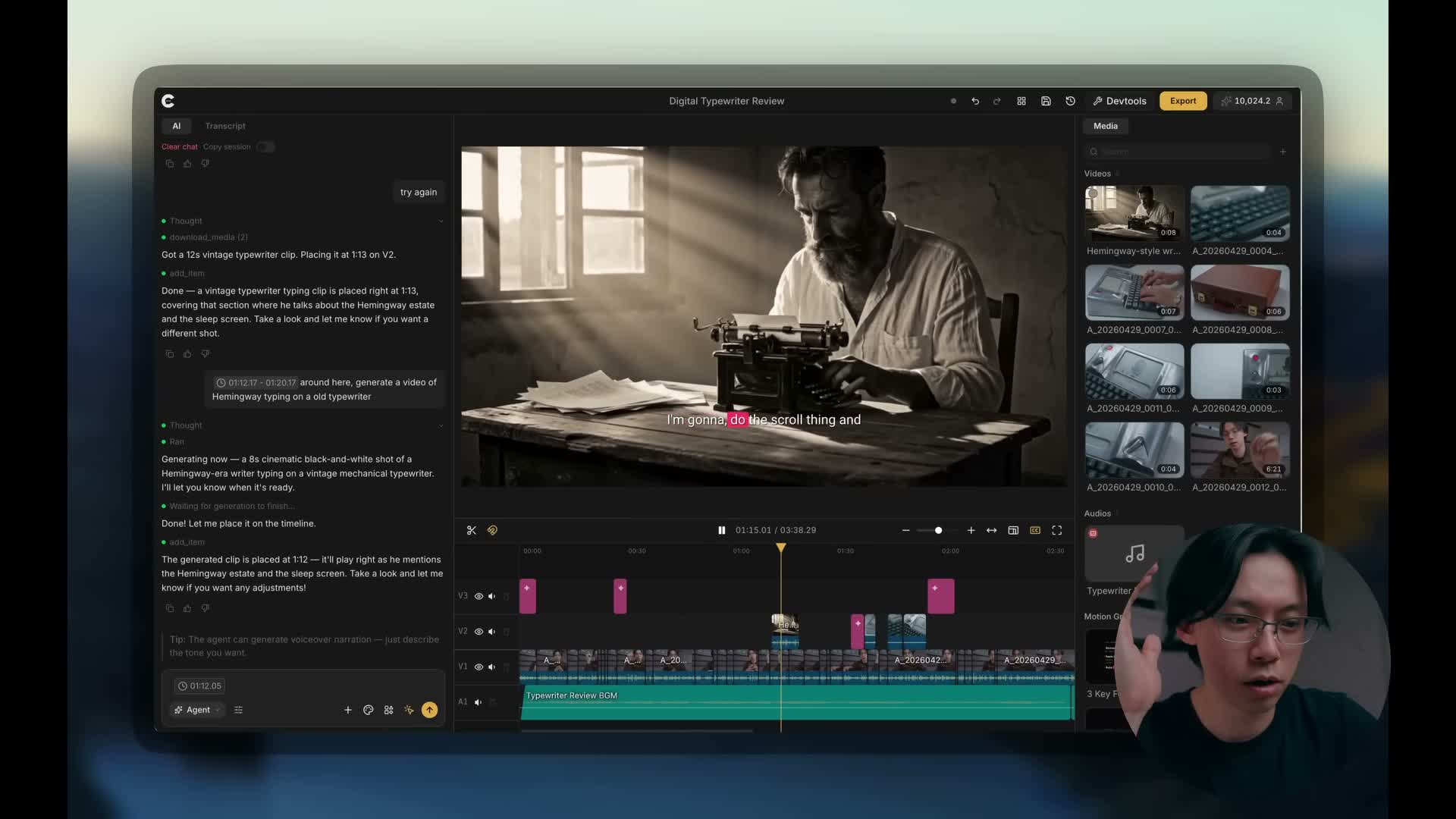
For your own product ad, add the details that the shot needs: product identity, setting, camera movement, and where text will sit. For headphones on a desk, attach the product image, specify a slow camera move toward the ear cup, and use a separate reference for warm window lighting. Leave room for a headline and add that text as an editable overlay after generation.
Choose the model, duration, and resolution in the visible settings, and review the credit estimate before generating. Inspect the result for changing logos, warped controls, altered packaging, and inconsistent product shape. A reference guides the output; it does not guarantee exact reproduction. If a detail matters to the purchase, keep a real photograph or filmed shot for that detail.
Revise the part that misses the brief. If the camera move is too busy, request a slower move while keeping the product and setting. If you need more usable time, the documented Seedance 2.5 route is Video settings → Input → Extend video, with the source clip attached. Extension creates a new asset; review the join before replacing the shot in your edit.
When the generation finishes, preview the asset and check the timeline. If the scene is still only in My Assets, add it at the intended position. Trim it to its useful action and match its color and pacing to the surrounding footage.
Keep prices, offers, and calls to action in editable overlays. This lets you correct the copy without generating the scene again. It also avoids relying on a video model to render small product lettering accurately.
Use an approved script and keep the claim visible
Use a presenter when the ad benefits from explanation. Record a founder or creator, or use ChatCut’s AI Avatars flow for an approved script. In the composer, select Add, then AI Avatars, choose the identity, and supply the script or voice input. Review the generation details before submitting. The finished asset appears in My Assets, ready to place on the timeline. The avatar guide covers the available inputs.
For narration over product footage, choose Voices from the attachment menu and attach the voice to your request. Selecting a voice does not generate audio by itself. Give ChatCut the final words and request the voiceover, then place the result against the scene plan. Keep enough time for the product demonstration and CTA to be understood.
For recorded speech, enable captions and review the product name, numbers, and offer. ChatCut’s caption controls let you correct displayed words without changing the recorded speech. Deleting speech in Transcript is a different operation that changes the cut.
For an ad without speech, use short screen text. The coffee example uses editable graphics for its opening, middle line, and CTA. These are text overlays, not a transcript. A revision can be as direct as:
Change only the last text layer to “See today’s menu.” Keep its timing and the rest of the video unchanged.
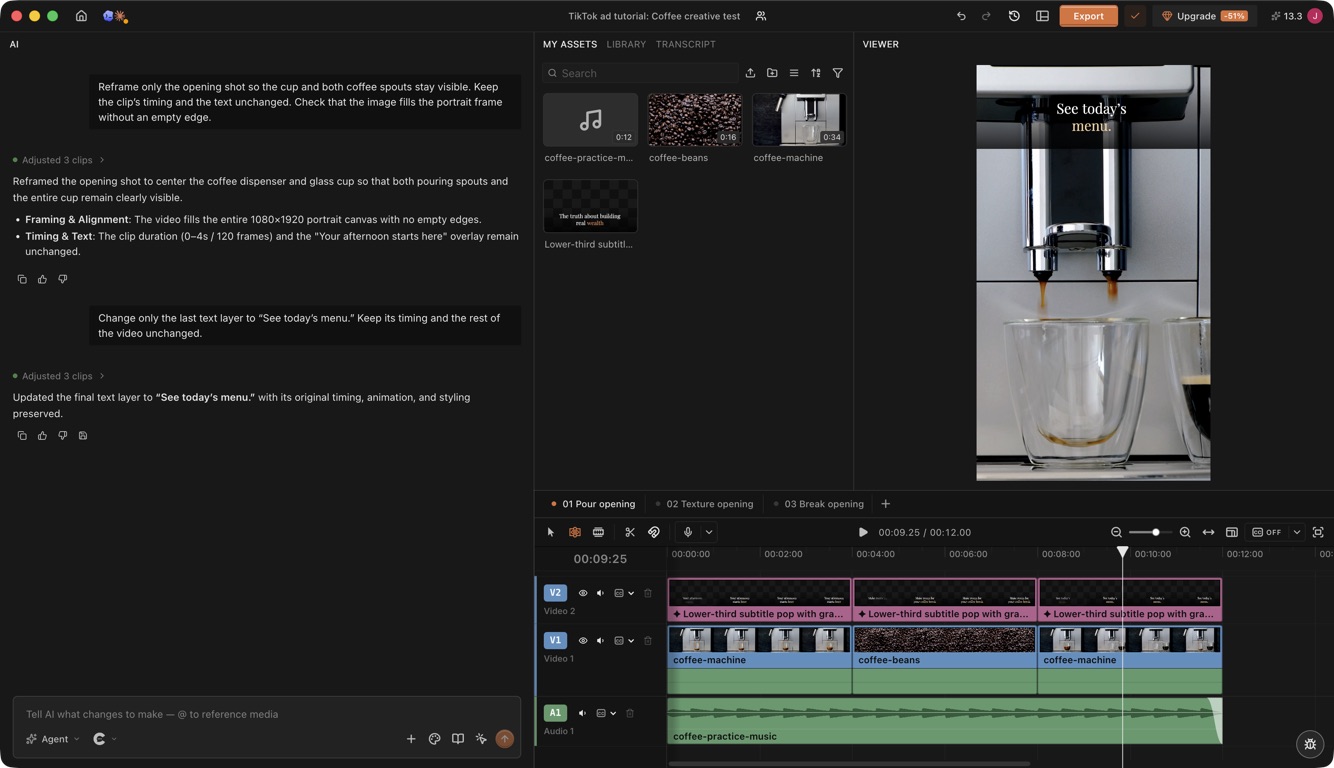
Watch at phone size. If you cannot read a line before the cut, shorten it or leave it visible longer. Keep the product, captions, and CTA clear of TikTok’s interface. The exact safe area depends on the placement and its overlays, so confirm it in the ad preview.
Make the soundtrack support the product moment
ChatCut’s music generation lets you describe a soundtrack for the edit: mood, instruments, tempo, length, and whether it should contain vocals. For the café example, a restrained instrumental bed can support the pour and leave room for the menu invitation. An energetic product launch may need a different arrangement.
In Agent mode, reference the selected video or timeline range and ask for the music and its placement together. You can also attach an image as a mood reference, as shown on ChatCut’s AI Music page. Explain what the image contributes, such as a relaxed afternoon atmosphere.
Generate a 12 second instrumental music bed for this coffee ad. Use warm electric piano, soft bass, and light percussion at about 90 BPM. Start with an audible musical phrase, leave space for the pour, and resolve gently under “See today’s menu.” No vocals. Add it to a separate audio track from the start of the ad. Keep the existing picture and text.
Check the generation estimate before sending. Follow the result in My Assets. If ChatCut has not already placed it as requested, drag it onto an audio track beneath the video. The resulting music is a normal editable clip: move it, trim the selected passage, lower its volume, or replace it without rebuilding the picture edit.
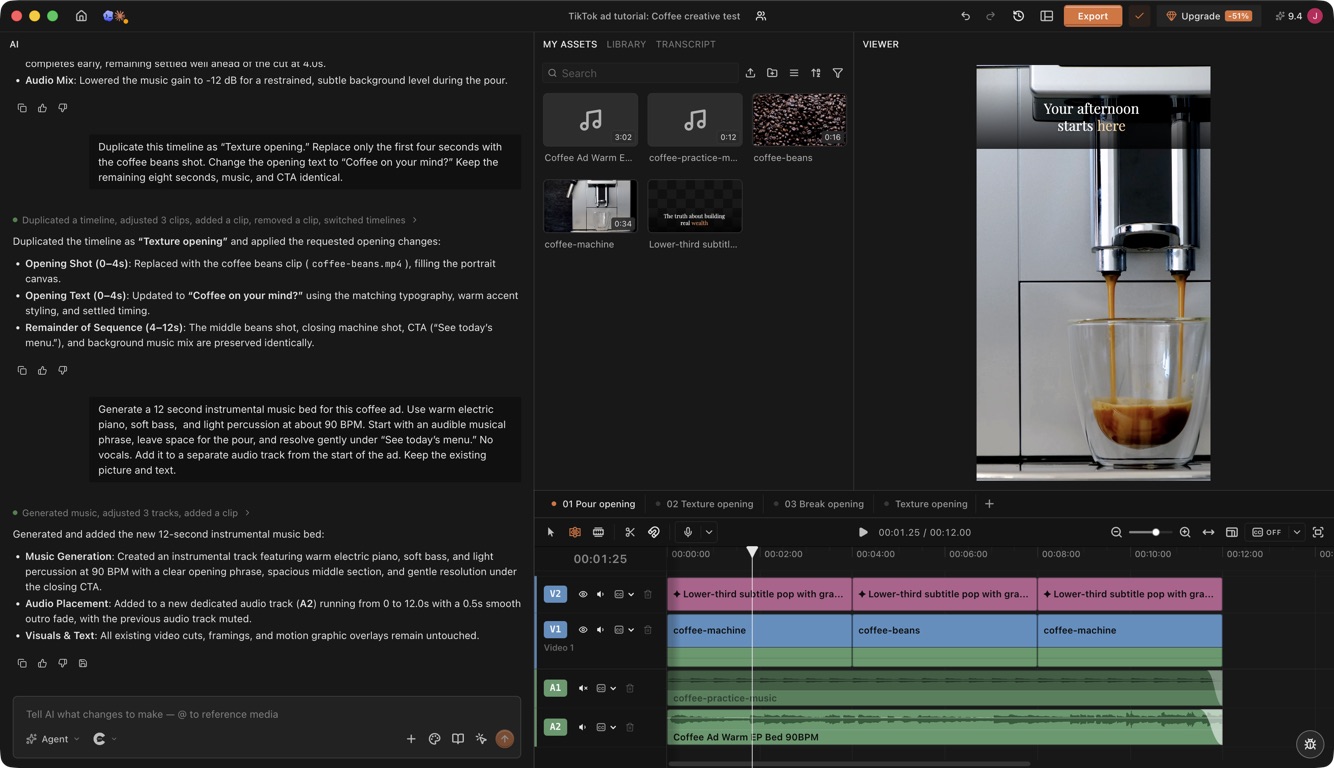
For a spoken ad, expose Audio ducking through the audio track header’s Track controls menu. Set dialogue as the anchor and music as the follower so the music lowers under speech. Then listen through the quietest line and the pauses. If the backing still competes, lower it or request a sparser arrangement.
The published typewriter tutorial at 4:45 shows the same request and separate track workflow in a longer edit.
Check the actual opening and ending with the picture. A requested tempo does not align your cuts automatically, and a requested duration still needs verification. If the percussion competes with the product sound or the ending overruns the CTA, revise those details and compare the replacement with the same cut. ChatCut describes its generated tracks as original and royalty free; retain the applicable usage terms for the ad. The earlier coffee export uses a separately composed practice bed, not this generation prompt.
Carry taste through references and explicit constraints
ChatCut’s creative advantage is that you can give editing, generated assets, and graphics the same product context and refine them in one project. Good taste shows up in the decisions: a cutaway explains the line being spoken, the headline leaves the product visible, and the music supports the occasion. The typewriter example above demonstrates one of these decisions by matching uploaded product shots to the relevant explanation.
The Product Ad Video Script Skill adds another layer of direction. Its published workflow reads the audience, benefit, proof, and offer, then maps each script beat to a visual. It calls for new visuals only when the script needs them and checks pacing, readability, brand fit, and CTA clarity. That gives the edit a purpose for each shot.
For typography and graphics, open the palette icon labeled Design Style below the composer. Choose a Featured style, or create one in My Styles with your colors, fonts, logo, reference images, and written rules. Design Styles guide subsequent generated Motion Graphics, including headlines, product callouts, and end cards.
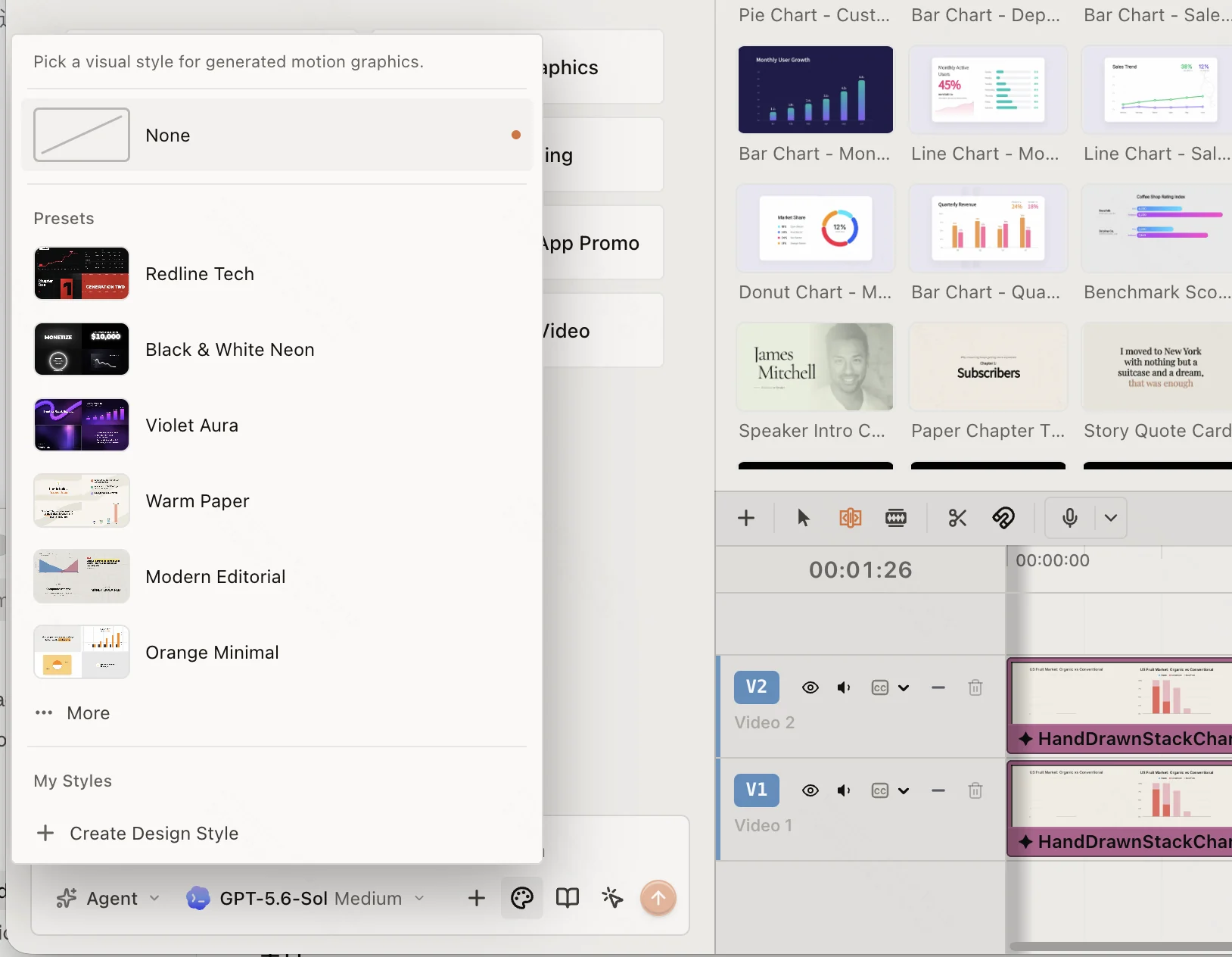
For a café, you might choose cream text, a warm accent, generous spacing, and gentle entrances. Save those choices for the graphics, then explicitly carry the warm lighting reference into the B roll prompt and the relaxed mood into the music prompt. Design Style does not automatically grade existing footage, rewrite the soundtrack, or restyle graphics already on the timeline.
Make a correction in terms of what the viewer should notice:
Keep the cup as the main focus. Move the headline above it, use the same cream and warm accent colors as the end card, and let the text settle before the cut. Keep the music restrained during the pour. Change only these details.
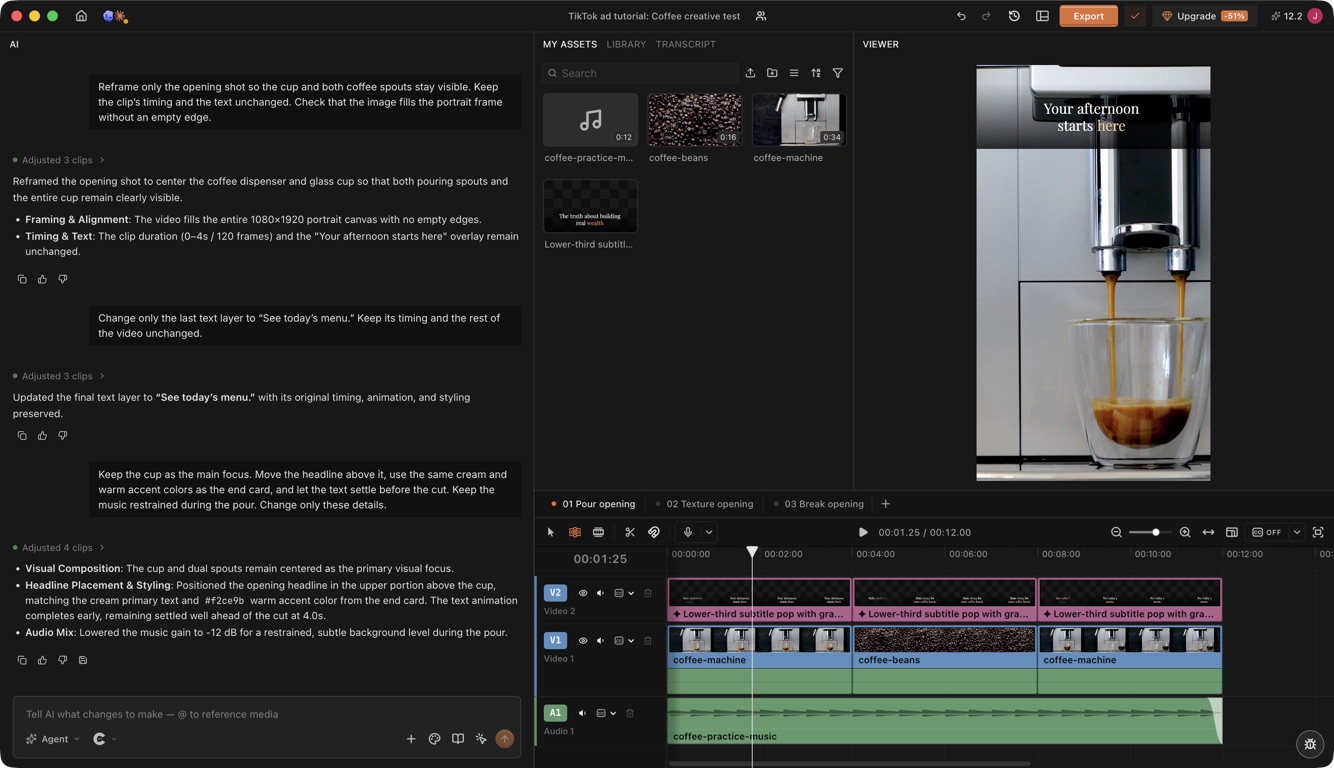
Separate graphics, video, and audio layers let you make that revision while retaining the useful parts of the cut. This control helps you develop a coherent style across ad variants. Judge the result against the brief and the actual preview; aesthetic quality still depends on the references, generation, and editorial choices in that project.
Protect the product when a wide source becomes 9:16
A 9:16 canvas does not guarantee useful framing. Our coffee source is wide, and the cup sits away from its center. Filling a portrait frame from the center cut into the subject, so we repositioned the shot before exporting.
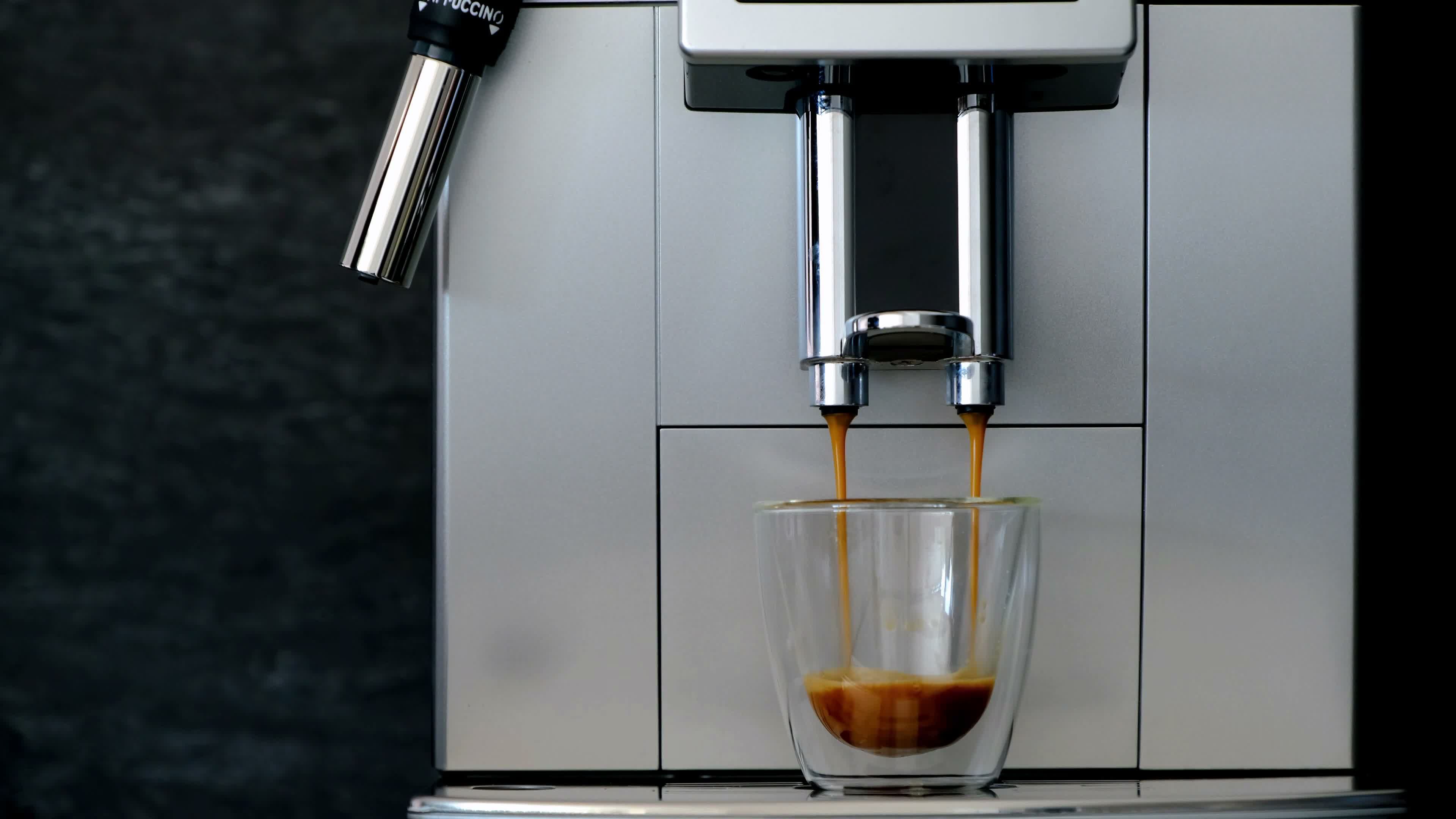
Select the affected clip, adjust its position in the portrait frame, and play through the whole shot. For this example, the priority was keeping the glass and both spouts visible during the pour. Check the entry and exit too: a cup that moves later in the shot can leave a composition that looked correct at the start.
You can also request a targeted correction:
Reframe only the opening shot so the cup and both coffee spouts stay visible. Keep the clip’s timing and the text unchanged. Check that the image fills the portrait frame without an empty edge.
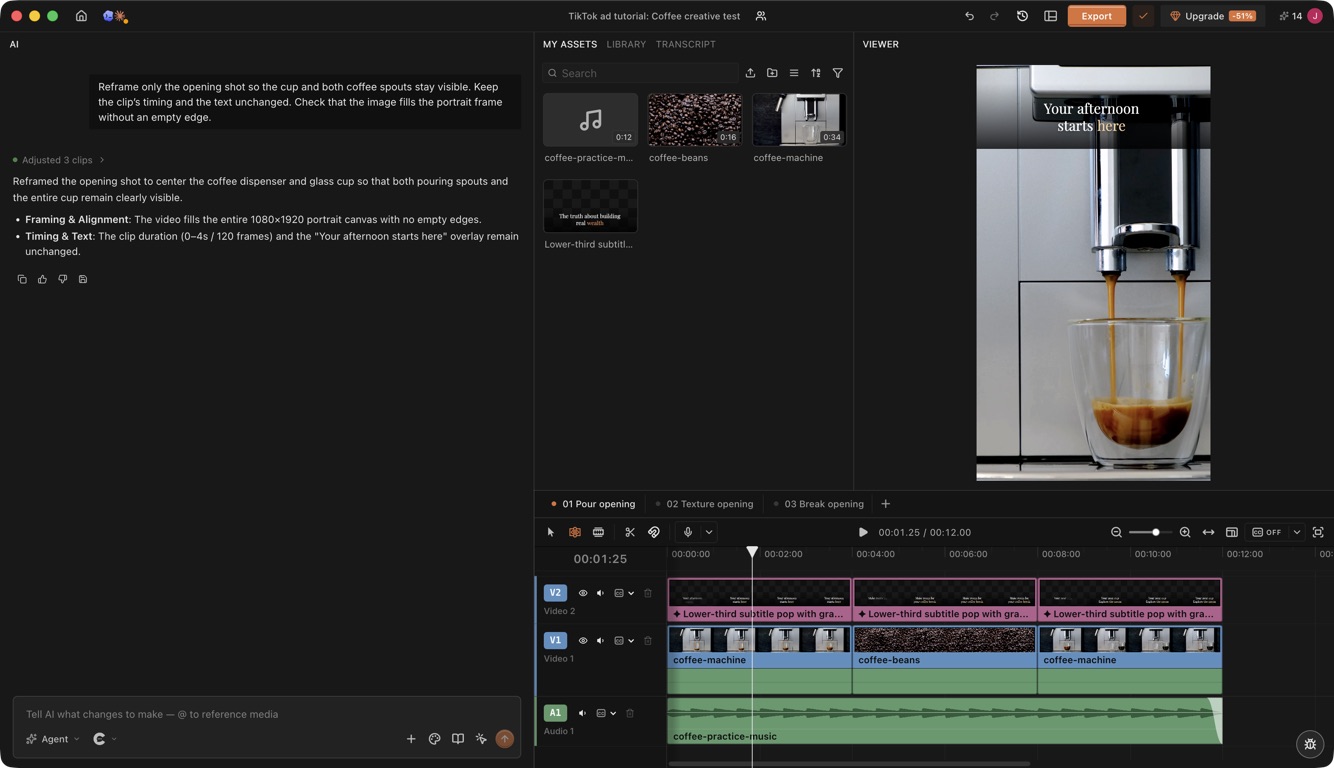
For a product label that cannot fit legibly, use a separate close shot or a different composition. Avoid stretching the source just to fill the canvas.
6 TikTok ad editing techniques to try in ChatCut
TikTok’s Next 2026 trend report points toward real processes and people, comments as a creative surface, and demonstrations that explain the reason to buy. Those are useful directions for choosing your story. The first three approaches below apply them to an ad; the remaining techniques shape its pacing, text, and sound, drawing on TikTok’s Creative Codes. These recipes translate the sources into practical edits you can test with your own material.
Before choosing a treatment, open TikTok Top Ads, select your market, objective, and recent date range, and search for products like yours. Note the first shot, the buyer question, the demonstration, and the CTA in several relevant ads. The dashboard contains advertiser authorized examples, so use it for inspiration rather than treating it as a complete market sample. Borrow a storytelling approach that fits your product.
In ChatCut, open the AI panel in Agent mode. Use Selection Mode below the Prompt field to select the clips, words, or timeline point you want changed. Check that the reference chip appears before sending an instruction. The durations below are starting choices for each exercise.
1. Turn a real process into a short story with jump cuts
A packing order, café preparation, or product assembly gives viewers something concrete to follow. TikTok’s 2026 report highlights interest in behind the scenes moments. Preserve the useful actions and the person doing them; cut waiting time between actions.
Place the recording on V1. Use Split and trim in the Timeline to keep the start, useful middle, and completed result of the process. For narration, remove redundant words in Transcript, then replay each join to check that the sentence still makes sense. In our café practice, the instruction uses the same process story with an observable beginning, middle, and result:
Use coffee-machine.mp4 to show the pour beginning, the pour continuing, and the finished coffee, in that order. Remove waiting between actions with straight cuts. Make a new nine second vertical timeline named “Pour process”. Keep the source at normal speed and add “Watch the pour” as editable text above the cup. Leave the existing timelines unchanged.
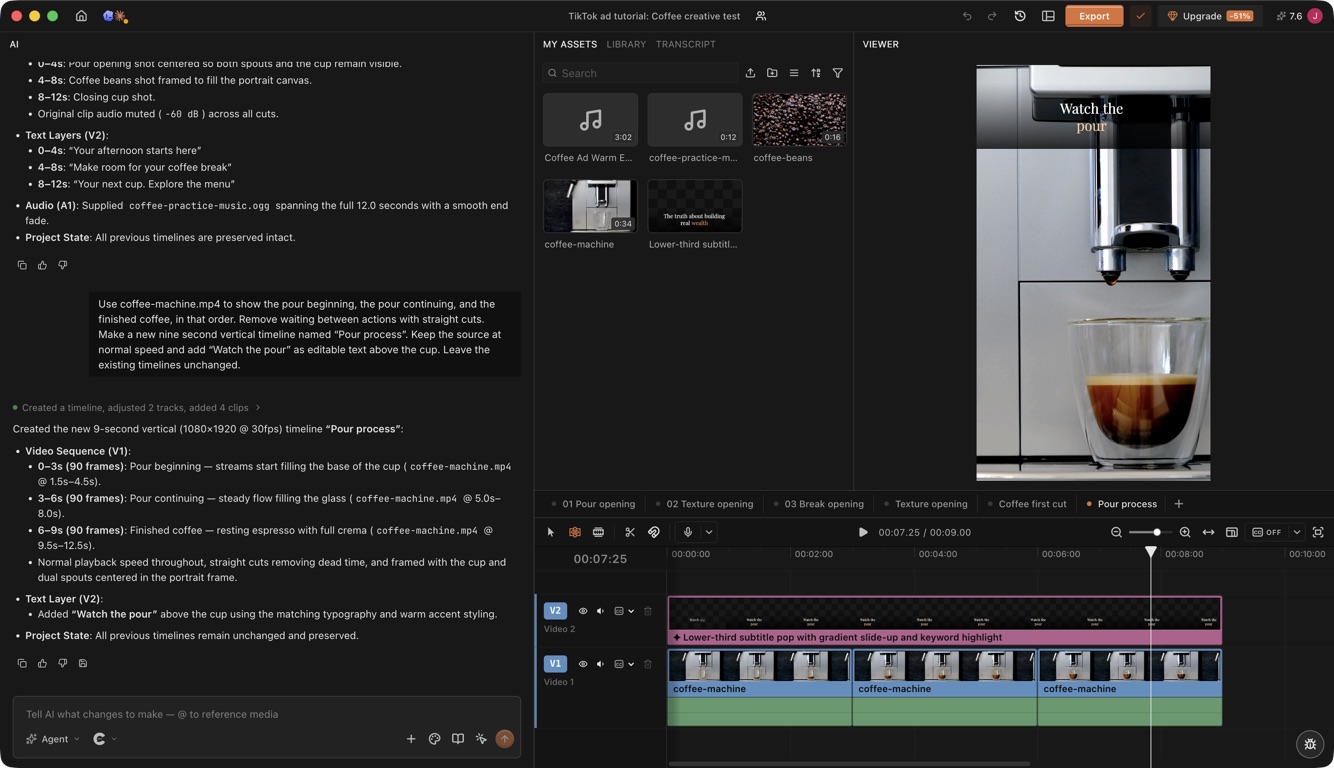
Play through the joins at normal speed. For a packing video, restore any missing insertion or zipper action. For the coffee cut, check that the viewer can follow the pour into the finished cup. A shorter process should still show how the result happened.
2. Open with a customer question, then show the answer
TikTok’s report encourages brands to use comments as a creative surface. A useful ad can start with a real recurring question, such as “Will my laptop fit?”, followed immediately by the demonstration. Use an actual comment with permission, or phrase the question in your own text without inventing a customer identity.
Put the demonstration on V1 and add the question as a separate Motion Graphic above it. Include the wording, placement, and timing in the request. Our café exercise uses a simple question hook leading into the pour:
Duplicate “Coffee first cut” as “Question opening”. Replace the opening text with an editable “Need a coffee break?” question card for the first two seconds. Then show “Watch the pour” from two to four seconds while the coffee pours. Keep the text above the glass and both spouts. Keep all footage, music, and the remaining text unchanged.
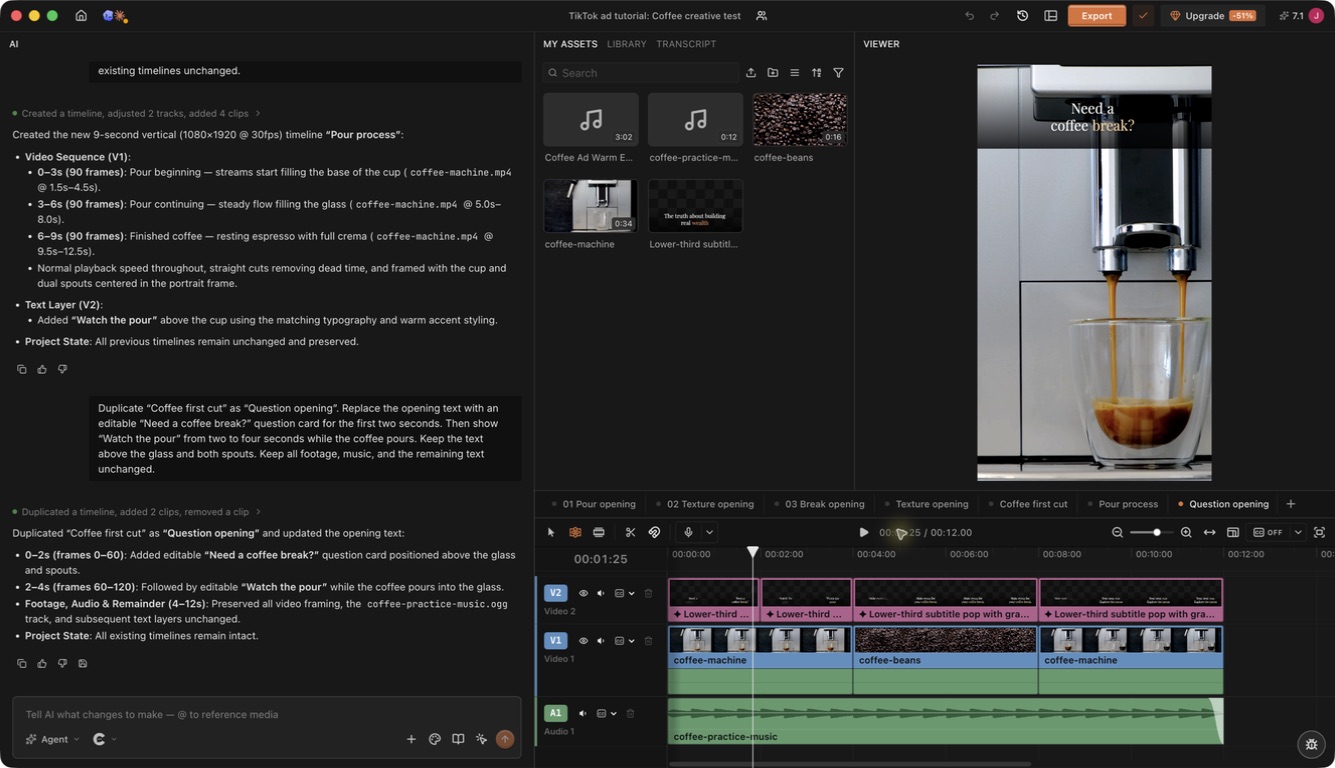
Select the graphic on the timeline to edit its exposed text in the Viewer. Play the opening at phone size: the question needs enough time to read, and the next shot must answer it. Use a plain question card if you have no real comment to quote.
3. Cut from the benefit to visible product proof
The report’s “Emotional ROI” direction emphasizes explaining why a purchase is worthwhile through relevant demonstrations and honest reviews. For an ad, connect each benefit to the action that establishes it. A bag’s capacity needs a packing shot; an app’s useful feature needs the actual screen recording.
Keep the explanation on V1 and its audio audible. Place the matching close shot on V2 over the relevant phrase, as the request and result screenshots above show. That demonstration uses this instruction:
I just uploaded b roll footage of the typewriter, study these, and put them in the correct places.
For a bag ad, the corresponding operation is to place the actual bottle insertion shot over the sentence about the side pocket. Check the product, action, and spoken wording together. If the footage shows only a hand holding the bottle beside the bag, it does not yet demonstrate the claim. Supply the missing shot or revise the line. Keep footage used as evidence at its original speed when timing matters to the claim.
4. Emphasize the important words in captions
Caption emphasis helps a viewer pick out the product, benefit, or offer while following the speaker. TikTok’s Creative Codes includes text overlays among its attention techniques. Choose a few useful words instead of making every word compete.
Turn on Captions in the playback controls. Open the chevron for Caption style and try TikTok Pop or a simpler style that fits the ad. In the caption Content panel, select a word or phrase and apply its local color, background, or emphasis controls. ChatCut’s caption guide documents these controls separately from transcript editing.
For an ad without speech, use editable screen text. This request refines the café overlay:
Duplicate “Question opening” as “Keyword emphasis”. In the text over the beans from four to eight seconds, keep “Make room for your coffee break” and emphasize only “coffee break” in warm gold. Keep the other words cream and the text in the same upper position. Keep the footage, timing, music, and all other text unchanged.
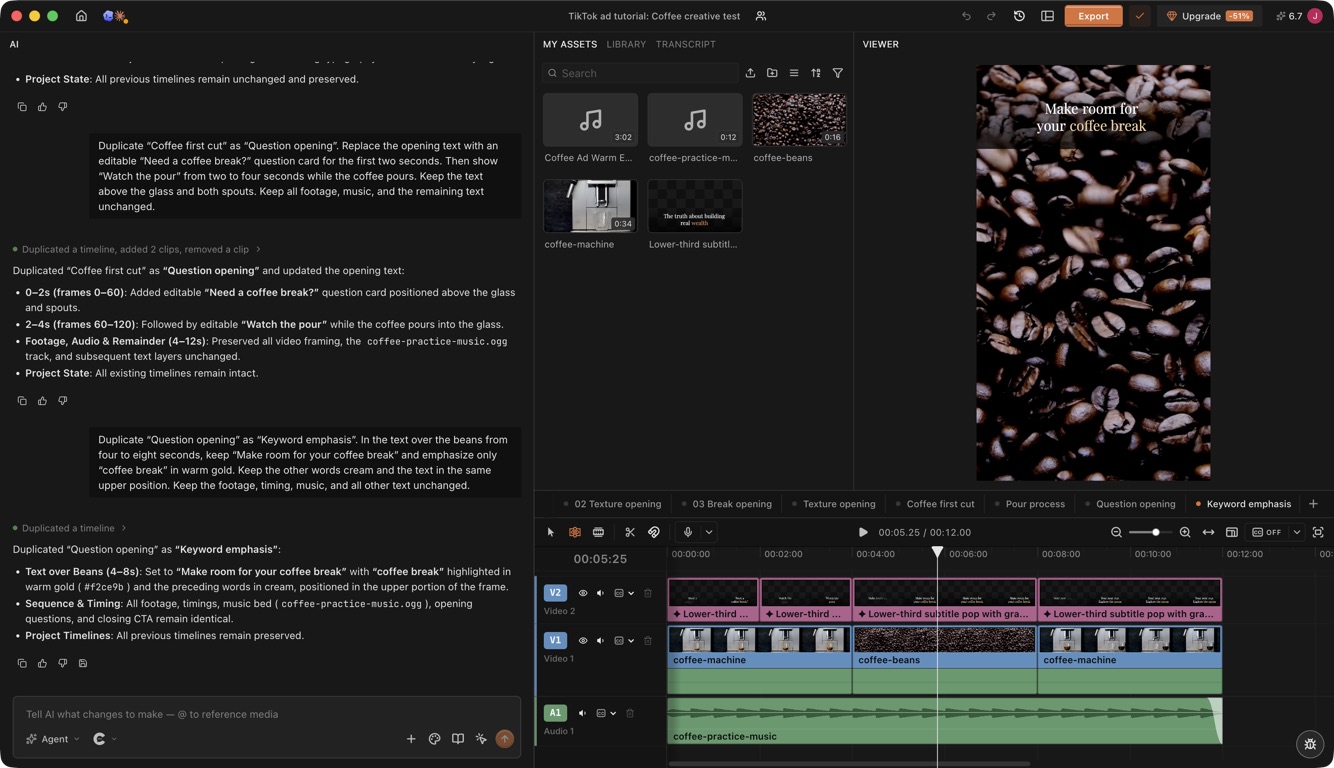
Watch once with sound off. The offer should be understandable, the product should remain visible, and the text should fit inside TikTok’s ad preview. Correcting a caption changes displayed text; it cannot correct an inaccurate spoken claim.
5. Cut on movement or musical beats for a product montage
Use a montage when several product details are worth seeing, such as the clasp, lining, and packed interior of a bag. TikTok’s Creative Codes discusses scene changes, movement, and music as attention techniques. A match cut connects two shots with similar movement or composition, such as a hand reaching toward a clasp followed by a closer view of the same action.
Put a cleared music track on A1 and the product shots on V1. Listen for the accents you want to use, pause at each one, and add Timeline markers using the shortcut shown in Keyboard shortcuts. Trim or move the clips so their cuts land on those points. Markers are guides; they do not cut the video for you.
Our coffee exercise uses fixed practice markers at two and four seconds to demonstrate placing cuts at specified points. These timings are editing choices, not automatically detected musical beats:
Create a new eight second vertical timeline named “Marked coffee montage”. Use two seconds of the pour, two seconds of the beans, and four seconds of the finished cup in that order. Add timeline markers at two and four seconds and align the straight cuts to those markers. Use coffee-practice-music on a separate audio track. Add “Explore the menu” as editable text over the final cup. Keep the existing timelines.
The first pass chose an empty glass for the ending. Checking the Viewer caught that mismatch, so we sent a correction that specified the source range:
The final shot shows an empty glass instead of the finished coffee. Replace only that shot with coffee-machine.mp4 from 8 to 12 seconds of the source. Keep its timeline position at 4 to 8 seconds, the two markers, the CTA, and the music unchanged.
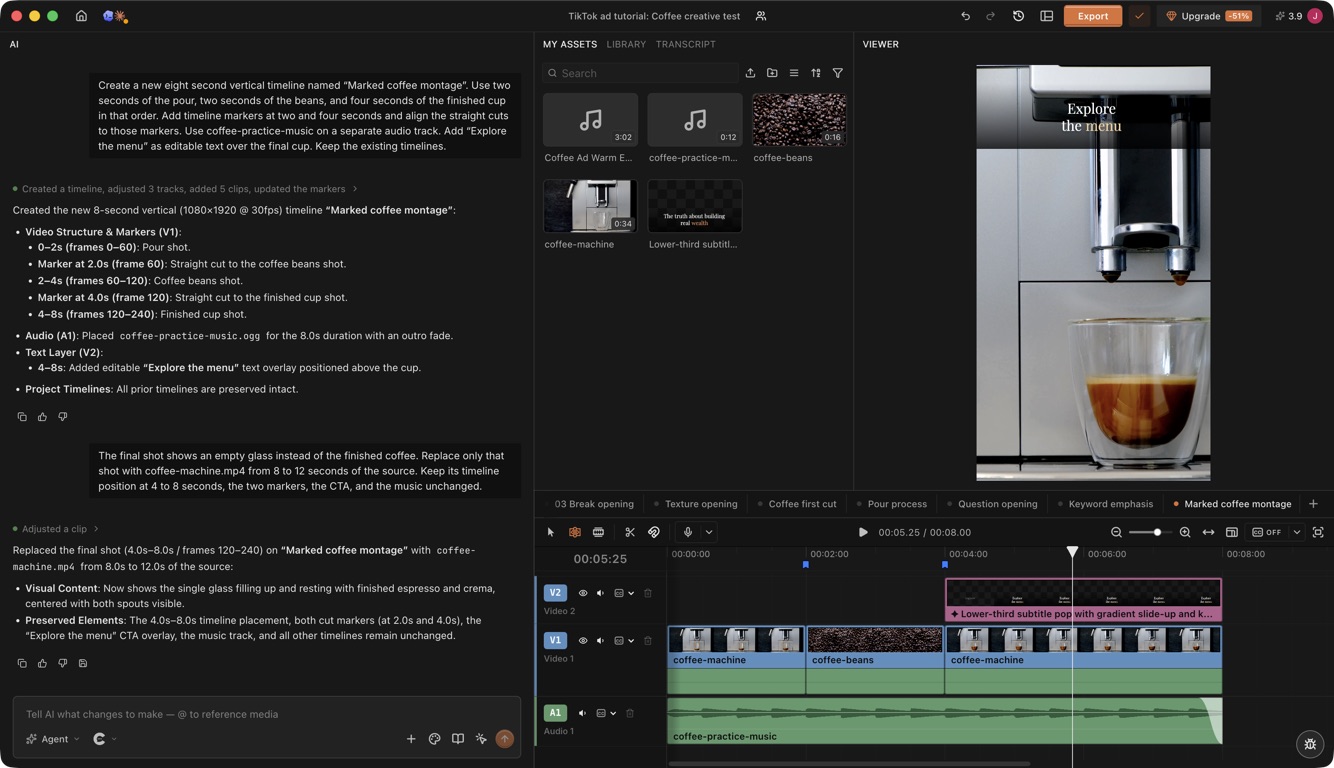
Replay the montage with sound, then without it. If the rhythm hides an important detail, lengthen that shot even if it crosses a beat. Keep the timing of any demonstrated product result truthful.
6. Bring product sounds forward for a sensory opening
A pouring drink, a crisp package opening, or a clasp clicking shut can carry the opening without narration. TikTok’s Creative Codes specifically names ASMR and demonstrations as uses for sound. Use this treatment when the sound belongs to a visible action and helps the viewer experience the product.
Keep usable recorded audio, or place a suitable cleared effect from Library → Sound Effects on its own audio track. Move and trim it to the contact frame. Lower the music under that moment, then return it for the following scene. Our coffee source has a silent audio stream, so this request uses a library effect:
Duplicate “Coffee first cut” as “Product sound”. The source audio is silent. Add a pouring sound from the sound effects library on a separate audio track for the opening two seconds. Lower the music under it, bring the music back when the beans shot starts at four seconds, and keep the cuts and text unchanged. Do not generate a paid sound.
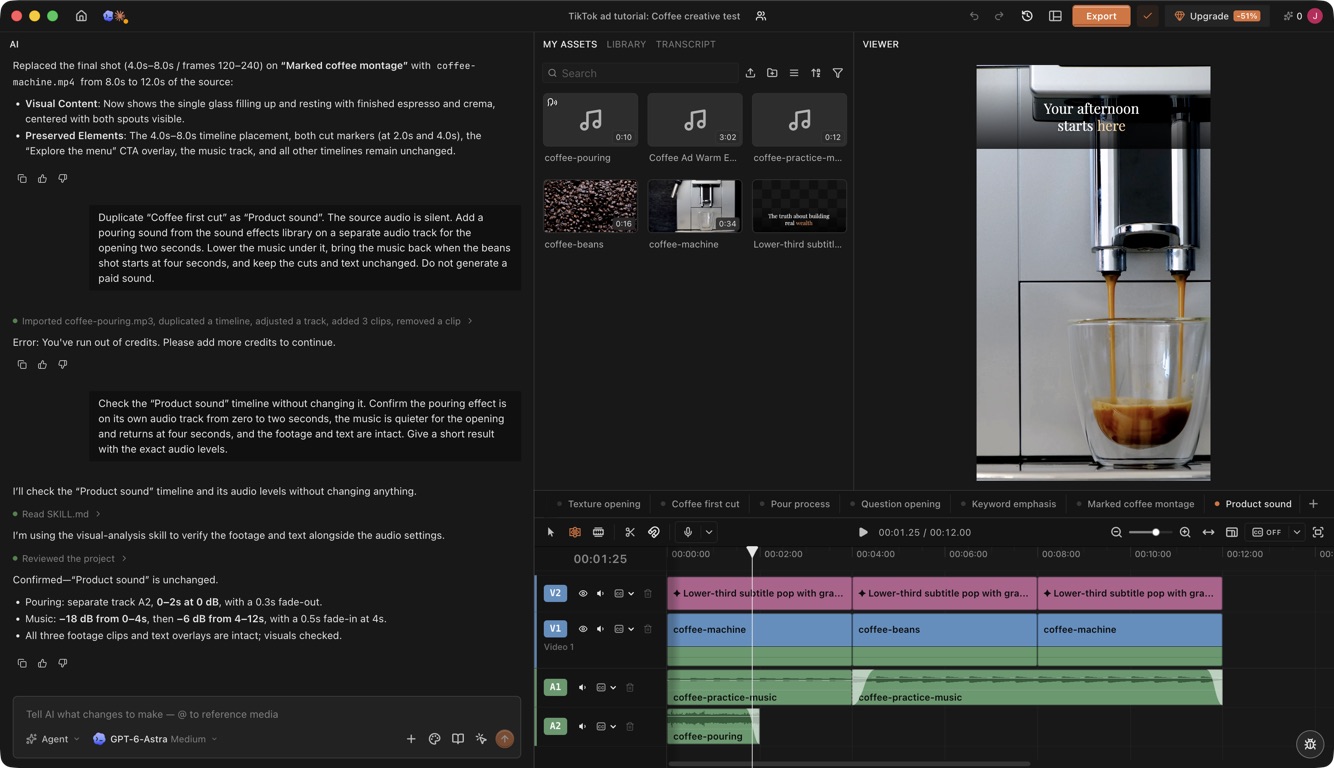
Listen for an effect that starts before the object moves or continues after it stops. Adjust its position and length. AI Voice Isolation is designed to retain speech while suppressing other sound, so it is unsuitable for preserving a pour or crunch. The earlier coffee export above uses music and muted source audio; the separate “Product sound” timeline demonstrates this additional treatment.
Change one creative decision at a time
First choose whether you are exploring an angle or improving one part of an existing ad. Angle exploration can compare a demonstration, a presenter explanation, and a visual product film. An opening test can keep the same body and CTA while changing the first few seconds.
TikTok’s performance creative guidance recommends three to five different creatives per ad group and says large creative differences are particularly useful during exploration. This is platform guidance, not a universal minimum or a guarantee of results. Choose a set your budget can meaningfully evaluate.
In ChatCut, duplicate the timeline and name the version for its opening. Ask for a bounded change, then compare it with the original:
Duplicate this timeline as “Texture opening.” Replace only the first four seconds with the coffee beans shot. Change the opening text to “Coffee on your mind?” Keep the remaining eight seconds, music, and CTA identical.
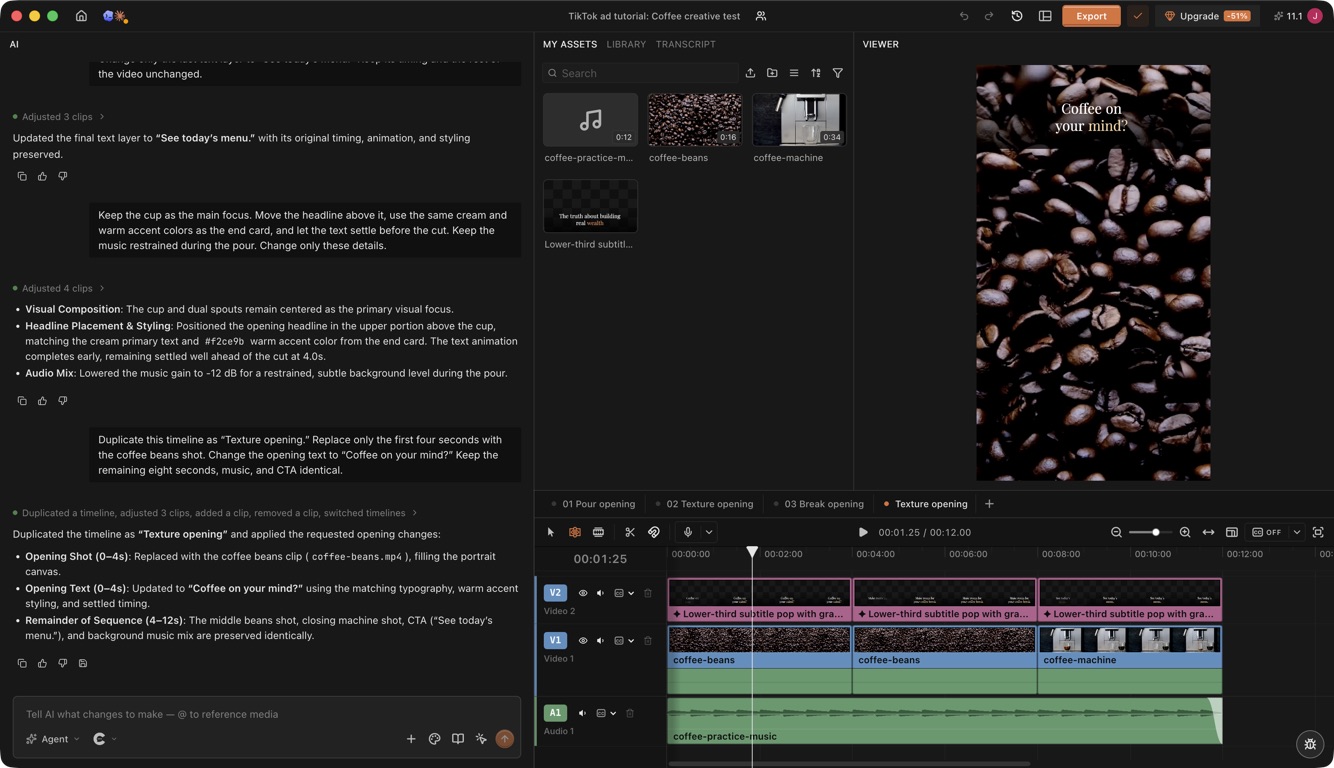
We made three practice versions. Each uses the same middle and ending, with a different first four seconds:
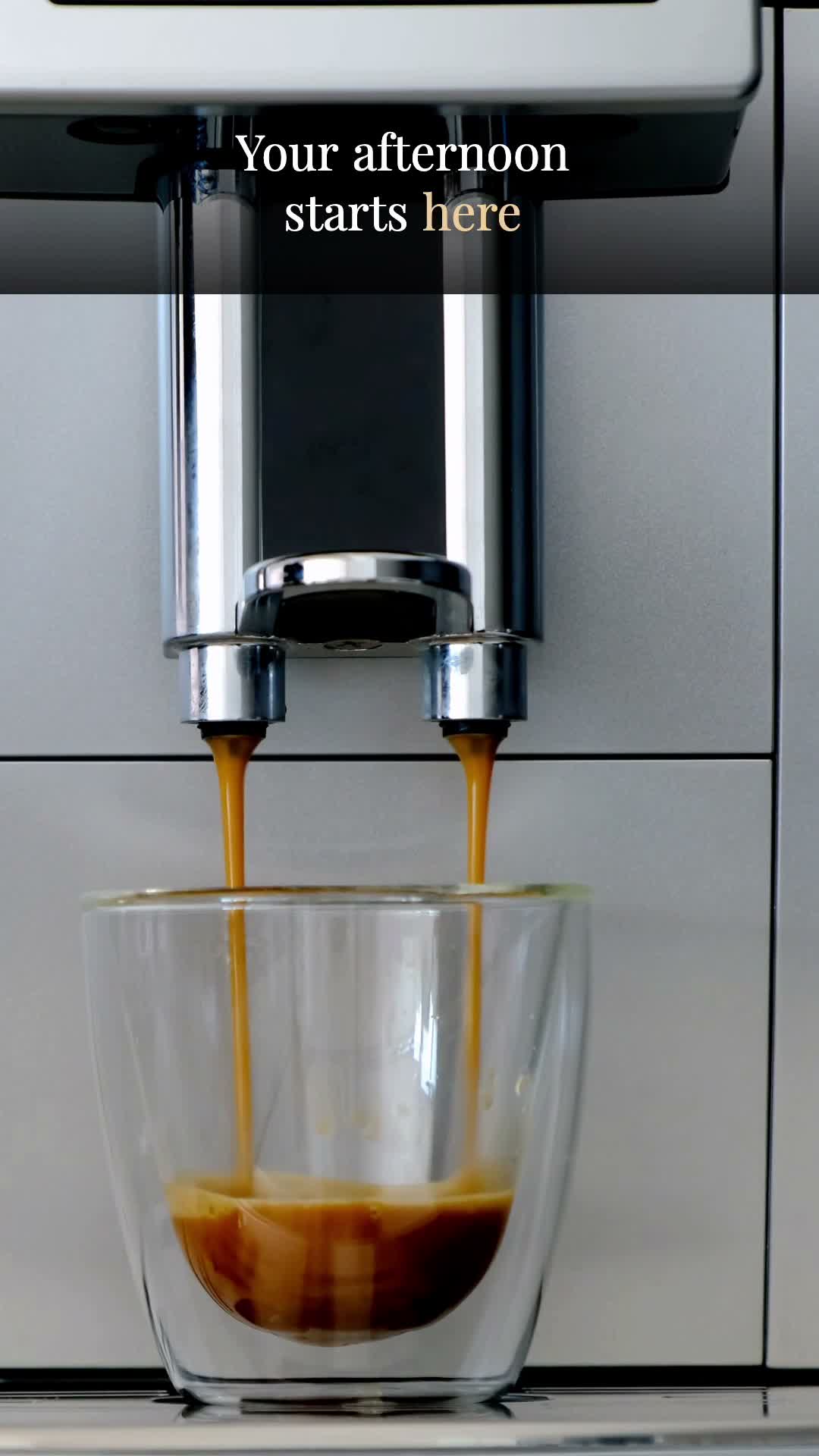
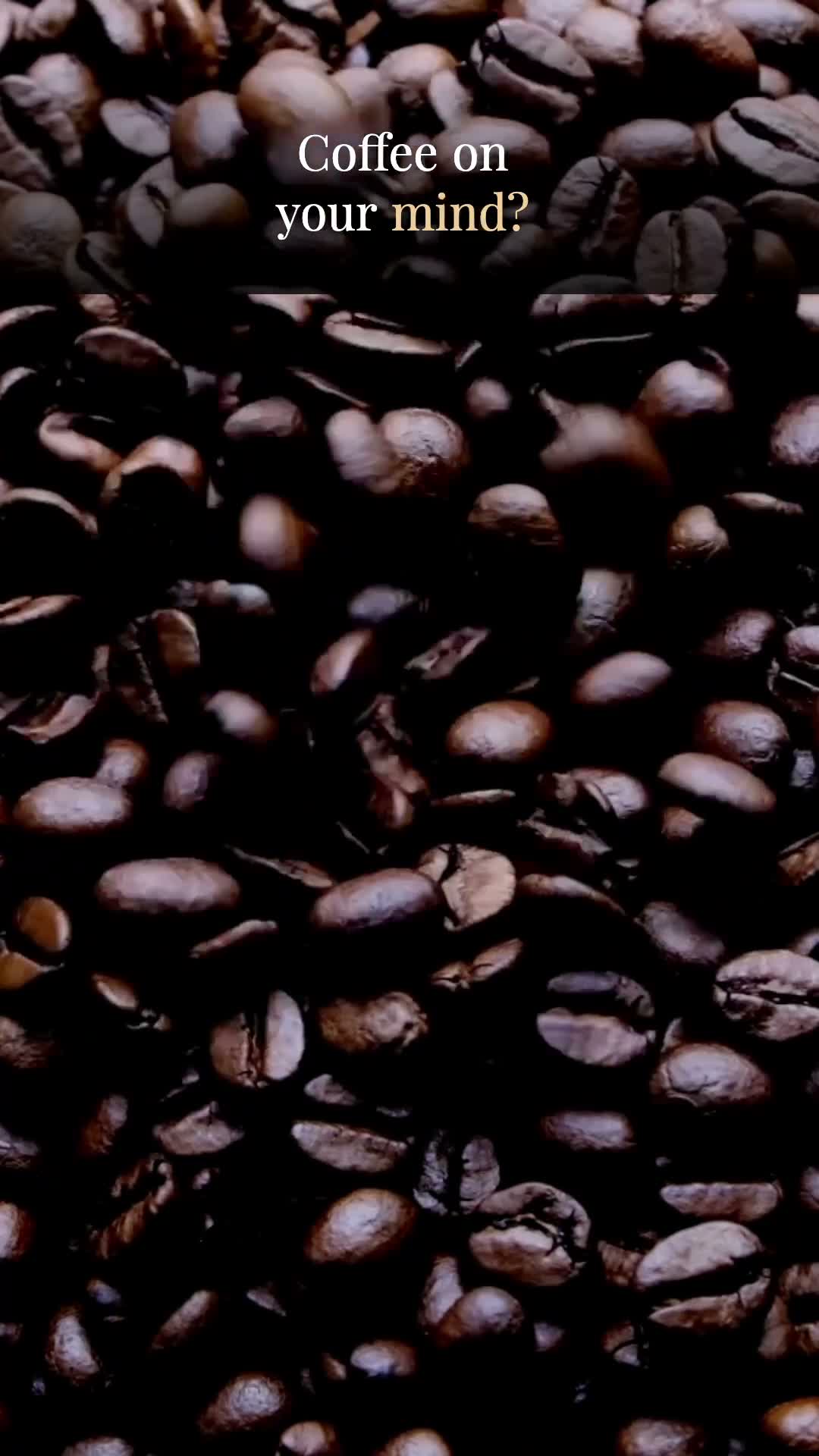
These compare complete openings because both the shot and words change. To test only wording, use the same shot and timing across versions. To explore substantially different angles, change the promise and supporting demonstration as well; three coffee openings do not establish three different buying reasons.
Before spending, write down the decision you want the test to answer. For example: “Does the pouring action or bean texture bring more qualified menu visits under comparable delivery conditions?” Keep the offer and destination consistent, use your campaign’s relevant outcome metric, and inspect how each version was delivered before declaring a winner. These sample exports have not been run as ads.
For a new language, duplicate the selected creative and review the script, voice, captions, offer, currency, and destination together. Translation alone does not make a local offer accurate.
Review the real placement before publishing
Open the intended timeline and choose Export, then Video. For this exercise, we used H.264 MP4 at 1080 × 1920 and 30 fps. Those are practical delivery choices. ChatCut’s export guide documents web export up to 1080p and Desktop local export up to 4K.
TikTok’s current auction ad specifications, updated in June 2026, recommend 9:16 for vertical Non Spark ads and accept a minimum of 540 × 960 pixels. The documented file limit is 500 MB. Check the requirements for your actual placement when uploading, including its safe zone preview.
Open the exported file and check the first frame, each cut, the last CTA, and the audio. Confirm that its opening matches the version you intended to export. Then preview the ad with TikTok’s interface and your destination attached. A text line that fits in the editor can still conflict with a platform overlay.
Use music cleared for commercial advertising. TikTok directs business users to its Commercial Music Library or separately licensed music, rather than treating every trending song as available for ads. The coffee exercise uses a separately composed practice music bed.
For fully generated or significantly AI modified content, follow TikTok’s AIGC disclosure policy. The policy requires an AIGC label or clear disclosure and distinguishes those changes from minor adjustments such as brightness or denoising. Present an AI speaker as a presenter; do not fabricate a customer’s experience or endorsement.
Frequently asked questions
Can I create a TikTok ad from a product URL?
Yes, a product URL can be the starting brief for an AI ad workflow. ChatCut describes the steps in its promo video workflow. Check the extracted product facts and attach the images or footage you want used. Review the script, scenes, and destination before treating the result as ready for a campaign.
Can I make the ad using only product photos?
Yes. Use real photos in the edit, animate them where useful, or use them as references for generated video scenes. Keep important labels and product details readable. Inspect generated shots against the original photos before placing them on the timeline.
How do I turn an existing creator video into several ads?
Select a complete, truthful explanation from the recording, then build separate cuts around different hooks or benefits. Preserve the creator’s meaning and use authorized footage. Keep each variant in its own timeline so changing one opening does not overwrite the original cut. Use the ChatCut Timeline guide for the Duplicate and Rename controls, then follow the opening test in this article.
Do I need an AI avatar for a TikTok video ad?
No. A filmed demonstration, screen recording, product montage, or generated visual sequence can work without a presenter. Use an avatar when a spoken explanation serves the message, and apply the required disclosure. Choose a real customer or creator when the ad depends on that person’s actual experience.
Are Spark Ads the same as UGC ads?
No. Spark Ads describe a paid use of an organic post, including an authorized creator post. UGC describes content associated with users or creators, and “UGC style” often describes its presentation. A creator style video can be used in different ad workflows; its appearance alone does not make it a Spark Ad.
How many AI ad variants should I make?
Start with a test you can explain and afford to evaluate. TikTok recommends three to five different creatives per ad group during creative exploration. There is no requirement to make 15 versions of every ad. A variant should change something meaningful, such as the opening, the demonstrated benefit, or the presentation.
Can I change the offer without generating the video again?
Yes, if the offer is a separate editable text layer. Change that layer and recheck the timing and destination. If the old price is baked into generated footage, spoken audio, or a filmed package, correct those parts too. A text overlay cannot fix a conflicting spoken offer.
Can I make TikTok ads for free in ChatCut?
You can start with the core editor and existing footage on the Free plan. The current plan guide lists 20 one time credits; generation models have their own plan and credit requirements. Check the selected model and export allowance before assuming an entire production is free. Export itself does not consume generation credits.
Does TikTok allow AI generated video ads?
TikTok allows qualifying AI content subject to its advertising policies and disclosure requirements. Fully generated or significantly modified media needs an AIGC label or clear disclosure. The product claims, identity use, music, and destination still need to satisfy the applicable policies.
Which TikTok ad editing trends should I try first?
Start with the material you can show truthfully: a real process, an answer to a customer question, or a product demonstration. These fit the creative directions in TikTok’s 2026 report. Use the six ChatCut editing recipes to make the idea visible, then test it against your current creative. A trending treatment alone does not establish that it will sell your product.
Can I use a trending TikTok sound in a paid ad?
Popularity does not establish advertising rights. Check the Commercial Music Library guidance or obtain the appropriate rights separately. You can still borrow an editing rhythm using cleared music or original product sound.
Can ChatCut generate both B roll and music for an ad?
Yes. Give the video request a specific visual job, product reference, duration, and placement. Give the music request a mood, arrangement, intended length, and role beneath the picture or voice. Review both generated assets in the context of the edit and keep them on separate tracks. Video generation currently requires Pro; video and music generation consume credits.
How do I keep AI ad variants in the same brand style?
Apply a Design Style for new Motion Graphics, reuse the approved product and lighting references in video requests, and carry the chosen musical direction into soundtrack revisions. Duplicate the approved timeline before changing its opening. Review existing graphics separately because switching Design Style does not restyle them automatically.
A TikTok ad is ready when its proof survives the scroll
Start with one supported promise, put the product or demonstration in the opening, and keep the CTA readable. In ChatCut, describe the brief, inspect the editable first cut, generate B roll or music only where the source leaves a real gap, and use Design Styles and explicit references to keep the variants coherent.
Before publishing, play the exported file in the intended vertical placement and check the first frame, claim, captions, product framing, music level, disclosure, and destination. A generated asset can improve a missing explanation, but it cannot make an unsupported claim true.