How to Add Music to a Video
Quick summary
Background music is easier to control on a separate audio track, where you can trim it and change its volume without changing the dialogue. To add it to your video, import the track, place it beneath the footage, and fit its entrance and ending to the scene. Keep every spoken word clear, check the license for your platform, and listen to the exported video before publishing.
Music does more than fill silence. A well matched track can make an edit feel more polished by giving its scenes a shared mood and pace. A quiet explanation may need a sparse instrumental track; a product reveal may suit a stronger entrance. Listen to a candidate beneath the actual footage before choosing it. The track should support the moment while leaving the words easy to follow.
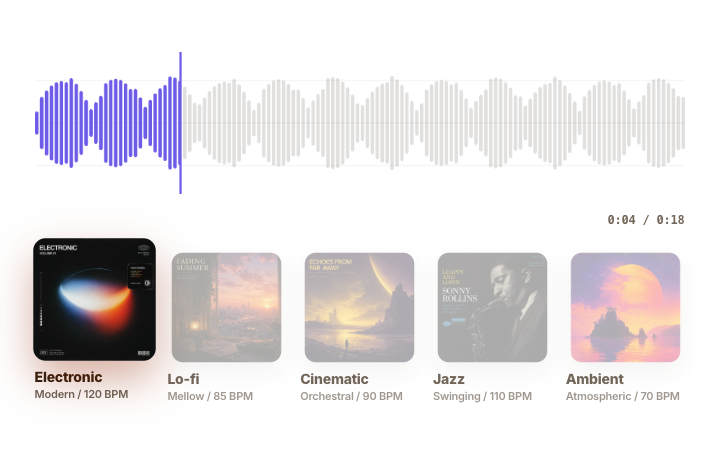
The same sequence works in any timeline editor: choose a track, import it, place it under the video, trim or loop it, lower it under speech, and listen to the export. ChatCut keeps those decisions in one project. You can import a file through My Assets, keep music on its own track, open Track controls for Volume and Audio ducking, or ask the Agent to generate a track from natural language. The request, timeline result, and next adjustment stay visible together, so you can continue editing without rebuilding the context.
How do I add music without replacing the original voice?
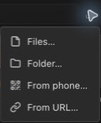
Before you import a track, confirm that its license covers the platform where you will publish. If you already have a licensed file, open ChatCut and choose My Assets → Import → Files. Drag the imported file to an audio track below the video. You should see the music waveform on its own row while the original voice remains on its existing track.
Keep the voice, music, and sound effects on separate tracks. Select the music clip and move it to the moment where it should enter, such as the start of a demonstration or a change of subject. Drag either edge to remove unused lead in or extra music at the end. Start playback before the entry point and check that the music arrives after the spoken line instead of cutting into it.
If you also need supplied sound effects, the ChatCut music and sound guide points to Library → Sound Effects. Preview an effect before adding it because a short sound can be much louder than the surrounding speech.
How do I stop music from covering speech?
Set the dialogue to a comfortable listening level first. Then raise the music until it supports the scene without making the quietest sentence hard to understand. There is no single volume number that works for every voice and every recording, so judge the two tracks together.
For automatic volume changes in ChatCut, right click the music track’s header and open Track controls → Audio ducking. This adds the ducking control to the track header. Close the menu and click that icon to cycle through anchor, follower, and off. Set the track carrying the dialogue to anchor and the music track to follower. The anchor tells ChatCut when the voice takes priority; the follower becomes quieter beneath it. Use off for a track that should ignore ducking.
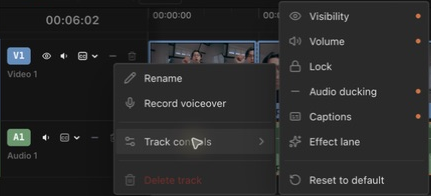
The ChatCut Timeline documentation explains the three roles. Play through a quiet sentence and the pauses between sentences. If the music rises too much when speech stops, lower the music track’s overall volume and replay that section. Ducking handles the change around speech; you still choose how loud the music should be.
How do I make music end naturally with the video?
On the ChatCut timeline, listen to the last spoken line and the final image together. Trim the music to a phrase that can end with them. Add a fade if a hard stop sounds abrupt. Check the entrance as well, so the video does not spend its opening waiting for the chosen musical section.
If you want a visual cut to land on a beat, find the beat by listening and align the cut in the timeline. A BPM value in a music description does not place a visual edit on that beat. Play through the cut to confirm the timing.
When you loop a section, listen where the two copies meet. A loop that looks aligned can still reveal a click, doubled percussion, or a broken phrase. Move the boundary or use another section if the join draws attention.
How does ChatCut add generated music to an existing edit?
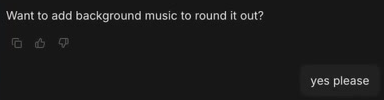
ChatCut can suggest music as the edit takes shape. In the typewriter review tutorial at 4:45, the product shots are already in place when the Agent asks, “Want to add background music to round it out?” The creator replies, “yes please.” The conversation already contains the footage and the editing work so far.
ChatCut adds Typewriter Review BGM to A1 below the picture tracks. It reports that the generated track is 2:38 long while the edited review runs for about 3:37, leaving roughly the last minute without music. That gives the editor a clear next decision: keep a quiet ending, extend the arrangement, or use another musical section.
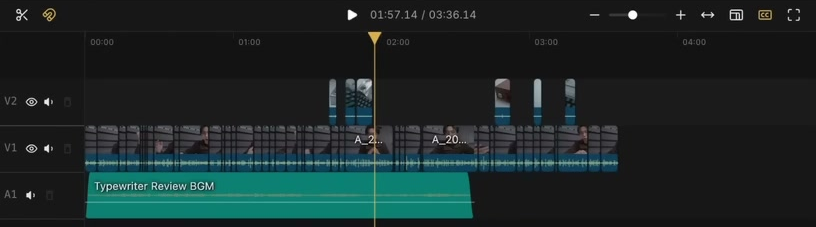
You can continue from that result in the same project. Move the music clip to a later entrance, trim its end, or lower it beneath the voice. If the arrangement needs changing, describe the mood, instruments, vocal preference, and length in the conversation. Review the returned track against the scene before deciding whether to use it.
Music generation uses credits. If ChatCut asks for confirmation, review the estimate before proceeding; the generation credits guide explains the charges and transaction history. Check the terms for generated audio before using it in a paid ad or another commercial project.
Can I use this music on YouTube, TikTok, or in an ad?
Use a source that states the license for the actual recording. Check whether it covers your account, channel, commercial use, attribution, territory, and advertising. YouTube Audio Library, Pixabay, Bensound, Mixkit, and Uppbeat have different catalogs and terms.
“Royalty free” does not always mean free of charge or cleared for every use. Creative Commons licenses have different conditions, and a public domain composition does not make every modern recording of it public domain. Read the license for the recording you will actually use.
For YouTube, open YouTube Studio → Audio Library, preview the track, and check its License type. If attribution is required, copy the supplied text into the video description and keep a copy with the music file. If the edit will also become an advertisement or appear on another platform, check the selected track’s terms again before exporting that version. Music selected inside TikTok or Instagram may be limited to that platform and account. If this is a paid TikTok campaign, see our guide to creating TikTok video ads with AI for the ad editing workflow.
What should I do if YouTube claims the track?
A Content ID claim and a copyright strike are different processes. Read the actual notice and YouTube’s claim guidance to see how the claim affects the video. Keep the license, receipt, and required attribution so you can assess whether you have grounds to dispute it.
A license receipt can help establish permission, but it does not guarantee that a dispute will be released. The copyright strike guidance explains the separate takedown process.
Can I add music in CapCut, iMovie, or Premiere Pro?
Yes. The same sequence applies: import the video and music, place the music below the picture, trim it, lower it under speech, listen through the transitions, and export. Menu names and automatic mixing tools differ by version. ChatCut also lets you request generated music in the editing conversation and adjust the resulting track alongside your footage.
YouTube Studio is a delivery context rather than a replacement for an editable source project. Check its current Audio Library and editing options before assuming you can upload a custom music file into an already published video.
How do I check the mix before publishing?
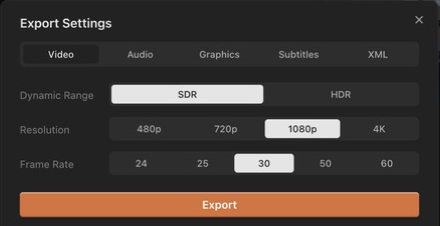
In ChatCut, export the video and play the downloaded file outside the editor. Listen from the opening to the ending. Confirm that speech stays understandable, music enters and ends where intended, and no section becomes unexpectedly silent or loud.
If music covers a sentence, return to the project, lower that range or change the track section, and export again. A completed render message confirms that the job finished. The exported file is where you judge the mix.
Frequently asked questions
Can I replace the music after finishing the video edit?
Yes. If music is on a separate audio track, replace that clip while keeping the picture edit in place. Check the new track’s entrance, ending, and level again. A cut timed to the old track’s beat may need moving.
Can I use the same track in several versions of a video?
Keep a copy of the first edit using the timeline tab’s menu → Duplicate. Change the opening or length in the copy, then fit the music to that version. Check that the license covers every platform and paid placement you plan to use.
Does generated music automatically include commercial rights?
Generation and licensing are separate checks. Read the current terms for the audio service used to create the track, including any restrictions on advertising, distribution, and attribution. Keep the applicable terms with the project; a completed generation alone does not establish permission.
Where can I find free music for a YouTube video?
YouTube Audio Library lets you filter for tracks that do or do not require attribution. Check the selected track’s License type and copy the supplied credit when required. A free download from another site still needs a license check for your intended use.
Can I add music for free?
You can use an editor and a track whose terms fit your project. Check export limits and the actual track license. Generating new music in ChatCut uses credits.
Can I use a popular commercial song?
Only when the necessary permission or applicable platform license covers your use. Popularity, attribution, or a short excerpt does not establish permission.
Finish with clear speech and music that fits
A finished mix starts with music that fits both the scene and its intended use. You can import a licensed recording or ask ChatCut to generate a track for the edit. In ChatCut, import the file through My Assets or make the request in natural language, then keep the result on a separate audio track. Place its entrance around the scene, trim or loop it to fit the ending, and adjust Volume to keep the quietest speech clear. For automatic ducking, expose its track control and set the voice to anchor and music to follower.
Before publishing, listen from the opening through the last frame, including pauses, loops, and fades, in the exported video outside the editor. Recheck the track terms for YouTube, TikTok, or paid ads, copy attribution when required, and keep the license record with the project.