How to Remove Silence and Filler Words Without Choppy Speech
Quick summary
Speech cleanup is a listening decision. Remove repeated takes first, then shorten pauses and filler words only when the remaining sentence still sounds like the speaker. In ChatCut, use Transcript for recorded words and Pauses for gaps, then listen across every join and check separate microphone tracks.
Removing silence and filler words from a video means deleting the dead air and the verbal stumbles that slow a viewer down, while leaving the words that carry meaning. The job sounds mechanical and is not. Every cut closes a gap in the recording, and enough of those cuts in a row turn a person talking into a person reciting.
Start by separating the two problems. Silence is the time between words, and filler words are the sounds people say while thinking. A pause before a new idea gives the viewer a moment to catch up, while the same length of silence after a false start only makes them wait. Filler words work the same way: a repeated “um” adds nothing, but a hesitation that qualifies a claim can change what the claim means once you delete it.
A clean talking head edit should sound intentional, not hurried. This guide covers how to remove silence and filler words from a video in that order, which cuts to make first, and what to check after the cut.
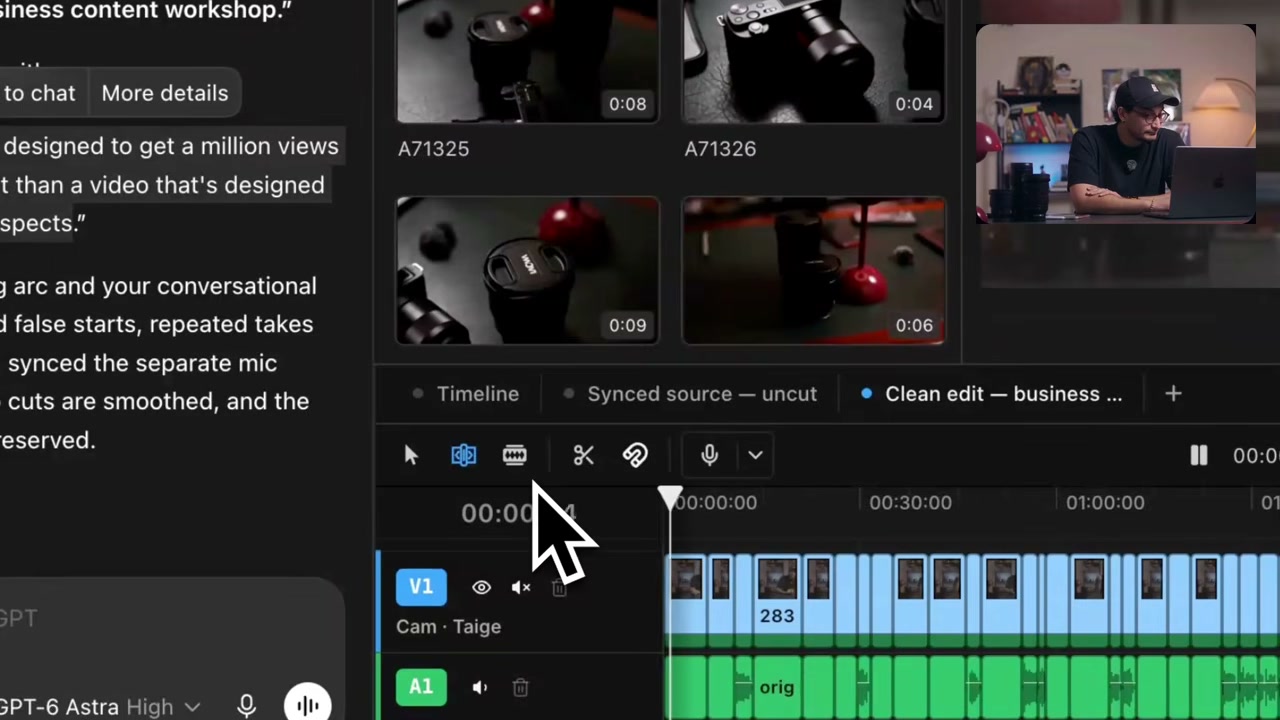
In ChatCut, open Transcript for the spoken passage and Pauses for the gaps, then ask for a small repair: “Remove the abandoned take after the first answer. Suggest filler words to cut, but keep the qualification and natural pauses.” Play the join at normal speed and listen to the separate microphone track before you apply the cleanup to the whole recording.
Make the speech complete before making it short
Cut repeated takes and abandoned sentences before tightening small pauses. Removing a whole failed attempt can solve the structural problem without making every surviving sentence faster.
Read the transcript and play the passages that repeat. Choose the take that expresses the complete thought, including any qualifier that changes its meaning. A phrase such as “I mean” can be hesitation, but it can also introduce a correction. Listen before deleting it throughout a project.
For example, imagine the recording says, “We can ship Friday. Sorry, we can ship Friday if legal approves.” The first attempt is disposable; the condition “if legal approves” belongs to the final meaning. Select the abandoned first sentence and the restart, then listen to the surviving conditional sentence. This authored example is a selection exercise, not an excerpt from the demonstration below.
Duplicate the timeline before a broad cleanup. In ChatCut, open the timeline tab’s menu and choose Duplicate. Name the copy so you can compare it with the original without confusing the next instruction.
Protect qualifications and the speaker’s intent
Listen for a filler that adds no meaning to this sentence. In Transcript, choose the track containing that speech and select the unwanted words. Press Backspace or Delete to cut that time range and close the gap on the edited track.
The Transcript guide distinguishes Paragraph view, which reads continuously, from Clip view, which shows a block for each timeline cut. Click a word to move the viewer to its start, then play the surrounding phrase before deciding.
For an agent assisted pass, make the editorial constraint explicit:
Remove obvious false starts and repeated takes from this sequence. Suggest filler words to cut, but preserve words that qualify the statement and pauses that help the point land. Keep the original timeline available for comparison.
This is an example instruction, not a promise that every “um,” breath, or hesitation will be detected correctly. Review the resulting cuts. If the request changes too much, return to the earlier timeline or undo the last operation and narrow the selected passage.
Keep rhythm where the idea needs it
Play the sentence with the one before and after it. Once you know how much space it needs, use Pauses to adjust the selected transcript track and listen again. Current documentation says the control can restore existing source pause time; it cannot invent silence that was not recorded.
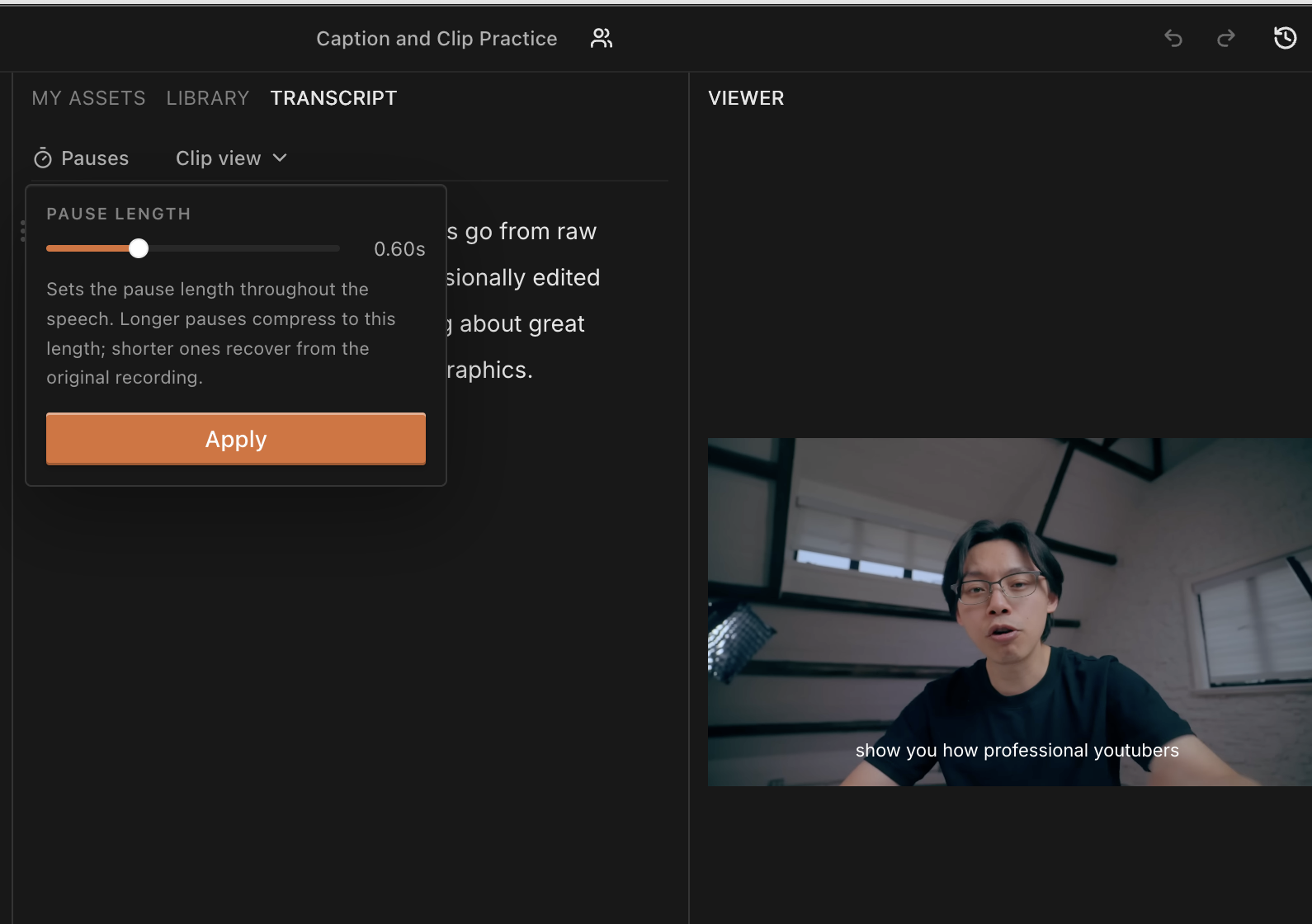
Listen to the speaker at their natural pace and adjust a short passage first. Keep a pause that separates ideas or lets a reaction land, even if it is longer than the surrounding gaps.
Keep a pause before a reveal, after a difficult question, or between subjects when it helps the listener follow the thought. If sentences run together, give the cut more room using available source material. Judge the sentence in playback instead of aiming for a fixed percentage reduction in the total runtime.
Describe one gap and the words around it
Name the words and the time range in the current sequence, then request one local correction. This is more useful than repeating “remove all silence” after an incomplete pass.
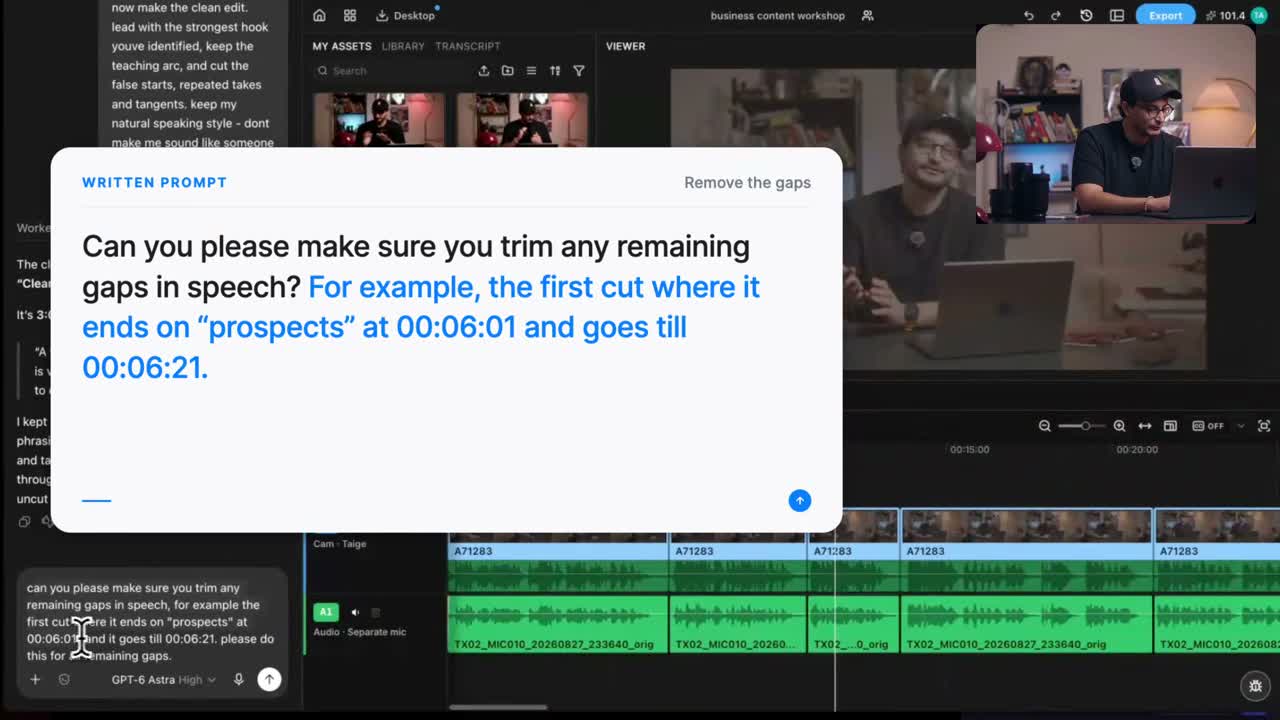
In that example, the first cut still needed another pause cleanup. The useful lesson is to inspect the draft and identify the remaining problem precisely. The video’s on screen report of removed time is a report from that project, not a general performance benchmark.
In [sequence name], shorten the empty pause after “[last spoken words]” between [start] and [end]. Preserve the next word and the rest of this sequence.
Use the time display shown by your project. A colon separated timecode can include frames, so do not assume its last field represents decimal seconds.
For example, in a 30 fps project, 00:01:12:15 means 1 minute, 12 seconds, and 15 frames, or 72.5 seconds. It is not 72.15 seconds. Confirm the project frame rate before translating a displayed timecode into a decimal range.
Check every track after a transcript cut
Check synchronization after a cut, move, or restoration that affects picture and a separate microphone track. The lips and voice should still agree at the beginning and end of the changed section.
ChatCut’s AI multicam sync aligns recordings that share recognizable audio. It does not automatically choose camera angles. When selecting clips already on the timeline, use separate tracks and the documented 1× playback speed before synchronization.
In the published tutorial, the creator reports drift after restoring a clip. After a restoration, check lip movement against the voice at several points. Listen for an echo from two active microphone sources as well as visible sync errors.
Match the tool to the recording you must preserve
Choose by the surrounding editing job and verify the cleanup on your own speech. ChatCut combines direct transcript cuts, an editable timeline, and instructions for broader changes. Descript also offers conversational editing alongside its transcript workflow. For a focused cleanup tool such as Gling, check whether its controls let you preserve the pauses and retakes your particular recording needs.
If you need a full podcast or interview tool comparison, use the podcast editing guide. Avoid assuming that all tools expose the same filler list, audio threshold, or cut restoration control.
Frequently asked questions
Should I remove every filler word and hesitation?
Remove abandoned takes and repetitions that distract from the message. Keep a hesitation when it conveys uncertainty, emotion, or a meaningful qualification. Listen to the surrounding sentence before selecting the passage in Transcript, then compare the cut with the original.
How do I shorten pauses automatically in ChatCut?
Open Pauses above Transcript, choose the length for that speech track, and apply it to a duplicate you can compare. Replay both short and long gaps. The control can restore available pause time from the source; it cannot add silence that was never recorded.
Why does a cut sound clipped?
The boundary may remove part of a word or leave too little breathing room. Restore some source material and listen again. Compare the surviving sentence with the original, especially its first and last sounds. A clean looking transcript does not establish a natural sounding cut.
What should I ask when AI leaves an unwanted gap?
Give the current timeline and the gap’s start and end times. Name the words on either side and ask to preserve them. Replay that same range after the correction. Use times from the current edit because earlier cuts may have moved the passage.
How do I check a separate microphone track after a cut?
Play a clear word or visible mouth movement before and after the changed range. Confirm that picture and the intended microphone remain aligned, including after restoring a passage. Inspect each separate track; editing one transcript source does not prove every other track received the same change.
Will deleting a caption remove the pause?
Use Transcript for cuts to recorded speech. Content changes visible caption wording. The two surfaces perform different jobs.
Does removing silence also remove background noise?
No. Cutting a time range and cleaning noise during speech are different operations. ChatCut’s AI Voice Isolation targets nonvoice sound around spoken voice; preview its result before keeping it.
How long does cleanup take?
Source length, transcription, requested edits, and review all affect the work. This article does not establish a fixed processing time or a manual editing benchmark.
Clean speech is the version you can still listen to
Remove repeated takes first, then shorten a pause or filler only when the sentence remains complete and the speaker still sounds natural. In ChatCut, use Transcript for recorded words, Pauses for empty gaps, and a bounded instruction for any missed join. Listen to the entry and exit of each edit with every microphone track enabled.
Watch the exported file from the opening to the last sentence. If a cut sounds clipped or changes a qualification, restore the original range and make a smaller correction. The goal is a clear speaker, not the fewest pauses.