How a UGC Video Maker Turns Creator Footage into Product Videos
Quick summary
A useful UGC video maker helps you turn a creator’s recording into a clear product story. The first cut keeps their experience and removes repeated takes. Product close ups then show what they are talking about, while captions make the words easier to follow. In ChatCut, you can request these changes in the conversation, inspect the timeline, and adjust the parts that need more work before exporting.
A creator says the keyboard feels good to type on. At that moment, the video shows the keys up close. The viewer can see the design while hearing the creator’s opinion. That connection between the person, their words, and the product is what the edit needs to preserve.
The screenshots below follow one digital typewriter review in ChatCut’s published editing tutorial. The creator supplies the review and product footage, then asks ChatCut to clean up the speech, add captions, and place the supporting shots.
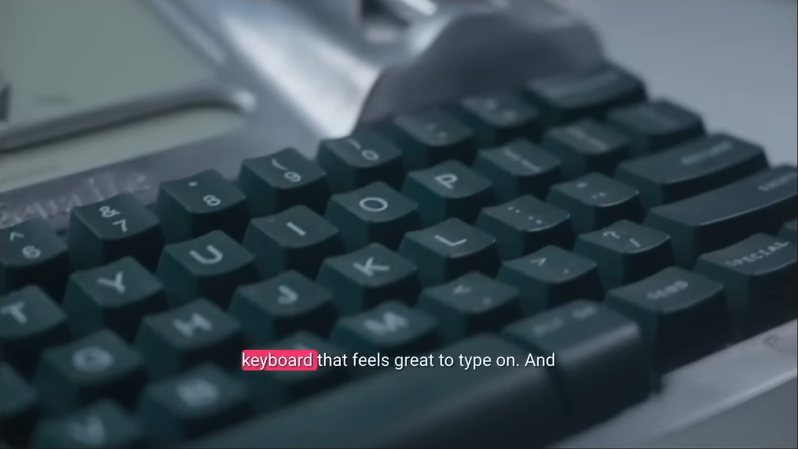
In a timeline editor, this means choosing the useful take, cutting repeats, placing product shots over the related sentences, and checking captions and sound. ChatCut lets you describe those editing decisions in ordinary language. You can ask it to match the uploaded shots to the explanation, then review where they landed in the editable timeline.
What should a UGC video maker help you keep?
Whether you are editing a customer review, a creator demonstration, or an ad made from approved footage, the source should contain something specific. A person showing how they use a product gives you more to work with than a list of compliments.
For a digital typewriter, that might be the feel of the keys, how the screen behaves, or the distraction the creator was trying to avoid. A close up can show the keys and screen. The creator’s words explain their experience of using them. Neither needs to make a broader promise about everyone who buys the product.
Before the first cut, gather the creator recording, the matching product shots, and the brief that says where the video will run. Note any sentence that must remain intact, especially a limitation or condition. If a creator says a device suits short writing sessions, removing “short” changes the recommendation.
A suitable editor should let you inspect those cuts, move a product shot, correct a caption without deleting the speech, and export the format you need. Those controls matter when the first AI result gets most of the edit right but misses one important detail.
How do you make the first cut in ChatCut?
Open a ChatCut project and add the creator recording to My Assets. In the chat composer, attach or reference that recording and describe the edit. Include any words or demonstrations that must stay. If you are still setting up the connection, the ChatCut setup guide walks through adding the plugin and your footage.
In the typewriter tutorial, the creator submits this request with the recording attached:
remove all the rambles and mistakes, filler words, make it a good youtube tech review.
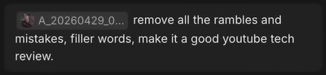
The tutorial’s source recording is 6:21 long. After the request, ChatCut reports a cut of roughly 3:37. Below, the edited timeline shows its duration and the individual cuts. Keeping those cuts editable lets you restore a useful phrase without starting the whole review again.

Your first review should be a listen through the joins. Does a sentence begin halfway through a thought? Did a useful qualification disappear with a repeated take? Restore that phrase or narrow the cleanup before adding more layers. A shorter duration alone does not tell you whether the edit sounds natural.
For a specific spoken cut, use Transcript to select the unwanted passage and delete it. Play the sentence before and after the join. A pause that lets the viewer understand the product may deserve to stay, even when the surrounding delivery could be tighter. The guide to removing silence and filler words explains how to make that distinction.
How do you add captions that are easy to follow?
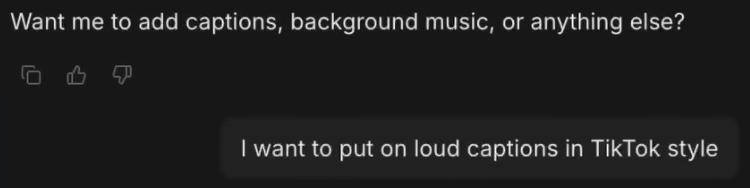
Once the spoken edit holds together, ask for captions in the same conversation. In this project, the creator submits:
I want to put on loud captions in TikTok style

The caption detail below shows white text with “typewriter” highlighted in pink. This makes the product word stand out within the line. Check the full shot when choosing the caption position so the creator’s expression stays visible.
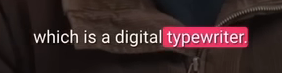
Read the product name, numbers, and any claim carefully. If only the displayed text is wrong, correct it in Content. Deleting words in Transcript changes the recording itself. The subtitle tutorial shows those controls and the choice between visible captions and a separate subtitle file.
Check captions again when the product shots are in place. A line that fits neatly below the creator’s face may cover a switch or label in the next shot. Move the text or adjust its line breaks so the action remains visible, then replay that transition.
Where should product B roll go?
Product B roll means supporting footage that appears while the creator continues speaking. Its most useful job is to show the detail being described: hands pressing a key, a screen updating, or a case opening.
Add those recordings to the same project. In the tutorial, the creator uploads the typewriter close ups and submits:
I just uploaded b roll footage of the typewriter, study these, and put them in the correct places


The resulting edit shows the keyboard during the keyboard description and switches to the screen when the creator describes its size. In the timeline below, the product inserts sit on V2, above the creator footage on V1.
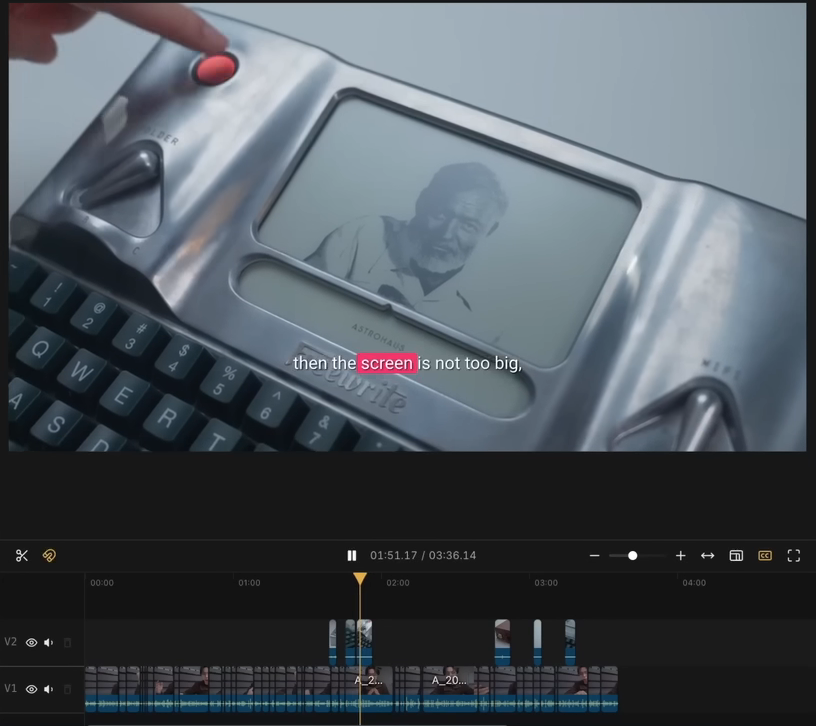
This is a practical reason to use ChatCut for creator footage: the request can describe the relationship between the words and the shots. The returned timeline gives you a place to check that relationship and correct it.
Play each insert with the surrounding sentence. If a shot begins before the product is mentioned, move its left edge to the relevant phrase. If it leaves before the action finishes, extend it within the available source. Keep the creator’s speech underneath, and listen for unwanted sound from the product recording. Check that the model, color, and feature shown match the words.
How do you turn a longer review into a short UGC ad?
A short ad needs a smaller story than the full review above. One useful structure is a reason to care, a product demonstration, and a next step. The footage should determine what you can say in each part.
For the typewriter, an ad could focus on the creator’s reason for wanting a dedicated writing device, followed by the typing demonstration. A different version could focus on the screen. Each opening would lead to a different short ad from the longer review.
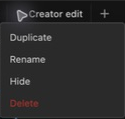
In ChatCut, open the longer timeline tab’s three dot menu and choose Duplicate. Switch to the new tab before shortening it; Rename lets you give each version a useful name. Select the passage that explains one complete experience, retain its matching product shot, and remove sections about other features. Add only an approved next step, such as visiting the product page. The shorter version still needs enough context for a new viewer to understand the claim.
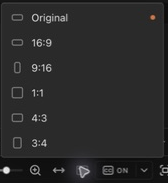
For a vertical destination, open Aspect Ratio in ChatCut’s timeline toolbar and choose 9:16. The Viewer changes to a portrait frame. Check each clip: a landscape shot can leave space above and below the picture, and enlarging it can cut off a product detail.
Select the affected clip on the timeline to show its Inspector. With Keep aspect ratio enabled, adjust its Dimensions to change the size without stretching it, then drag the picture in the Viewer to reposition it. A face may fit a tight crop while the keyboard needs more width. Keep the product feature visible and check the captions again at phone size. In Export → Video, choose the delivery resolution and frame rate, then watch the resulting file. The guide to making TikTok video ads with AI covers openings, product demonstrations, music, and creative variants in more detail.
What should you check before publishing?
Watch the exported file from the beginning. The first sentence should make sense without the original interview question. Product shots should match the claim, captions should be readable, and music should leave the quietest words audible. The ending needs enough time for the viewer to understand the next step.
Confirm the creator’s permission covers your intended platforms, paid use, editing, and campaign period. Keep the approved brief, footage, and required disclosure together. The FTC’s Consumer Reviews and Testimonials Rule FAQ explains restrictions on testimonials that misrepresent someone’s experience. Editing should preserve what the person actually said and experienced.
When the first version is ready, duplicate it before testing another opening or call to action. Change one creative element while keeping the creator, offer, destination, and other layers consistent. That makes the campaign results easier to interpret; changing the opening, music, and product shot together makes it harder to tell which change mattered.
Frequently asked questions
Can I make a UGC video from footage I already have?
Yes, if you have permission to use it and it contains a complete product experience. Check for an understandable spoken passage, a matching demonstration, and enough image quality for the intended crop. Missing product details may require another recording.
Is there an ideal length for a UGC ad?
There is no single length that guarantees a useful ad. The cut needs time to establish the situation, show the product, and finish its message. Check the destination’s current limits, then remove anything that does not help that particular story.
Can AI choose the strongest product claim for me?
AI can help locate candidate passages, but the source and approved brief determine which claims you can use. Read a suggested quote with the sentences around it. Keep conditions or limitations that change its meaning.
Can generated footage replace a missing product demonstration?
A generated scene cannot establish that a real product performed a test. For a demonstration of fit, function, or results, record the actual item. An illustrative background may serve a different purpose, provided it does not imply evidence the footage does not contain.
Should I add music to a creator review?
Music can support the mood and pace when it leaves the speech clear. Preview it beneath the quietest sentence, and confirm that the license covers the intended use. The music guide explains placement, volume, and endings.
Can I reuse one creator video across several platforms?
First confirm that the creator’s permission covers those platforms and uses. Then check the aspect ratio, caption position, disclosure, and destination of each version. A clear wide review may need different framing and a shorter setup for a vertical feed.
A clear product story starts with the creator’s experience
The best starting material is a creator explaining something specific and footage that lets the viewer see it. In ChatCut, make the spoken edit first, check the joins, add readable captions, and place product close ups at the matching lines. The typewriter example shows how those requests lead to visible changes in one editable project.
For an ad, narrow the longer story to one supported message and an approved next step. Review the crop, captions, sound, and claims in the exported file, then confirm permissions before publishing. Keep that version available when testing a new opening so each change has a clear purpose.