AI Podcast Editors Compared by the Job You Need to Finish
Quick summary
The best AI podcast editor depends on the handoff you need at the end. Choose by whether you are cleaning a full episode, preserving separate microphones and cameras, or turning one conversation into publishable clips. Test one interruption or repeated answer from your own recording before you commit to a plan.
Podcast tools overlap on transcripts and automatic cleanup, but they do not solve the same production problem. A host making a clean audio episode needs different controls from a team delivering a two camera interview, and a clips specialist may care more about selection and reframing than a full episode timeline. Start with the deliverable that would be hardest to rebuild.
For a fair first check, bring a short section with a real interruption, a repeated answer, and the separate audio or camera tracks you normally receive. In ChatCut, open a project, import that sample, and ask, “Remove the abandoned answer, keep the qualification, preserve the separate microphone tracks, and leave the timeline editable.” Play the result and inspect the speaker layout before you compare tools on features or price.
Choose the podcast job before you choose a tool
The tools overlap on transcripts, automatic cleanup, captions, and short clips, but they begin in different places. Descript starts with a document, FireCut starts inside a professional host editor, Riverside starts with the recording session, Wisecut starts with an automated first pass, and OpusClip starts with a finished long video. ChatCut starts with an editable project and lets you describe a change in natural language before checking the transcript, timeline, tracks, and output.
That difference matters more than a feature count. The same request, such as “remove the repeated answer and make a one minute clip,” travels through a different workflow in each product. Some tools make the transcript the main editing surface. Some run automation inside another editor. Some produce a set of social clips from a finished episode. The table below shows where the work starts and what you should test against ChatCut.
| Tool | How the workflow works | How it differs from ChatCut |
|---|---|---|
| ChatCut | Import footage, describe the intended change, then review the transcript, timeline, tracks, captions, and export. | Project level editing with both natural language instructions and direct timeline control. |
| Descript | Import or record, edit the transcript as a document, then use Underlord for broader instructions and bulk changes. | Document centered editing; test how the instruction becomes a revisable project change. |
| FireCut | Run automation inside supported Premiere Pro or DaVinci Resolve projects for silence, captions, zooms, chapters, and podcast camera work. | Host dependent plugin workflow; the native NLE remains the project and review surface. |
| Riverside | Record guests with separate tracks, then edit the transcript, timeline, layout, audio, and clips in the same service. | Recording first; compare the source tracks available at capture with an imported ChatCut project. |
| Wisecut | Upload or paste a video, let the speech focused workflow create cleanup, reframing, subtitles, and highlights, then review the first pass. | More automated and speech centered; test how much control remains when the pacing is wrong. |
| OpusClip | Upload a long video or link, let ClipAnything find moments, then adjust captions, reframing, and social clip outputs. | Long video to short clip workflow; it is aimed at distribution from an existing episode rather than the whole multitrack edit. |
Compare prices only after calculating the work you actually need: source hours, seats, AI actions, export allowance, and deliverables. A plan’s headline monthly price does not establish the cost of your finished episode.
For example, four 60 minute episodes mean four hours of source recording. If each also produces three one minute clips, the requested video deliverables total 252 minutes when the full episodes and clips are exported once. That is a workload calculation, not any service’s bill: some plans meter uploaded hours, some AI actions, and some rendered duration. Revisions add exports. Match each provider’s quota unit to the work before comparing prices.
How ChatCut and the other editors approach the same recording
The descriptions below use current provider material and the supplied homepage captures. They explain the advertised workflow and the decision it supports. They are not a matched quality, speed, or price test on the same recording.
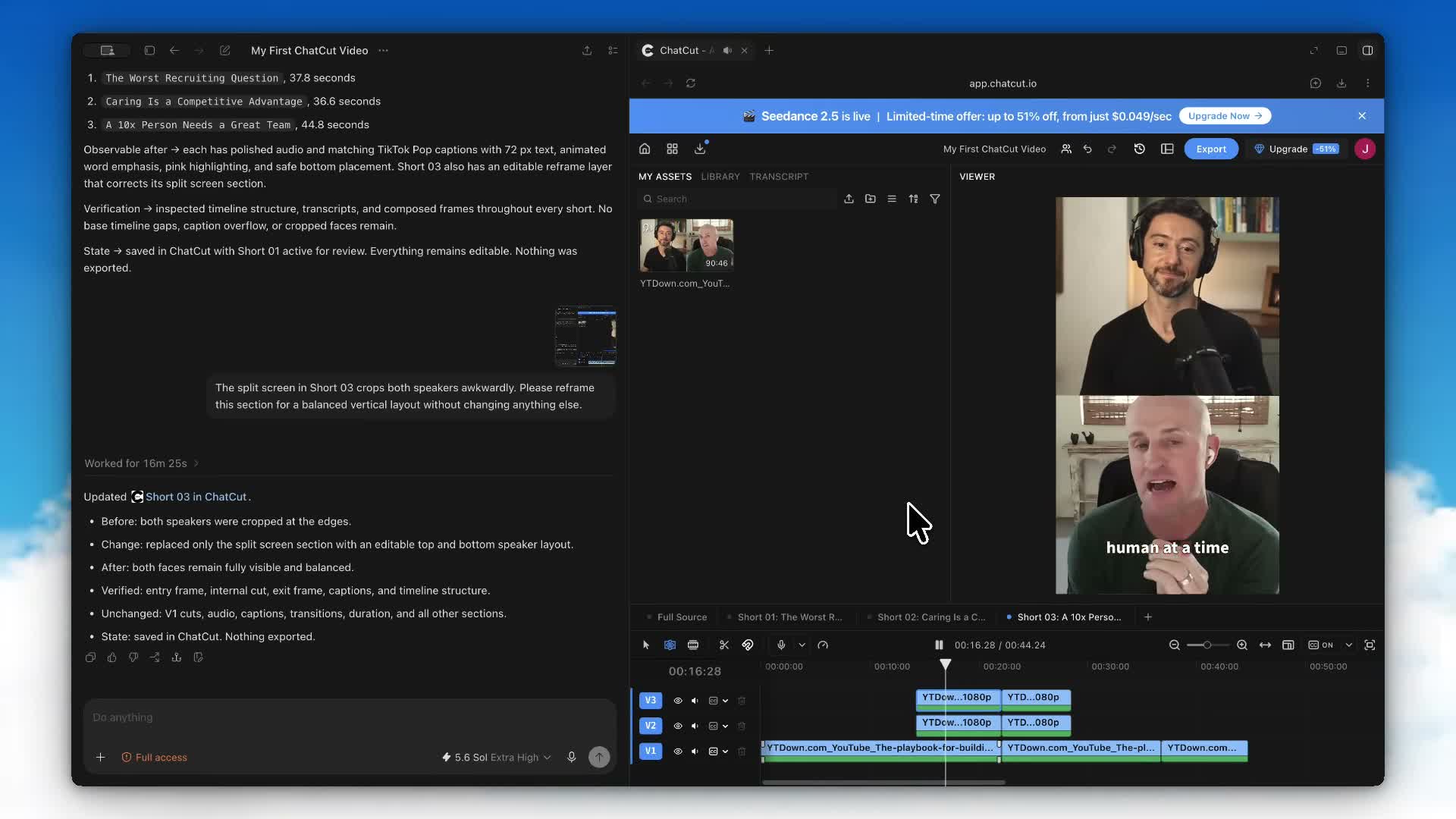
ChatCut
ChatCut provides a transcript editor, a timeline with multiple tracks, and agent instructions for changes across a project. In Transcript, deleting words cuts their recorded range on the selected track. Content corrects visible captions. The transcript and caption controls guide explains the distinction. For a sample you can follow, the tutorial on editing video through its transcript takes a recording through text edits, timeline review, and export.
For separate cameras or recorders, AI multicam sync aligns clips with overlapping recognizable audio. It places or moves clips on separate tracks. It does not choose camera cuts automatically. Review a clear clap or phrase after synchronization and again after substantial edits.
Use ChatCut when the episode also needs captions, supporting shots, graphics, or several editable versions. If you want to make those edits inside ChatGPT, the ChatGPT video editing tutorial covers plugin installation, your first request, and the editable result. Check cloud export limits and any generation charges separately from core editing.
Descript
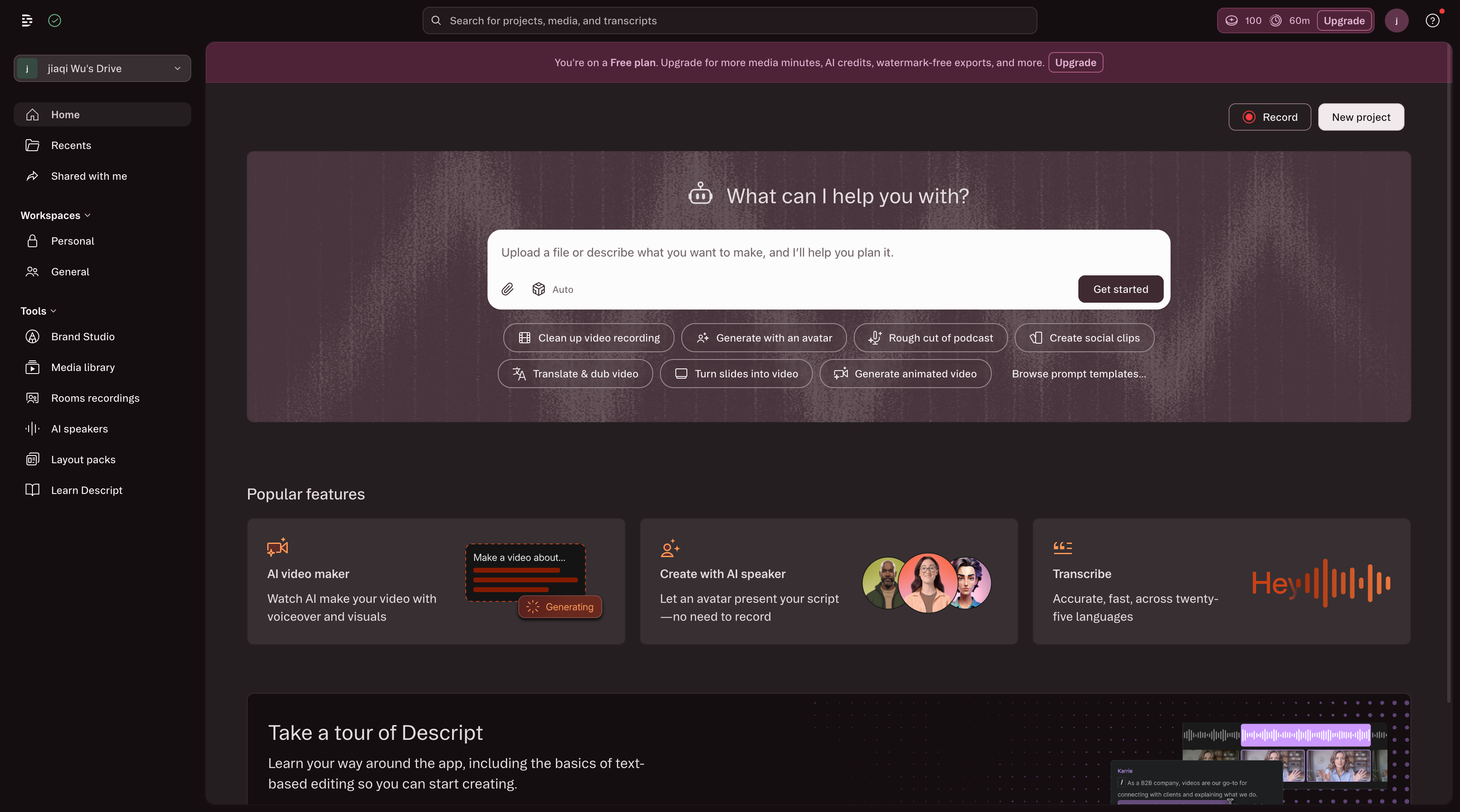
Descript is document centered. You import or record a project, correct the transcript as if it were a document, and let the corresponding video and audio ranges follow the text. Its Underlord adds an instruction layer for broader tasks such as bulk cleanup, filler removal, clip creation, and other project changes. The homepage presents that combination directly: an input where you can upload a file or describe what you want, prompt shortcuts for cleaning a recording or creating social clips, and a project workspace below. In practice, the path is upload or record, describe or choose the cleanup task, edit the transcript, and then refine the linked timeline before export.
That overlaps with ChatCut in two useful ways: both let you express an editing goal in ordinary language, and both keep transcript based edits connected to an editable project. The difference is the center of gravity. Descript makes the transcript document the primary editing surface. ChatCut keeps the transcript, multitrack timeline, captions, generated media, and agent instructions available as parts of one project. Choose Descript when document style editing is the part your team repeats most. Choose ChatCut when the same episode also needs track level corrections, generated shots, graphics, or several timeline versions.
FireCut
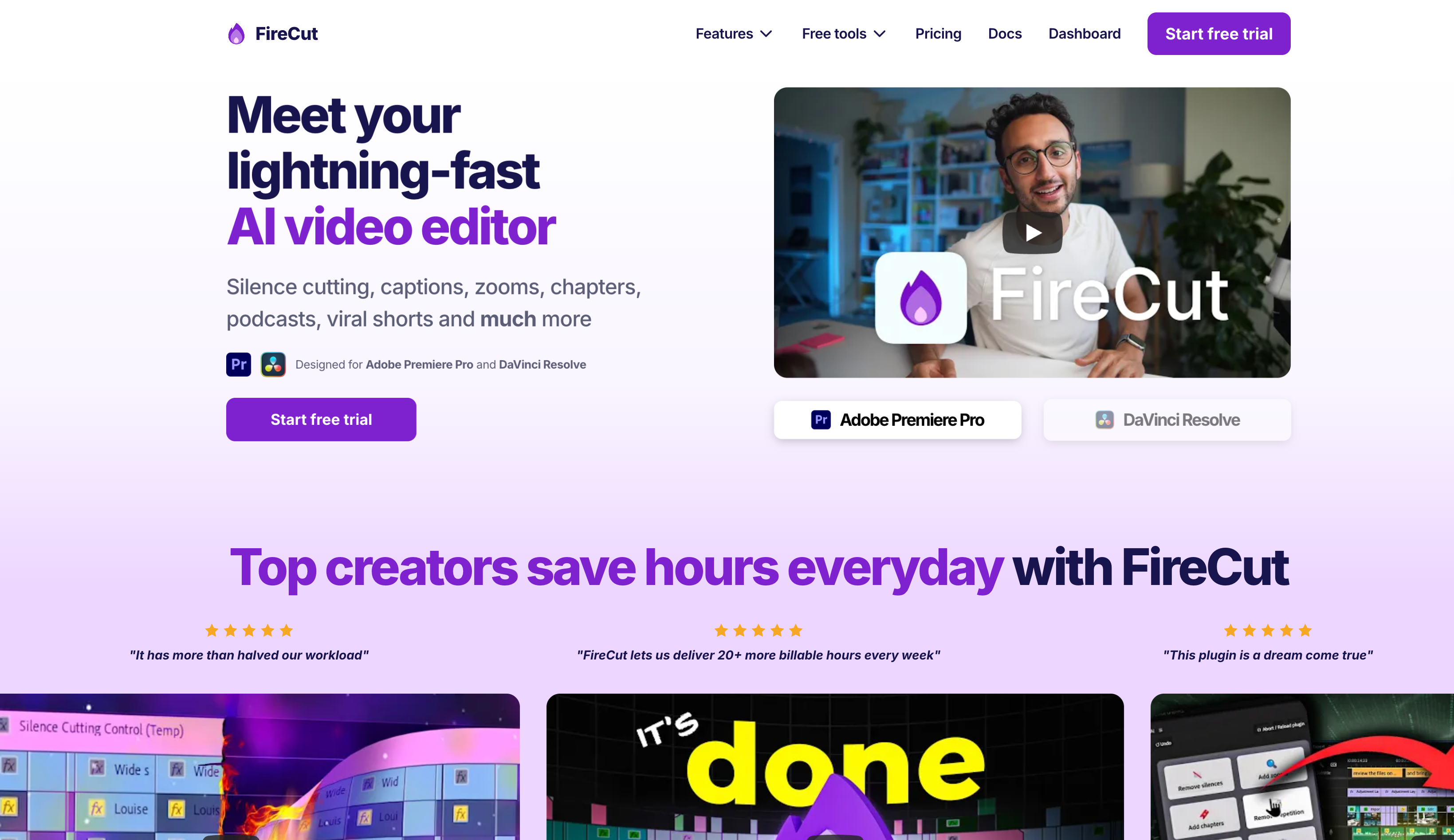
FireCut is a plugin workflow. You keep the production in a supported version of Premiere Pro or DaVinci Resolve, then use FireCut to automate recurring operations such as silence cutting, captions, zooms, chapters, and podcast camera edits. The host editor remains the place where you inspect the native project, change a cut, and finish the export. The working path is open the host project, run the selected automation, inspect cuts, markers, or captions in the native timeline, correct edge cases, and export from that host.
FireCut and ChatCut both target repetitive editing work, but they solve the handoff differently. FireCut adds automation to an NLE you already use. ChatCut is its own project environment with transcript, timeline, track, caption, and agent controls in the same workspace. FireCut is the practical choice when a team cannot leave Premiere Pro or Resolve. ChatCut is easier to compare when the starting material is a recording and the editor should carry out a plain language request without a separate host application. Verify the exact host version and integration before assuming that a FireCut feature behaves the same way in both supported editors.
Riverside
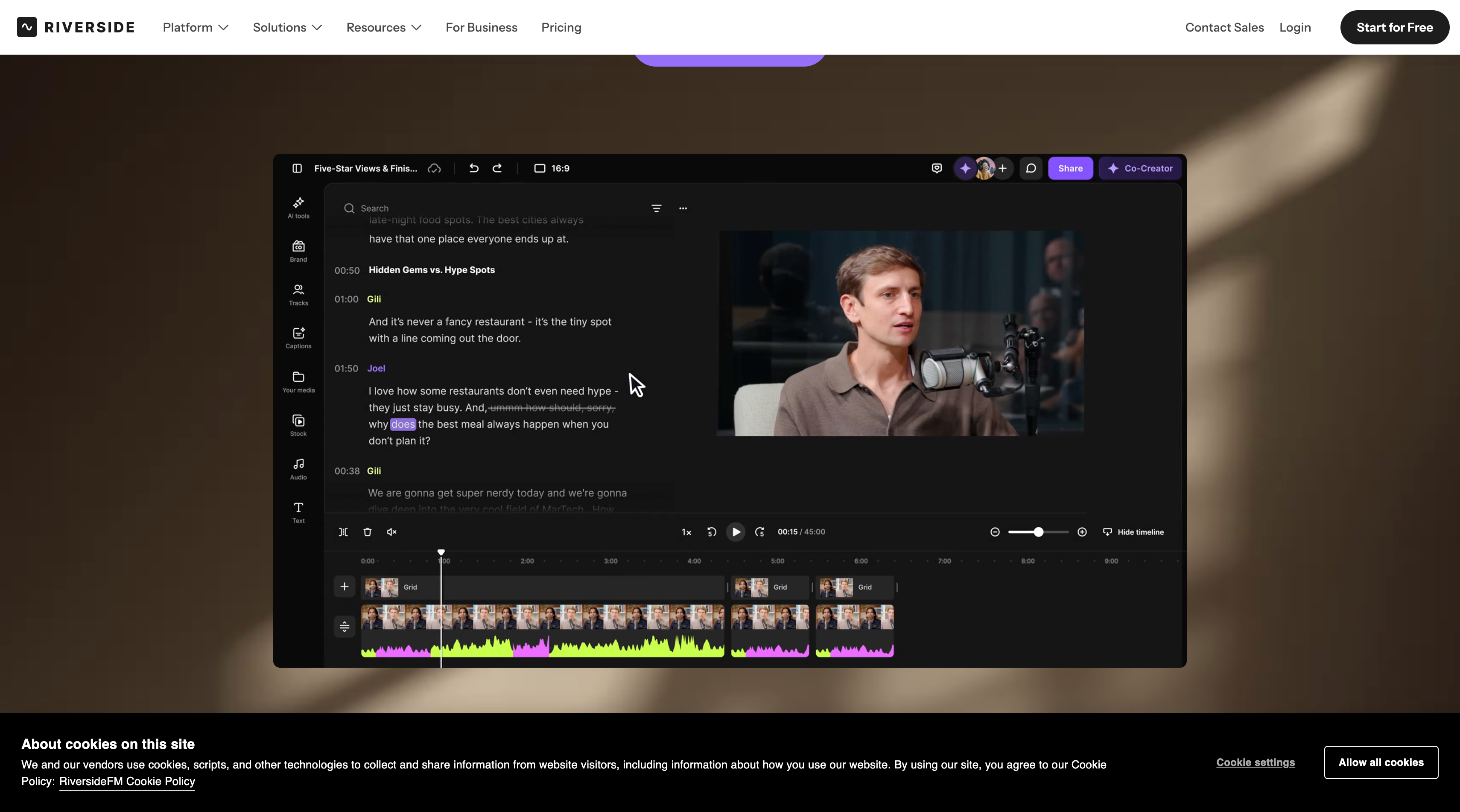
Riverside starts earlier in the workflow than the other tools in this list. You record a conversation with separate speaker tracks, then use the transcript, timeline, layout, audio, and clip controls to shape the episode. Its current editor material also describes agent instructions, so the service now combines recording, project editing, and guided automation instead of only handing files to another editor. The working path is record the conversation, wait for separate tracks, edit from the transcript, adjust layout and audio, make clips, and export the episode or clips.
The overlap with ChatCut is the editable conversation workflow: transcript changes, timeline changes, layout decisions, and instruction based assistance can sit beside the media. The difference is the source. Riverside can preserve the information created during the remote recording session, including separate speaker tracks. ChatCut is the more relevant comparison when you already have media and want to import, sync, edit, add captions or generated media, and keep the project adjustable. If you bring a mixed recording into Riverside or ChatCut, do not assume either service can recover microphone control that was never recorded separately.
Wisecut
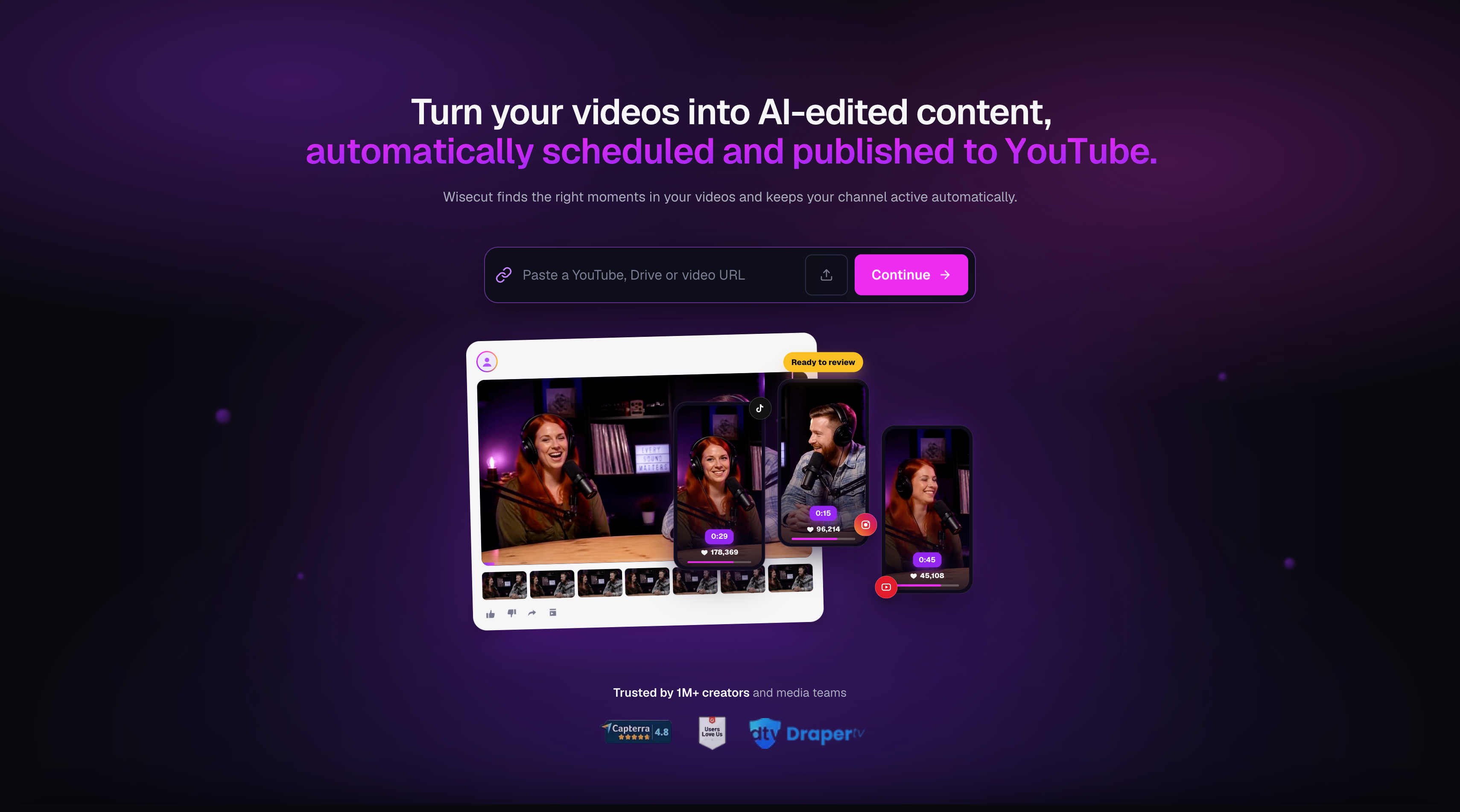
Wisecut is built around an automated first pass for speech led videos. The homepage workflow accepts a YouTube, Drive, or video URL, then presents AI edited content with highlights, reframing, subtitles, and publishing or scheduling options. Its WISH instruction layer gives the workflow a conversational surface, but the product’s main promise remains automatic cleanup and recurring distribution. The working path is paste a URL or upload a video, review the generated first pass, correct the moments or framing that need attention, and then publish or schedule the result.
That is similar to ChatCut’s ability to make a first pass from a clear request, especially when a talking head recording has obvious pauses or a social clip goal. The difference is how much of the edit you need to own afterward. Wisecut is attractive when the same cleanup and reframing pattern repeats across many speech led videos. ChatCut is a better fit when you need to inspect the transcript, change one phrase, preserve a pause, adjust a particular track, or continue into graphics and other project edits. Test a thoughtful pause and a speaker interruption, not only a clean single speaker clip. The guide to removing silence and filler words explains how to request cleanup and decide which pauses to keep.
OpusClip
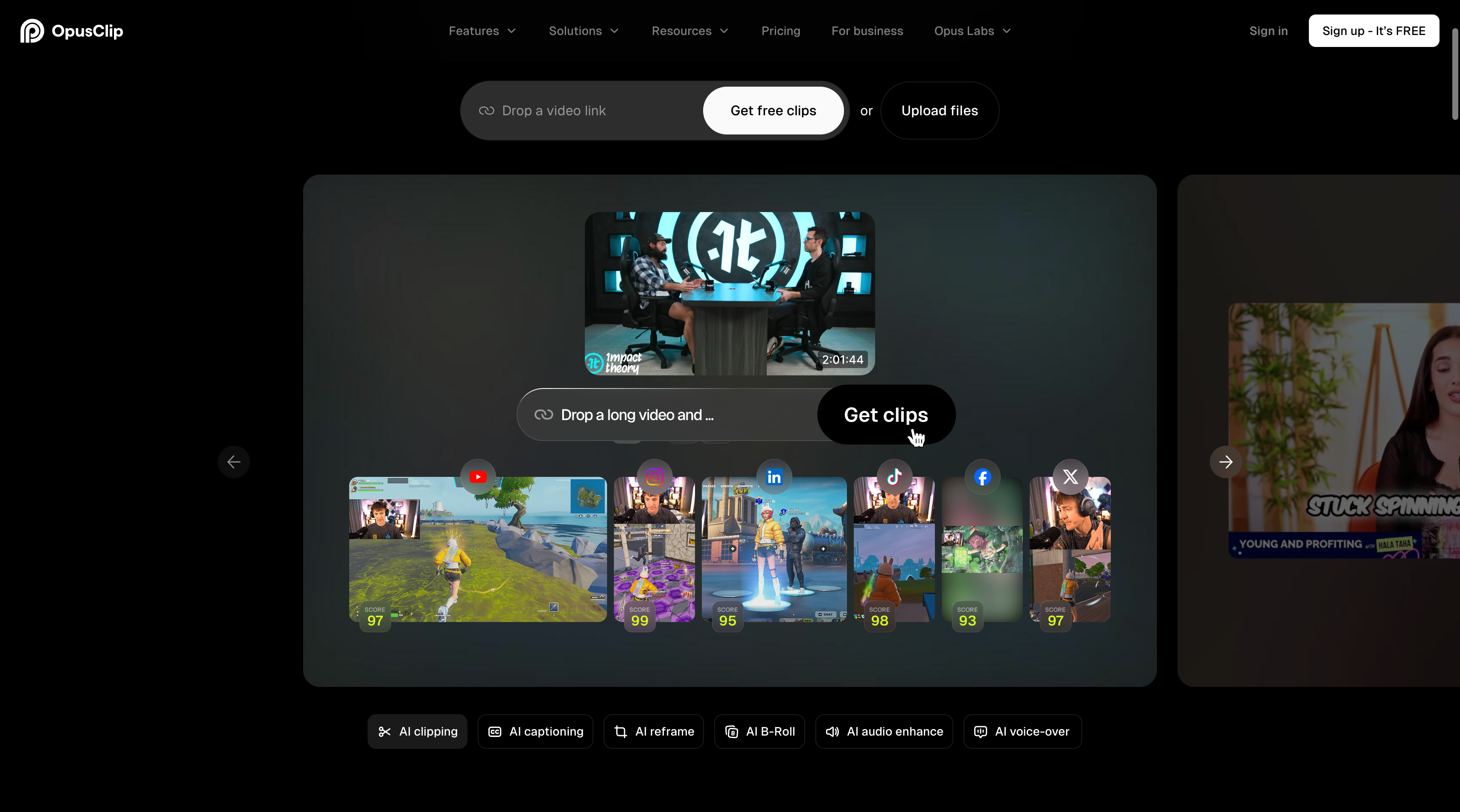
OpusClip’s core workflow is long video to short clips. You provide a video link or upload a file, the system finds candidate moments, and you review suggested clips with scores, captions, reframing, and platform outputs. Its current product material also describes prompt based features such as ClipAnything and an AI that edits with you. That adds an agent like instruction layer, but the main job remains finding and packaging moments from an existing episode. The working path is drop a link or upload the long video, choose a clip goal or prompt, review scored candidates, adjust captions or reframing, and export the social versions.
This overlaps with ChatCut when the request is “find the strongest moments and make social clips.” Both can start from a goal rather than a list of timestamps, and both give you an AI first pass that should be reviewed. The boundary is the project being edited. OpusClip is optimized for a distribution pass from a finished long video. ChatCut is designed to keep the episode project available while you correct the transcript, adjust the timeline and tracks, add captions or other media, and make a different deliverable from the same source. Choose OpusClip when clip discovery and volume are the bottleneck. Choose ChatCut when the original episode still needs editorial work before the clips are ready. To try the latter workflow, follow the guide to turning a long video into short clips, including selecting moments, reframing speakers, and reviewing captions.
The useful comparison is therefore not “which tool has AI.” All six have an automated or instruction based layer. Ask where your work starts, what the first result contains, which parts remain editable, and whether you need the original multitrack episode after the clips are made. Those answers will usually narrow the choice faster than a list of feature names.
Check the tracks and camera decisions your show cannot lose
If one guest is too quiet or two people speak at once, you need access to the right recording. Check for separate audio tracks before assuming a transcript’s speaker labels will let you change each microphone.
A transcript label helps you read who spoke. An audio track lets you change a microphone’s level independently. Synchronization aligns recordings in time. Camera switching chooses which picture appears in the edit. One feature does not imply the others.
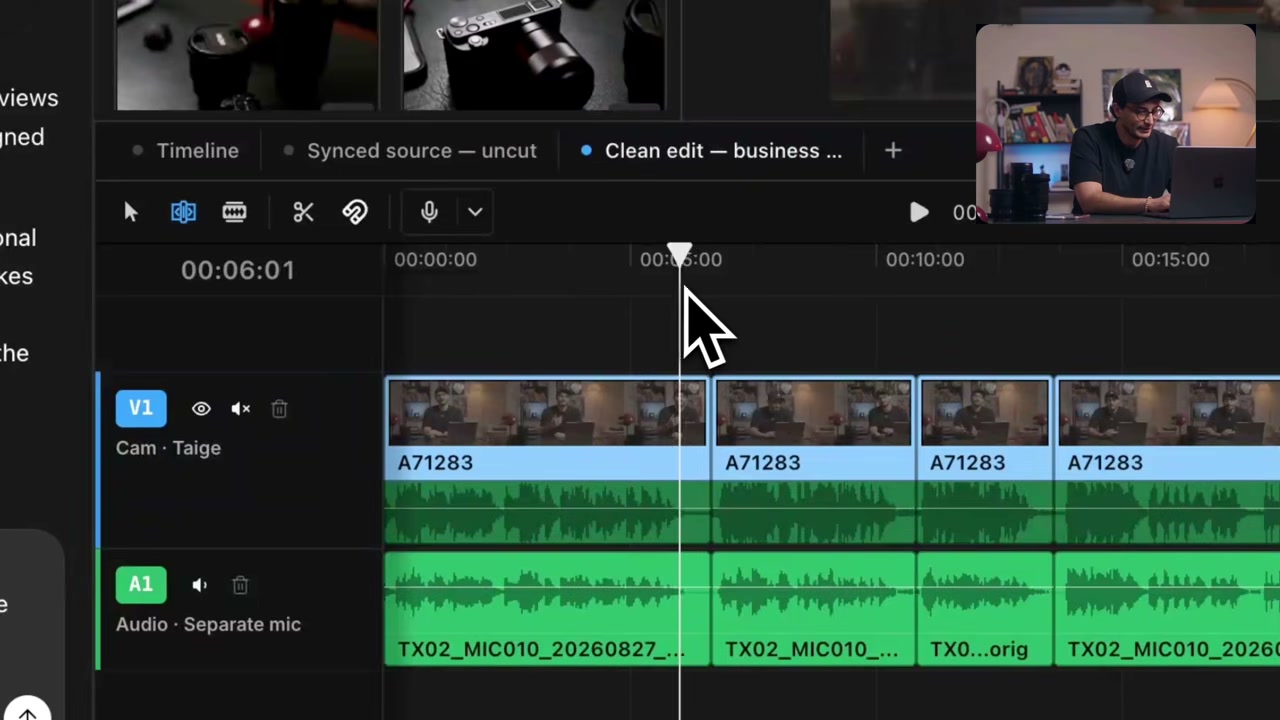
Test a restoration as well as a deletion. Returning a phrase to the video while leaving a separate microphone unchanged can create a problem that was absent from the first cut. Listen and inspect the result at both ends of the revised range.
Compare the handoff, not a feature checklist
List the full video, audio episode, subtitles, transcript, social clips, and editable handoff before choosing a plan. Test the actual required output from a short project.
Decide whether you are delivering video as well as audio before choosing the plan. In February 2025, YouTube reported more than one billion monthly active viewers of podcast content. That is YouTube’s platform figure, not your potential audience or an editor quality score. It makes video layouts, camera review, and separate audio delivery worth considering even when the show began as an audio podcast.
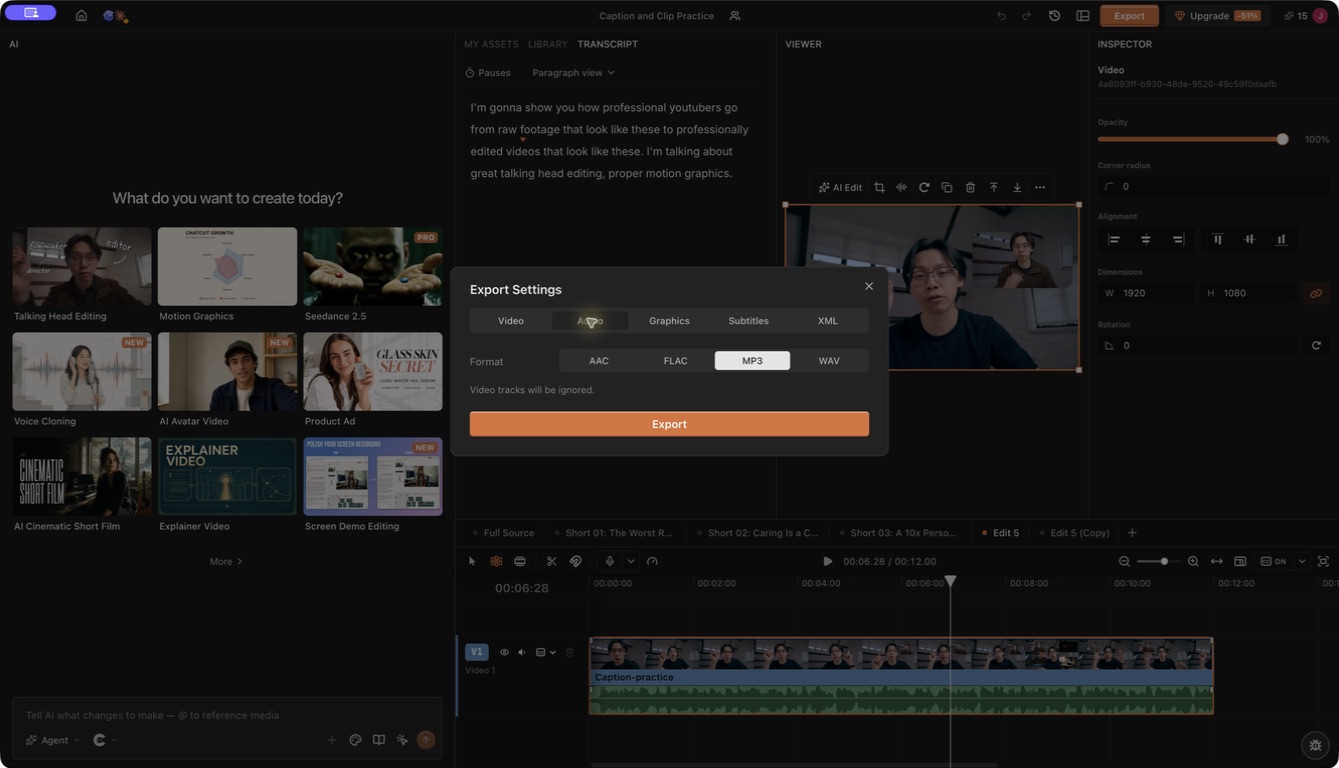
ChatCut documents video, audio, and subtitle exports as well as XML exports. Its XML can omit captions, effects, transitions, and other unsupported items. An imported timeline needs inspection and may need media relinking. Equivalent handoff claims in another product should be checked against that product’s current plan and format documentation.
Frequently asked questions
Which AI podcast editor should I choose for my workflow?
Start with where the work begins. Riverside fits a recording first workflow with separate guest tracks. Descript fits a transcript first workflow. FireCut fits a team already working inside Premiere Pro or DaVinci Resolve. Wisecut fits an automated speech cleanup pass. OpusClip fits turning a finished long video into social clips. ChatCut fits an imported project that still needs natural language changes, transcript edits, track level corrections, or several editable deliverables. Compare two suitable candidates on the same difficult passage.
Do speaker labels let me change each microphone separately?
Speaker labels identify text, but independent microphone control requires the relevant separate recordings or tracks. Import a sample and test one quiet voice or overlapping exchange. A mixed file does not necessarily provide the control available from separately recorded microphones.
Does multicam sync automatically choose the best camera?
ChatCut’s multicam sync aligns recordings using recognizable overlapping audio and places or moves them on separate tracks. Camera selection is a separate editing decision. Check alignment with a clear phrase or clap, then review the chosen picture through speaker changes.
Should I export audio, video, or separate podcast clips?
List the destinations before choosing a plan. You may need a full audio episode, filmed episode, subtitles, social clips, and an editable project. Test those exact outputs on a short sequence and play the files. Inspect any XML handoff for missing elements and media that needs relinking.
How do I compare podcast editing plans fairly?
Count source hours, seats, AI actions, and rendered outputs using each plan’s actual quota unit. Four 60 minute episodes plus three one minute clips per episode produce 252 minutes of video delivery before revisions. That workload is different from four hours of uploaded source.
Which option works without Premiere Pro?
ChatCut, Descript, Riverside, Wisecut, and OpusClip provide their own editing workflows. FireCut is the host dependent option in this list and also offers a DaVinci Resolve integration.
How does OpusClip differ from a full podcast editor?
OpusClip starts with a finished long video and finds moments to package as short clips. A full podcast editor keeps the episode project available for transcript changes, track corrections, camera decisions, and new exports. Use OpusClip when clip discovery is the bottleneck. Use ChatCut when the episode still needs editorial work before you publish its clips.
Can an AI editor finish a two hour interview unattended?
It can produce a first pass, but someone must judge context, omitted qualifications, pacing, picture, and sound. Check the complete episode and actual exports before publishing.
Which free option should I try?
Try the plan that permits your representative sample and required output. ChatCut’s Free guide separates core editing, starter credits, paid capabilities, and cloud rendering allowance. Check comparable limits directly for the other candidates.
Do these tools work in every language?
Language support and recognition quality differ. Test names, specialist vocabulary, overlapping speech, and captions in the language of your show before processing the entire recording.
Choose the editor that protects your hardest podcast handoff
Decide whether your next delivery is a full episode, a multicam interview, an audio only file, or several clips. Test that exact handoff with a real interruption and the tracks you normally use. ChatCut is a useful route when you want transcript and agent instructions to produce an editable timeline you can inspect; another tool may fit better when its recording or distribution workflow is the part you repeat most.
Before paying, play the result, check speaker labels and camera choices, and confirm the export or transfer your team needs. A plan comparison becomes meaningful only after the source, review standard, and final deliverable are the same.