How to Edit Videos Without Premiere Pro and Keep Control
Quick summary
Leaving Premiere Pro is a workflow choice. Match the alternative to the hardest part of the job, test one representative recording through import, editing, captions, sound, and export, then check which project features and assets survive the handoff.
People leave Premiere for different reasons. A creator may want a faster way to cut spoken footage, a team may need a simple social edit, or an editor may still require detailed color, audio, and effects. The right alternative depends on the part of Premiere you are trying to replace, not on the cheapest feature list.
Use a short version of your real project as the test. In ChatCut, import the recording, open Transcript, and ask, “Make a concise introduction. Keep the problem, demonstration, and next action. Remove repeated takes but preserve qualifications.” Play the editable timeline, add captions and sound, and export it. If you need a native project or complex effects, run the same source through the desktop alternative before you move the full job.
Choose what you are trying to replace
Match the editor to the hardest part of your job. A spoken interview, a clip with designed text, and a project needing detailed color work can lead you to different choices. The table compares documented routes; it does not rank six editors from a shared test.
| Editor | A useful starting reason | Check before a full project |
|---|---|---|
| ChatCut | Transcript cuts, agent instructions, and an editable timeline | Connection, cloud export allowance, and generation charges |
| DaVinci Resolve | Editing, color, audio, and effects in one desktop application | Hardware, media compatibility, and Free versus Studio features |
| Clipchamp | Straightforward clip assembly and text | Current export settings and account entitlements |
| Shotcut | A free, open source desktop timeline | Import, playback, and export with your actual files |
| CapCut | An existing social video workflow you already know | Feature availability, assets, and export terms for your region and plan |
| Canva | Video assembled with designs and brand material | Required editing controls and asset permissions in your account |
DaVinci Resolve is a complete editor. Its color, Fusion, and Fairlight workspaces are part of a broader production workflow; the free application and Studio have different capabilities. Do not assume a feature shown in a Studio demonstration is included free.
Clipchamp provides clip editing, text, and other common video tools. Shotcut offers a desktop timeline and a documented set of format and filter capabilities. Import a short file and export it before committing to either for a large delivery.
CapCut and Canva are also options for short social edits and designed video layouts. Check the export watermark, included assets, and AI allowance in the account you will use before building a project around a paid feature.
Test the file that could break the move
Try a source file that can reveal a problem before you commit. For a phone clip, inspect rotation and any HDR color change. For an OBS recording, confirm that the microphone and game tracks arrive. For an ongoing Premiere project, transfer a small sequence with its actual media. Importing an MP4 successfully does not establish that the editor can reproduce a native Premiere project.
For a free desktop timeline across those systems, Shotcut’s download page provides macOS, Windows, and GNU/Linux builds. At this September 18, 2026 check, the current release is 26.8.1; its macOS build requires macOS 12 or later, and the current Windows choices cover Windows 10 and 11. Older systems have separate older releases. Use the download matching your OS and processor, then test your source codec and playback.
For a browser route, ChatCut and Clipchamp avoid choosing a native editor package, but your browser still needs media access and usable playback. Treat a desktop application, its web editor, and an external agent plugin as separate routes when checking compatibility.
Follow the cost and resolution to the final file
Follow the cost through to the file you need. Check whether you can use your chosen tools and assets, export at the required resolution, and make another version without exhausting an allowance.
ChatCut’s current Free and Pro guide includes manual timeline editing, uploads, transcription, and standard project work in Free. Free web and cloud video rendering has a cumulative 60 minute account allowance. Generation consumes credits, and some model or output capabilities require Pro.
The export limits guide distinguishes cloud rendering from local Desktop export. A local export option also does not imply that every AI generation task runs on your computer.
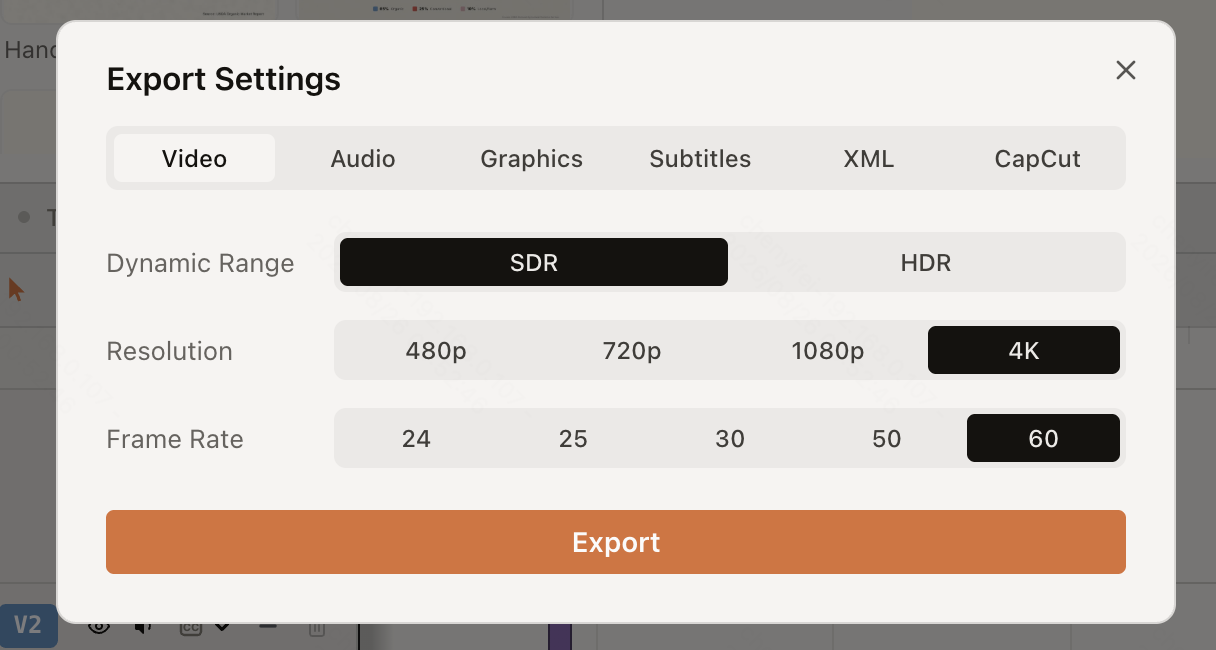
For an independent video you want to finish without a cloud duration allowance, ChatCut Desktop’s local video export supports 4K and does not use the Free cloud video quota. The documented 4K setting targets a short side of 2160 pixels, so consider the canvas orientation. Audio, graphics, and some export bundles may still use cloud rendering. Choose the video route you need before comparing “free export” claims.
Keep source files and any licenses for music, fonts, or stock media. A project that opens successfully is not yet proof that all its selected assets can be used in the intended delivery.
Use a small real project as the migration test
Build the story first, then add captions and sound. Use a short recording for this practice so you can inspect every cut.
1. Import the footage
Open a project and use My Assets to upload the source. Place it on the timeline and wait for processing. For a separate microphone recording, import both files and check alignment before editing.
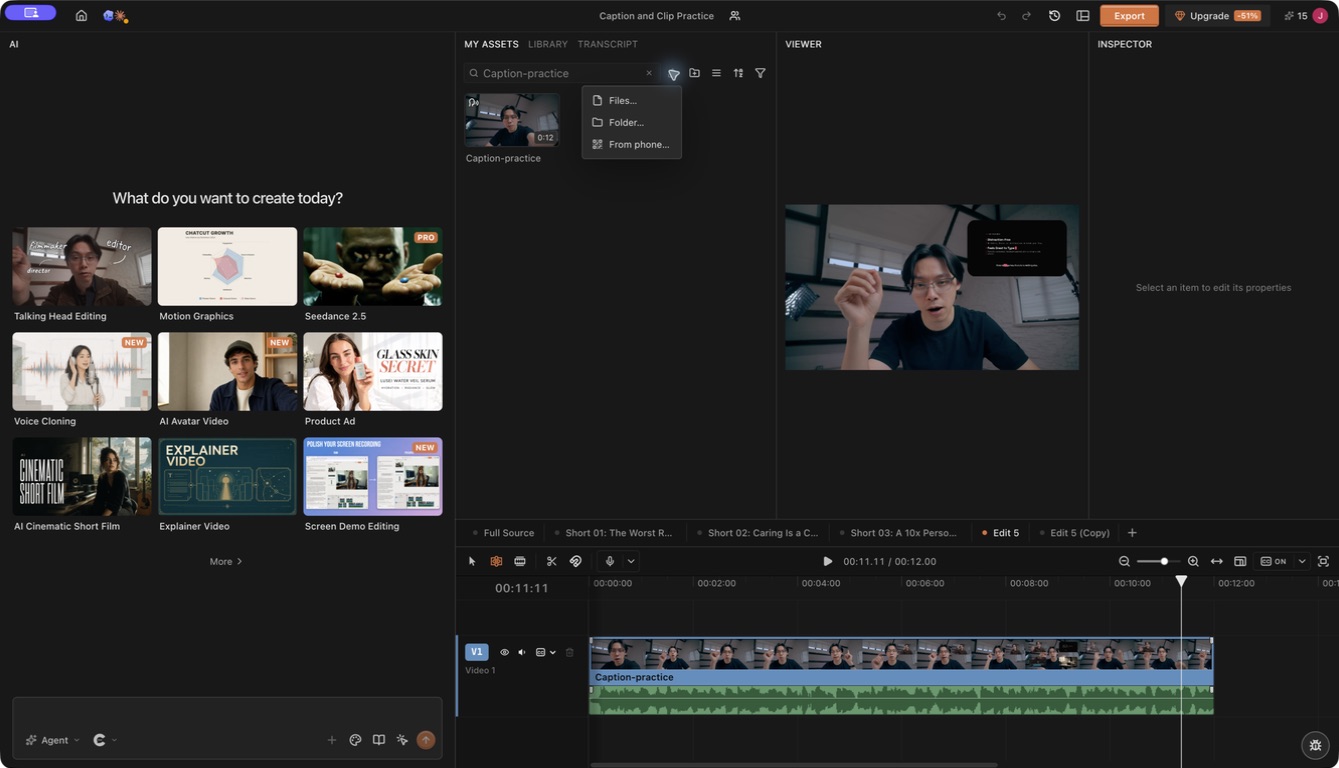
You can also work through the Agent Plugin in a supported desktop app. That setup is separate from opening the ChatCut web editor.
2. Remove the parts the viewer does not need
Open Transcript and select an abandoned take or repeated explanation. Delete it to cut the corresponding recorded range, then play the join.
For a broader first pass, describe the intended audience and the parts that must stay:
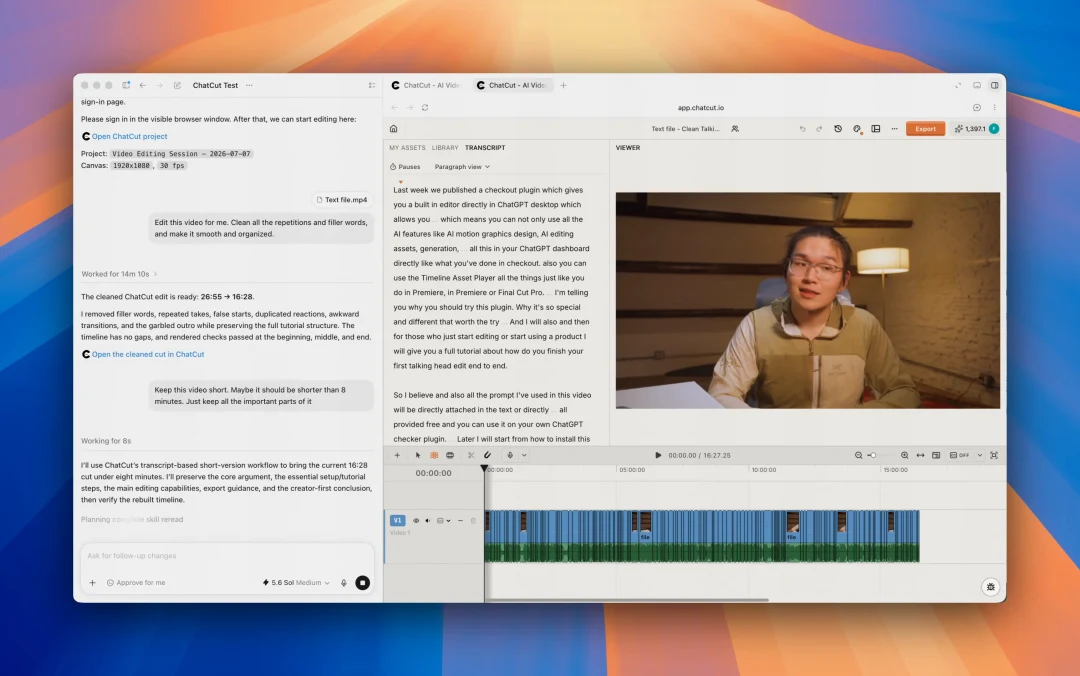
Make a concise introduction from this recording. Keep the problem, the demonstration, and the next action. Remove repeated takes, but preserve qualifications and pauses that help the explanation.
3. Add captions and supporting material
Turn on Captions, correct names and numbers in Content, and inspect the style over several frames. Deleting words in Transcript changes the recording, so use Content when only the caption is wrong.
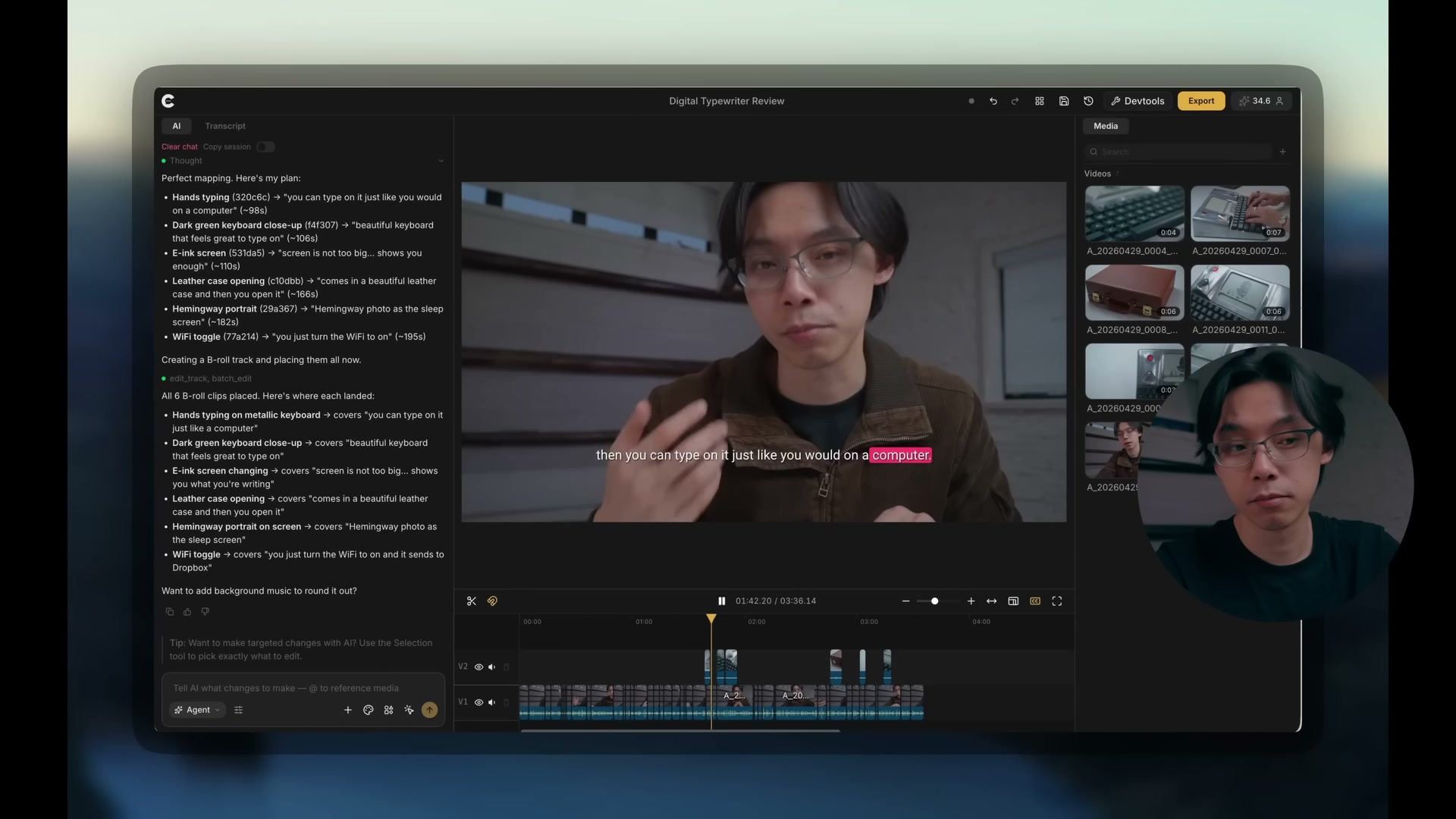
Add a supporting shot or graphic where the viewer needs to see something the words alone do not explain. Keep it on its own track so its timing and placement remain adjustable.
4. Mix sound and export
Keep dialogue and music on separate audio tracks. Adjust the music under the speech and listen through quiet passages. For automatic ducking in ChatCut, set dialogue as the anchor and music as the follower through the track header controls.
Open Export and choose the required format and range. Play the actual file outside the editor, checking its beginning, ending, picture, sound, captions, and orientation.
Protect the handoff your client actually needs
If your client needs the native Premiere project or your cut depends on its plugins, keep that requirement in the decision. Try transferring a small sequence before choosing an alternative for the rest of the job.
For a new independent project, you can choose the editor that fits your preferred way of working. For an ongoing project, test a small handoff first. ChatCut’s XML export can transfer a supported timeline to Premiere Pro or DaVinci Resolve, but captions, effects, transitions, and other items can be omitted.
An XML handoff is not the same as preserving every native project feature. Keep original media and a reference video available, and verify the imported timeline before replacing the existing workflow.
Frequently asked questions
Which free Premiere Pro alternative should I try first?
For a desktop timeline, consider Shotcut; for broader editing, color, effects, and audio work, consider DaVinci Resolve’s free version. For transcript and agent editing, try ChatCut. Check the tools, assets, and export limits your actual job requires before committing the project.
Which option works on Mac, Windows, or Linux?
Shotcut provides builds for all three. Choose the supported version for your operating system and processor. Browser editors such as ChatCut and Clipchamp provide another route. Test the actual codec, rotation, color, audio tracks, and playback on the computer you will use.
Can I export a 4K video without a cloud rendering quota?
ChatCut Desktop’s local video export supports 4K and does not consume its Free cloud video allowance. The documented 4K size uses a 2160 pixel short side. Confirm that you are using local Video export; other outputs or bundles can follow different rendering routes.
Can I move my existing Premiere project to another editor?
Test a small sequence with its actual media before moving the full job. Confirm the supported transfer format, relink the sources, and inspect cuts, captions, effects, and transitions. If the client requires the native Premiere project or a particular plugin, include that requirement in the decision.
What is the simplest way to finish a video without Premiere?
Import a short recording, place it on the timeline, and cut the repeated material. Add captions in Content and keep music on its own track. Play the complete sequence, export the required format, and inspect the downloaded file before moving to a larger project.
Can I edit without installing a desktop application?
ChatCut and Clipchamp offer browser editing. Your browser still needs access to the media and any required permissions. On a managed computer, follow the organization’s rules for uploads and software access.
Is DaVinci Resolve only for finishing?
No. It includes editing as well as color, visual effects, motion graphics, and audio work. Choose it for the complete workflow when those controls fit your project.
Can a beginner use a timeline editor?
Yes. Start with import, cut, playback, and export on a short clip. Transcript and agent instructions provide additional ways to express an edit; they do not remove the need to review it.
Is this a test of six editors on the same footage?
No. The choices above follow documented workflows. A fair speed or quality comparison would require the same source, task, output requirements, and review standard.
Leave Premiere only after the replacement survives your test
Name the hardest part of your current project, then test a representative source through import, cutting, captions, sound, and export. ChatCut is a useful route for transcript and agent edits when you want an editable timeline; Resolve or another desktop editor may fit better when the project depends on detailed color, effects, audio, or native Premiere features.
Check what transfers, what must be rebuilt, and which export or generation limits apply. Play the actual file and inspect the handoff before you move the rest of the project.