ChatGPT Plugins for Creators Who Edit Videos Every Week
For recurring video work, the ChatCut plugin lets you direct an edit from ChatGPT. ChatCut’s Skills let you reuse the editing instructions that worked: save the method, attach it to a new request, and supply the next recording. Each episode gets a familiar starting approach while keeping its own material.
A recurring interview may need the same cleanup steps and the same rule about keeping qualifications with a quote. Repeating those decisions in every brief is avoidable; deciding which answer deserves a clip still requires this week’s recording. Separating the two helps you keep a consistent series without forcing every episode into the same cut.
The ChatCut Skills workflow is available in ChatCut’s own editor composer. The steps below show how to save an editing method there, attach it to a fresh brief, and check that the new edit fits the material.
Which editing instructions are worth reusing?
Keep the rules you would want applied to another guest’s recording, such as preserving the context of a quote and checking both faces after a layout change. Supply that next guest’s name, chosen passages, timestamps, and output names in the new brief.
For a weekly interview, the reusable method might be: propose complete ideas, preserve qualifications, wait for the creator’s choices, build separate timelines, review framing and captions, and export approved cuts. The next episode still needs new editorial selection. A previous guest’s strongest quote cannot become a rule for every future guest.
| Reuse in the method | Supply for the next recording |
|---|---|
| Preserve the question when its answer needs context | This episode’s source files and intended audience |
| Keep each accepted idea on its own named timeline | Which ideas and source ranges were accepted |
| Review both faces after a layout change | This recording’s cameras and speaker positions |
| Check names and numbers against the audio | This guest’s name and specialist vocabulary |
| Play the final files before distribution | Required platform, format, destination, and approval |
A Skill stores instructions for the agent. It does not contain the previous episode’s footage, so attach the recordings for the new job. If you have not connected ChatCut to ChatGPT yet, the installation walkthrough takes you through setup and a first edit.
How do I save an editing workflow in ChatCut?
Open a project where you and the agent have worked out an approach worth repeating. Review the timeline first so you can describe what worked and what needed correction.
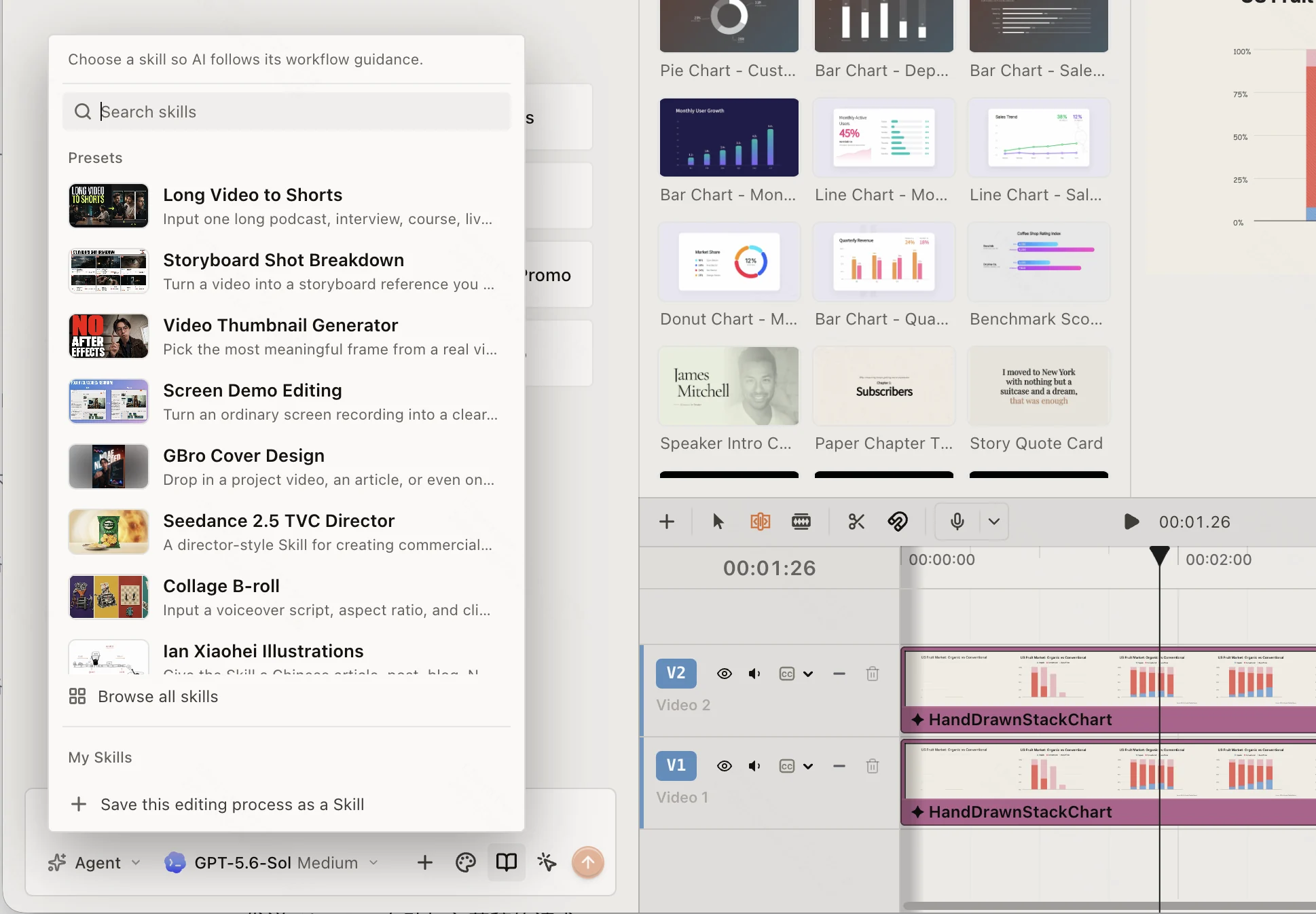
Select Save this editing process as a Skill and send the request it adds to the draft. Answer questions about missing steps or preferences, then review the agent’s summary before confirming the save. This documented flow records the process without changing the timeline or assets.
For example, ask it to retain the rule that highlights must make sense outside the episode. If the summary says “always make three 30 second clips,” correct that before saving unless it is truly your recurring requirement. A convenient choice in one project should not silently become a permanent constraint.
Give the saved workflow a recognizable name such as “Interview clips for hiring managers.” Find it under My Skills. The documentation says personal Skills are available across your ChatCut projects; you do not need to duplicate the old project merely to reuse its method.
How do I use that workflow on the next recording?
Create or open the next project and import the new source through My Assets. In the AI composer, open the book icon, find your workflow under My Skills, and select it. Confirm that it appears as an attachment before sending a project specific request.
Use the attached interview workflow on this week’s recording for first time hiring managers. Propose complete ideas about evaluating candidates. Keep the conditions attached to each recommendation and identify any missing context. Show the candidate ranges before creating separate vertical timelines.
This is an example brief. Change the audience and subject to match the source. The attached Skill supplies the method; the prompt supplies the current job. According to the Skills guide, the attachment guides that request. Attach it again when a later request should use the same workflow.
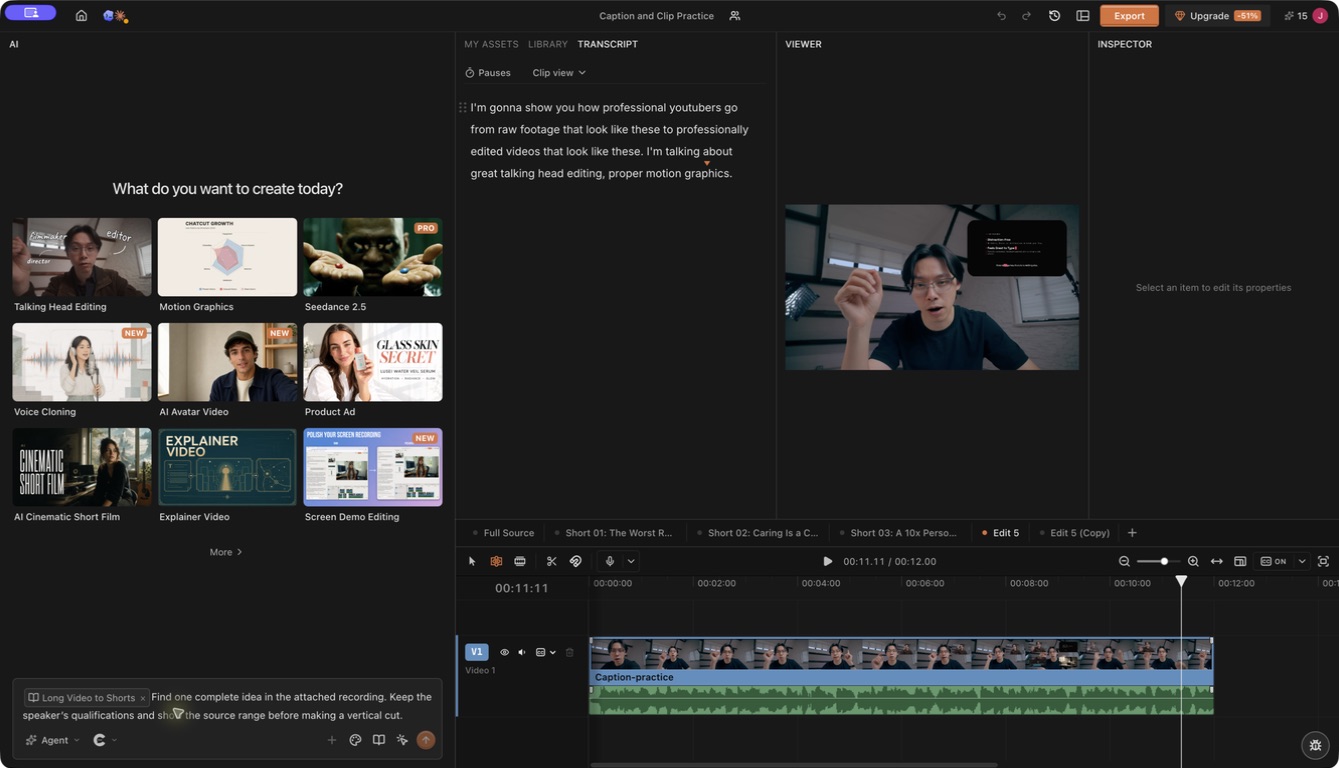
Review the proposed clips against the original conversation, approve the useful ones, and inspect the resulting timelines. A saved instruction cannot determine whether a new answer is accurate or complete without considering that recording.
Can I start with an existing Skill?
If you have not built a reusable method yet, a published Skill can give you a starting approach. Open Skills → Browse all skills to enter the marketplace. Review the description, author, and available previews, then choose Use this Skill and add the source and intended result to the draft.
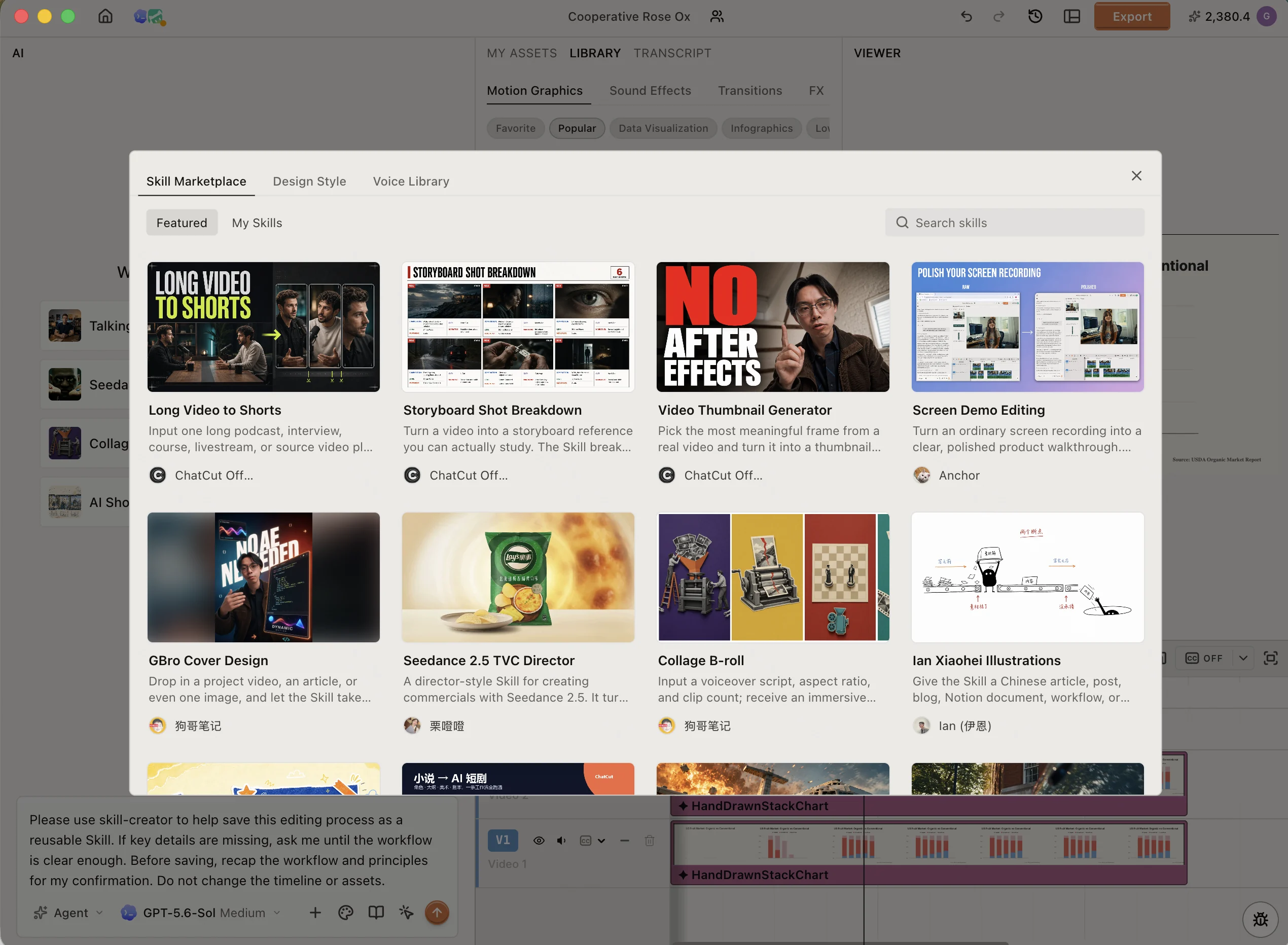
Long Video to Shorts is a starting point for extracting complete ideas from an interview or similar recording. Screen Demo Editing addresses a screen demonstration, where preserving the click and resulting state can matter more than tightening every pause. Read the selected entry’s instructions and compare its first result with your source before adopting the process.
Keep workflow, graphics, and captions in their own controls
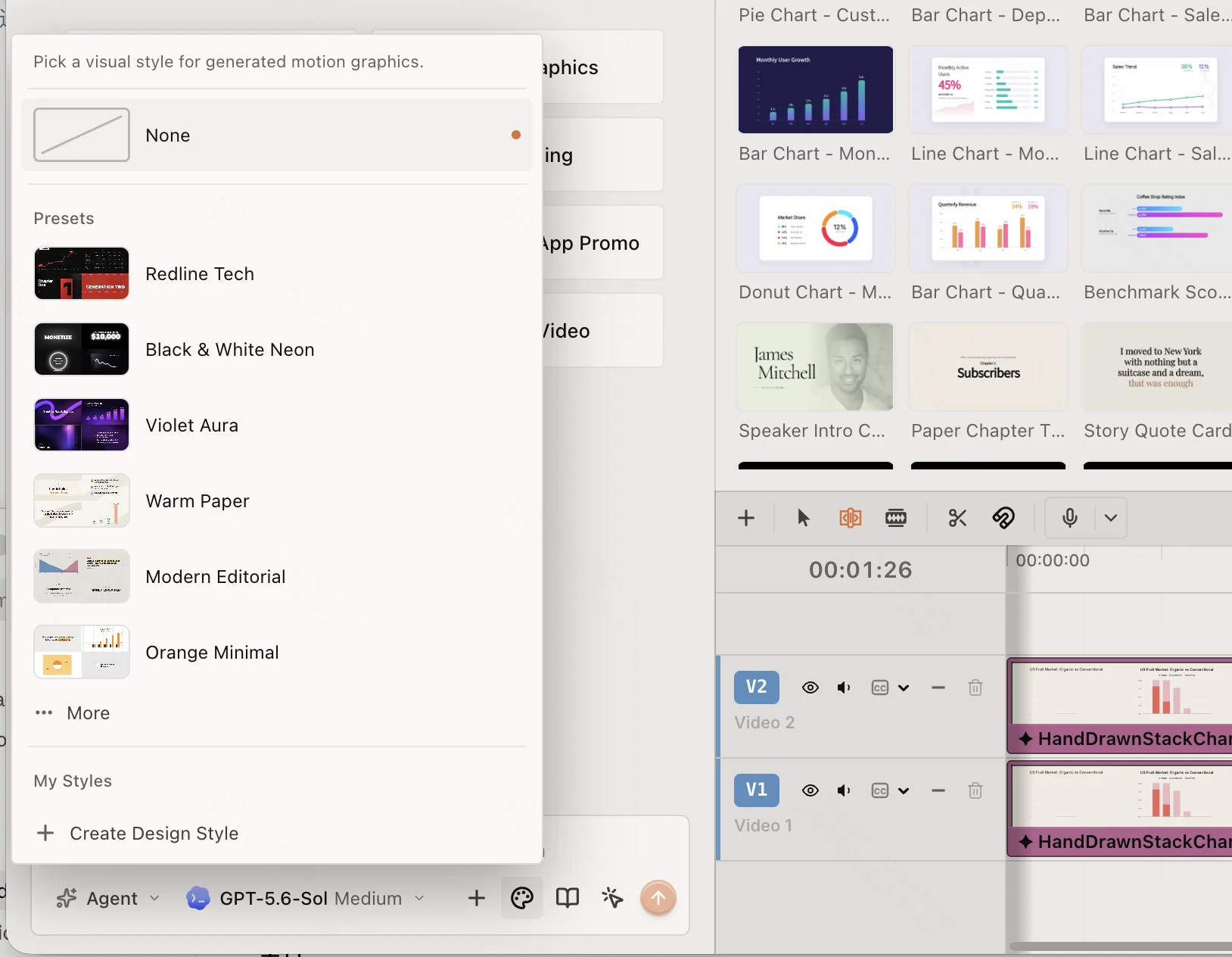
The editing method and the video’s appearance can be reused separately. A Skill can guide how clips are chosen even when this week’s captions or graphics need a different look.
If every new interview should follow the same selection and review sequence, save a Skill. If graphics should share fonts, colors, and a logo treatment, use a Design Style. If captions should share their type and emphasis, use Caption style → Save current style. Review the actual placement on each new recording, because a previously safe position may cover a new speaker’s face.
Make the final editorial decisions on every recording
Choose the clips for the new audience, verify the speaker’s context, correct names and numbers, and review the framing. Confirm any new generation estimate and the intended export. A familiar method may still put the speakers in the wrong part of a new frame. The two speaker reframing example shows how a targeted correction can keep both people visible.
If the workflow repeatedly makes the same mistake, revise the process you intend to save. If the problem occurs only once, target that clip and range in a regular prompt. Adding every exception to the reusable instructions makes the next job harder to direct.
Keep the video review in your recurring method: play the exported clip, check names and framing, and confirm where it will be posted. That gives the next episode a useful finish line as well as a familiar starting point.
Frequently asked questions
What part of my recurring video workflow should I save?
Save the selection criteria, editing sequence, and review checks that worked across the project. For an interview series, that might include keeping complete answers and checking faces in each vertical version. Supply the next episode’s quotes, timestamps, audience, and priorities in a fresh brief.
How do I save a successful editing method in ChatCut?
Open the completed project, review what worked, and use the Skills save flow in the editor’s composer. Check the proposed summary before saving it under a useful name. Saving the method leaves the existing timeline and assets unchanged.
Should I save a Skill, a Design Style, or a caption preset?
Use a Skill for the editing method, a Design Style for the visual direction of generated graphics, and a caption preset for text appearance. You can reuse them together, but each still needs review against the new footage and intended result.
How do I apply a saved workflow to the next recording?
Import the new source, open the book icon in the composer, and select the workflow under My Skills. Confirm its attachment is visible, add the current brief and source references, then send the request. Selecting the Skill alone does not execute an edit.
Should a correction to one clip become part of my saved Skill?
Keep a correction to one face crop or one unusual pause in that clip’s request. Update the reusable method when the same problem appears across recordings, such as consistently choosing quotes without their qualifying sentence. That keeps the Skill useful without filling it with exceptions from old episodes.
Is a ChatCut Skill installed as a Codex plugin?
These are separate controls. The Agent Plugin connects the external desktop task to editing tools. The Skills controls described here are in ChatCut’s editor composer. Do not assume a personal Skill is automatically installed or attached in another host.
Can I rename the saved workflow?
Open the three dot menu beside it in My Skills and choose Rename. Use a name that describes the recurring job rather than one episode’s title.
When is it worth saving a Skill?
Save it when you expect to repeat the selection rules or editing steps on future recordings. A single unusual crop is better handled with a correction to that clip. Reusing instructions reduces the brief you need to write again; you still review each new recording and result.
Reuse the method, then read the new recording
Save a Skill only after a real edit shows which selection and review rules transfer. Attach it to the next project, supply the new audience, quotes, and output, and inspect the proposed clips before you create or export them. Keep Design Styles and caption presets focused on appearance.
A reusable workflow gives you a strong starting point, not a finished episode. If the same mistake appears across recordings, revise the Skill; if it belongs to one clip, fix that range in a local request and keep the method simple.