The Best ChatGPT Plugins for Video and Creative Work
Quick summary
The best ChatGPT plugin is the one that returns the file or editable change you need. Start with the creative handoff, test one small request in the correct host, and verify the saved result, permissions, and cost before connecting more services. ChatCut is the video route when you want an editable timeline from a natural language request.
People usually search for ChatGPT plugins after a specific task has become tedious: a recording needs a usable cut, a design needs a revision, or an approved draft must reach another workspace. A long list of app names does not answer that problem. The useful comparison is what each connection can change, where it saves the result, and what you still need to review.
For video, open a ChatGPT desktop task with ChatCut installed, attach a short recording, and ask for one change with a clear boundary: “Remove the repeated take from the introduction, add captions, and leave the timeline editable.” The returned project gives you something to inspect in the editor. Use that small handoff to confirm the host, permissions, and output before you connect a design, document, or publishing service.
Start with the result you need back
Name the file or draft you want back, then find the matching task below. Before connecting an account, confirm the host and action listed by that provider.
| Task | Candidate | Connection detail to check |
|---|---|---|
| Edit recorded video | ChatCut | Agent Plugin in the ChatGPT or Codex desktop app |
| Work with Canva designs | Canva AI Connector | Use the design connector, not Canva’s developer documentation server |
| Use or modify Figma content | Figma MCP | Supported client, available tools, and write workflow |
| Read and revise workspace content | Notion MCP | OAuth access and the pages available to your account |
| Generate or process voice audio | ElevenLabs | Current hosted MCP route and supported tools |
| Connect an agent to another business app | Zapier MCP | The selected actions and their destination accounts |
| Work with a website | WordPress.com MCP | Eligible site and plan, connection, and specific enabled tools |
These are workflow candidates, not a claim that all seven appear in one universal ChatGPT plugin store or share an installation path. Use each provider’s current instructions for the app you have.
Installation varies by provider. ChatCut provides the setup prompt below for a desktop task. For the other connections, follow the linked provider instructions and confirm that your app supports the action you need.
What each connection can change in its own workspace
Start with the source you already have: a video recording, design file, brief, or site draft. The following connections give you different ways to work on it.
ChatCut for an editable video
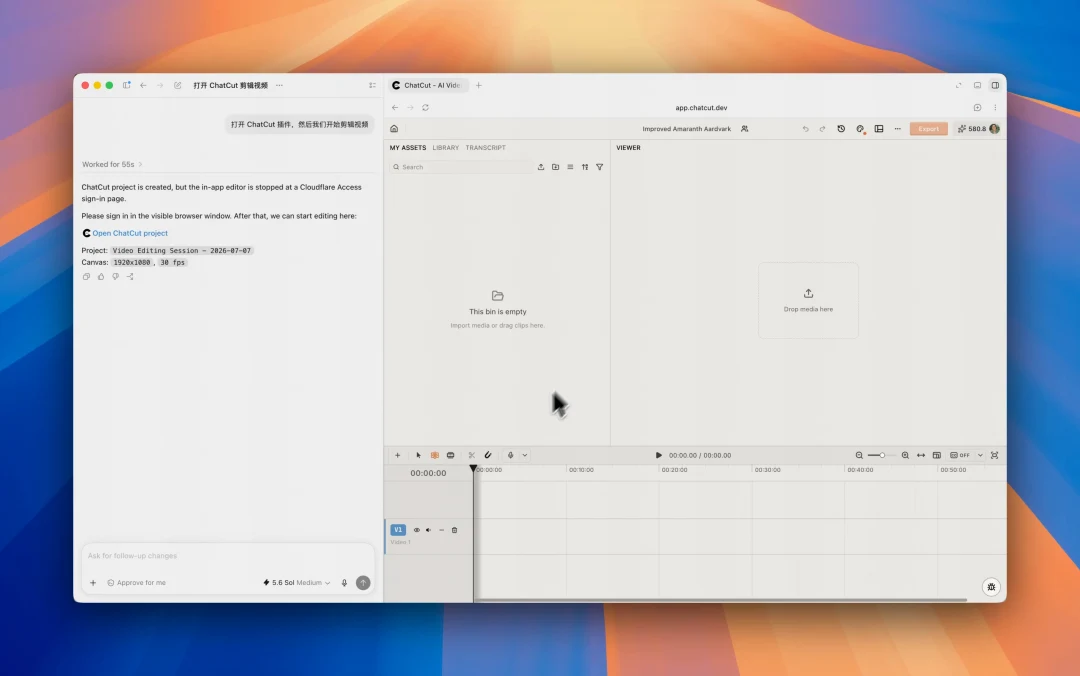
ChatCut’s plugin lets you describe a video edit in ChatGPT and review the result on an editable timeline. It can cut footage, add captions, create motion graphics, generate media, and export the finished video. In a task in the ChatGPT desktop app, paste this official installation prompt:
/goal Read chatcut.io/chatgpt to install the ChatCut plugin and set up a new task for me.Complete sign in when the authorization page opens, then continue in the new editing task the installer creates. Attach a short recording and ask, for example: “Use ChatCut to remove the repeated take and add captions. Keep the timeline editable.” Open the returned project, play the cut, and ask for a correction if it removes something you wanted to keep. The guide to editing video with ChatGPT walks through the first edit and export. The same setup prompt also works in the Codex desktop app.
Check ChatCut’s Free and Pro limits for the exports and generated media you need.
Canva for a design task
Use the Canva AI Connector when your task concerns a Canva design. Canva’s Dev MCP documentation explicitly directs design users to that connector; the Dev server assists with building apps and integrations.
This distinction prevents a common setup mistake: a server that provides development documentation is not automatically the connection that creates a social graphic in your workspace. Verify the design actions and account features you need, including any Brand Kit or premium asset entitlement.
Figma for design context and canvas work
Figma’s current MCP introduction describes reading design context and writing native content to the canvas through supported clients. It recommends the remote server and relevant skills for write workflows.
Use it when the design file, components, or layout are the source of the work. Check the client listed by Figma and the exact operation you need. Do not transfer the limits of a separate FigJam or Slides app to every Figma connection.
Notion for briefs and editorial content
Notion MCP connects a supported MCP client to content your account can access. Its current documentation lists search, reading, creation, and updates, including pages and databases.
Start with a specific brief or page. Ask for a proposed revision and inspect it before updating shared content. If the tool cannot access the page, check the authorized account and workspace controls before assuming that connecting Notion exposes the entire organization.
ElevenLabs for voice and audio
The official ElevenLabs MCP repository now directs users from its deprecated local server to the hosted MCP service. Use the current route instead of copying an old local installation command.
Check the current tool list and plan before selecting narration, transcription, or another audio operation. Preview the actual output and pronunciation. Access to a voice service does not establish a right to clone any person’s voice or a quality ranking against other providers.
Zapier for a specific action in another app
Zapier MCP connects supported agents to actions in connected apps. Choose the accounts and actions needed for your workflow, then try a small task whose result you can inspect.
For example, saving an approved draft to a designated workspace is a different action from publishing it or sending it to a team. State the intended destination and whether the output is a draft. A successful connection does not mean every available action should run automatically.
WordPress.com for site content
WordPress.com’s MCP guide documents its connection routes, eligibility, and enabled tools. It lists ChatGPT and Codex separately, so use the setup for your actual client.
Current documentation covers paid WordPress.com plans, a limited initial period for free sites, and eligible Jetpack connected sites. Check your site’s eligibility before setting up the connection.
Begin with a draft and inspect formatting, links, images, and metadata in the site. Give an explicit publish instruction only after the draft is ready and publication is intended.
Make the first request small enough to check
Name the saved result, not just the service. Ask a design connection to create an editable draft from one approved brief. Ask a document connection to revise one named draft page. Ask ChatCut to import one named recording, remove one repeated take, and leave the timeline available for review.
If your problem is repeating the same video process each week, the next step is saving and reusing that editing workflow. A connection supplies editing actions; a saved Skill supplies instructions for how to use them on the next source.
Verify the next handoff before you automate it
Keep these candidates on the list when they match your workflow, but verify the specific connector before depending on an action. Reading a Drive document, writing a new document, searching Slack, posting to Slack, and generating a video are separate capabilities.
Inspect the current listing and available actions in your account, then check the provider documentation for the operation you need. Confirm the destination and granted permissions with one draft before applying a workflow to a larger set of files.
Likewise, a packaged creative or analytics workflow can combine instructions and several connections. Its name does not establish which subscriptions, accounts, or write actions are included. Choose it for a concrete deliverable and inspect the tools it uses.
Inspect the file, access, and billing route
Open the saved result and compare it with your request. Check the intended file, page, or project changed and that you can make the next revision you need.
For video, inspect the editable timeline and actual export. For a design, open the saved file and check the elements you need to revise. For a document or website, confirm that the intended draft changed and that the result was not published unintentionally.
Keep billing routes separate. Your assistant subscription, the connected service’s plan, generation usage, and automation actions can have different costs. Read the current estimate or entitlement at the point where it affects the task.
Frequently asked questions
How do I choose the right ChatGPT connection for my task?
Name the result first: an editable video, a design draft, a document change, or another saved output. Check which provider exposes that action in the host you use. Test one small task and inspect its destination before connecting more services.
Are ChatGPT plugins and connected apps free?
Costs can come from the assistant subscription, the connected service’s plan, generated media, or metered automation actions. An installed connection does not make every action free. Check the entitlement and estimate for the output you actually need.
Are apps, plugins, skills, and Custom GPTs interchangeable?
No. Follow the setup instructions for the product and host you are using. A service connection supplies supported actions within your permissions; a Skill can supply reusable instructions for those actions. Check the current tool availability before assuming a saved instruction can change an external file.
Where do I install the ChatCut video editing plugin?
Use a task in the ChatGPT desktop app on Mac or Windows, then paste the installation prompt above. Complete sign in and continue in the new editing task. The prompt also supports the Codex desktop app; installation requires a desktop task and is unavailable in ChatGPT on the web or mobile.
Can I create a draft without publishing it?
Specify the destination and draft state in the request, and check that the connection supports them. For video, ask for an editable project and review it before export or distribution. For a page or document, open the saved draft to confirm its location and status.
Does an MCP server expose a product’s complete API?
No. The assistant can use the tools the connection actually exposes and the permissions your account grants. MCP is a connection standard, not a guarantee of unrestricted access.
Do I need to connect my whole production stack at once?
No. Finish one small recurring task with one connection first. Add another when it solves the next real handoff.
Choose a ChatGPT connection by the result it can return
Name the file, draft, or editable project you need before you connect an app. Test one small request in the host the provider supports, inspect what changed, and check permissions and billing while the task is still easy to undo. For video, ChatCut lets you describe a bounded edit and review the editable timeline before export.
Add another connection only when it handles the next real handoff. A protocol name or app listing does not prove that the operation you need is available, that the destination is a draft, or that the result is ready to publish.